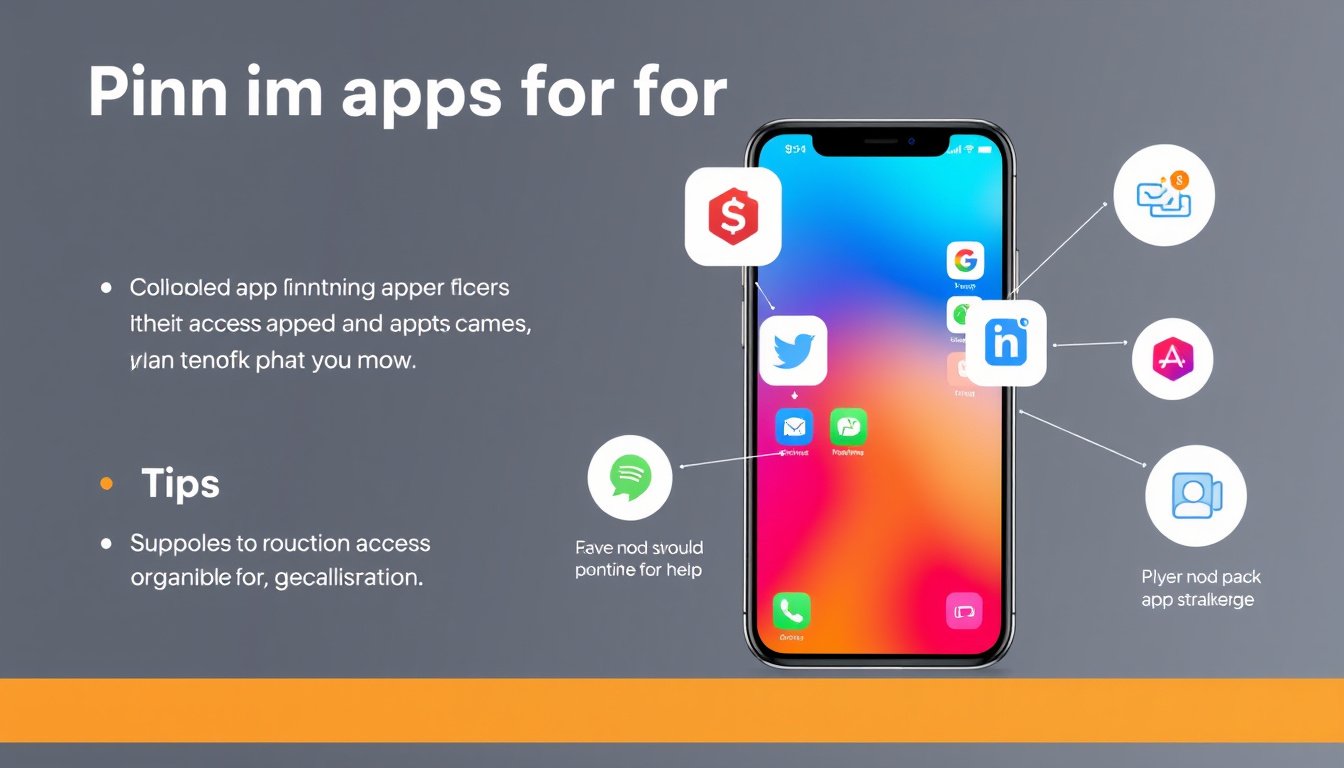

In today’s fast-paced digital world, efficiency is key when interacting with your mobile device. One of the best ways to save time and streamline your mobile experience is by pinning your frequently used apps. Pinning apps lets you access your favorite tools instantly, without the hassle of searching through menus. Whether you use an Android or iOS device, this guide will help you learn how to pin apps and customize your home screen to boost productivity.


What Does It Mean to Pin an App?
Pinning an app refers to the process of “locking” an app icon in a prominent, easily accessible location on your device’s home screen or taskbar. This way, the app remains available at a glance, allowing you to launch it quickly without scrolling or searching. Some operating systems also allow you to pin apps for multitasking or keep apps always active on the screen.
Why Should You Pin Frequently Used Apps?
1. Faster Access
Instead of navigating through multiple folders or tapping through your app drawer, pinned apps are ready to open with a single tap.
2. Better Organization
Pinning helps organize your mobile workspace by grouping the most relevant apps in an orderly fashion, reducing clutter.
3. Saves Time
Imagine the savings over a day or week when you can open your email, social media, messaging, or note-taking app immediately.
Pinning Apps on Android Devices
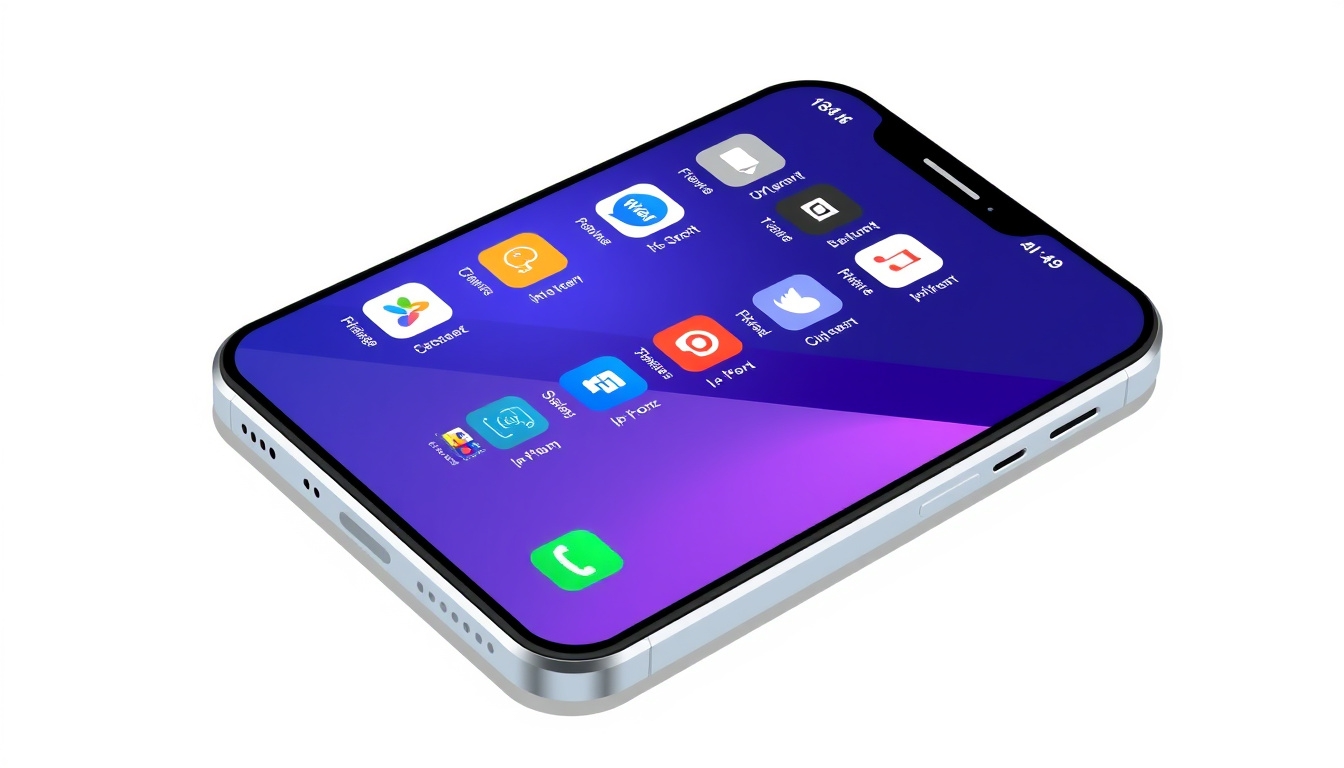
Android offers flexible customization options for pinning apps, generally on the home screen or the navigation bar.
How to Pin Apps on the Home Screen
- Open your App Drawer: Swipe up or press the app drawer button.
- Find the app: Scroll until you locate the frequently used app.
- Pin to Home screen: Tap and hold the app icon, then drag it to your preferred spot on the home screen. Release to place it.
- Adjust placement: Rearrange pinned apps by dragging them into your desired order.
Screen Pinning for App Locking
Android also provides a “Screen Pinning” feature designed to lock your phone on a particular app, useful for lending your device without worrying about others navigating elsewhere.
- Enable Screen Pinning: Go to Settings > Security > Screen Pinning and turn it on.
- Pin an app: Open the app you want to pin, tap the Overview button (the square navigation button), then tap the pin icon.
Pinning Apps on iOS Devices (iPhone and iPad)
While iOS doesn’t use the specific term “pin,” it allows similar functionality through “Add to Home Screen” and organizing apps with widgets.
Add Apps to Dock for Easy Access
- You can place up to four apps in the dock at the bottom of the iPhone screen.
- Tap and hold any app icon on the home screen.
- Drag the app into the dock to pin it for permanent access.
Using Widgets for Frequently Used Apps
- iOS offers widgets where you can add selected app functions or shortcuts on your home screen.
- To add a widget, press and hold the home screen, tap the “+” icon, search for the desired app widget, and add it.
Tips for Managing Your Pinned Apps
- Group by category: Keep work, social, entertainment, and utilities separated for easy identification.
- Use folders: If you prefer a cleaner home screen, group similar apps into folders and pin those folders.
- Review regularly: Periodically assess your pinned apps to ensure they correspond to your current usage patterns.
- Leverage app shortcuts: On both Android and iOS, press and hold an app icon to access shortcuts for specific app functions—another productivity booster.
Conclusion
Pinning your frequently used apps is a simple yet powerful way to take control of your mobile experience. Whether it’s through Android’s home screen or screen pinning features or iOS’s dock and widgets, you can tailor your device for quick app access that fits your lifestyle. Start pinning today to master your mobile navigation, minimize distractions, and maximize efficiency.
By integrating these pinning tips, you’ll transform the way you use your smartphone or tablet, making everyday tasks quicker and more intuitive. Explore pinning features on your specific device to unlock your productivity potential.
About the Author