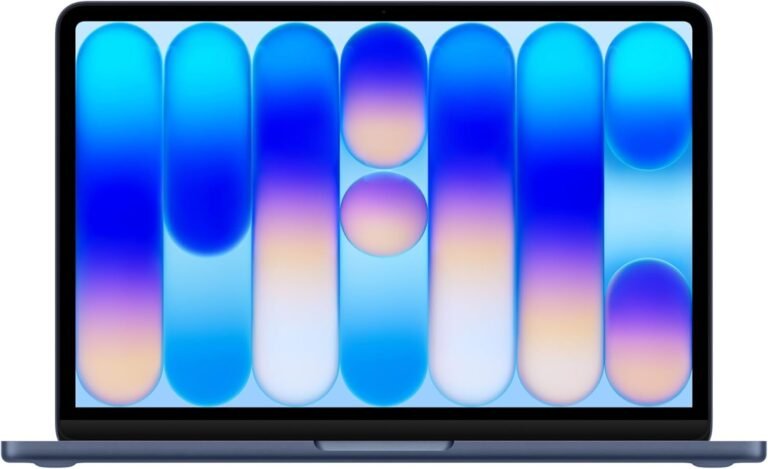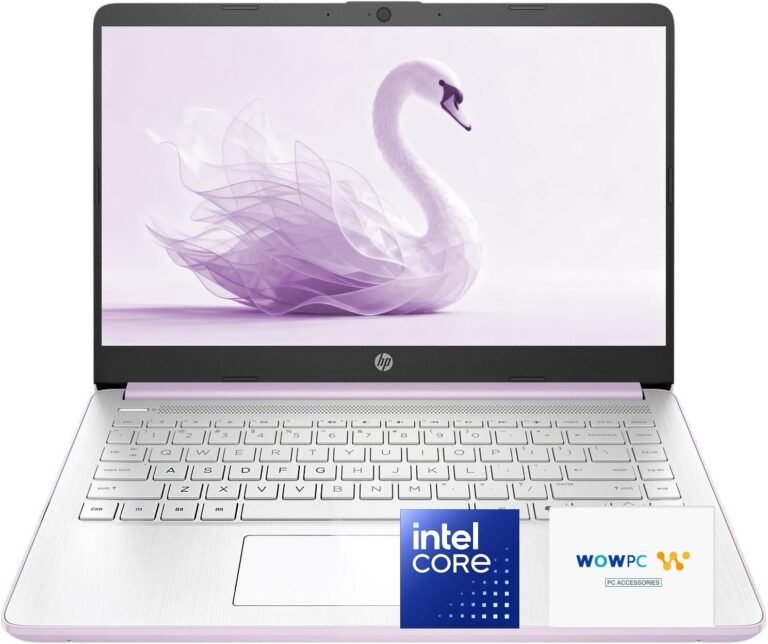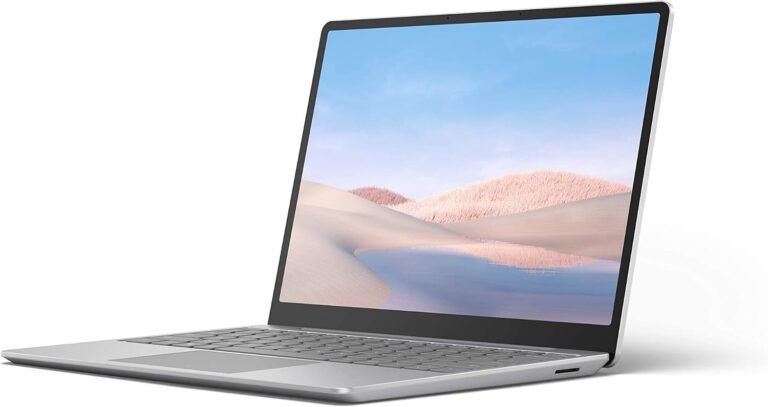

A well-calibrated trackpad is essential for an efficient and comfortable computing experience. Whether you are navigating your MacBook or working on a Windows laptop like Lenovo ThinkPad, adjusting trackpad sensitivity can significantly impact your workflow by enhancing accuracy and reducing fatigue. This guide details how to adjust trackpad sensitivity across popular platforms to help you master your touch with the perfect balance of precision and comfort.


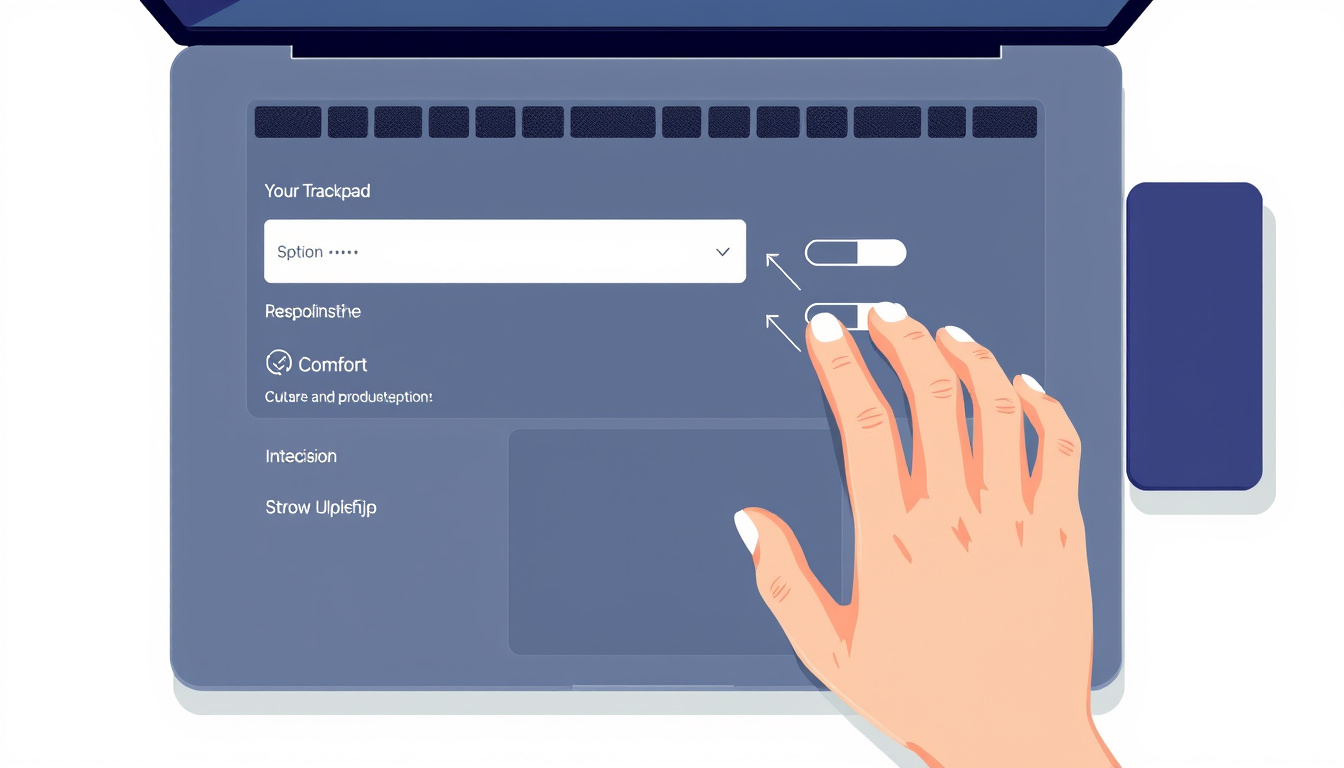
Understanding Trackpad Sensitivity
Trackpad sensitivity determines how fast or slow your pointer moves in response to finger movement on the trackpad surface. Higher sensitivity means smaller finger movements translate into larger pointer movements on the screen, while lower sensitivity requires more finger movement to cover the same distance. Adjusting this setting tailors the trackpad to your personal preference, improving both navigation speed and control.
How to Adjust Trackpad Sensitivity on a Mac
If you’re using a Mac with a built-in trackpad or an external Apple trackpad, follow these steps:
-
Open System Settings: Click on the Apple menu () in the top-left corner of the screen and select System Settings.
-
Navigate to Trackpad Settings: In the sidebar, scroll down and click Trackpad.
-
Adjust Tracking Speed: Under the Point & Click tab, find the Tracking speed slider. Moving it to the right increases sensitivity, allowing the pointer to move faster with less finger movement. Sliding it to the left decreases sensitivity, requiring more finger movement for pointer travel.
-
Additional Settings: You can also customize:
- Click pressure: Set how firmly you need to press to register a click.
- Tap to Click: Enable to tap lightly instead of pressing down.
- Force Click and Haptic Feedback: Enables a deeper click action with tactile response.
- Gesture Controls: Customize scroll and zoom gestures, secondary clicks (right-click), and other multitouch controls.
-
Test Your Settings: Move your finger across the trackpad to see if the pointer speed feels comfortable and precise. Continue adjusting until it fits your needs.
Note: Available options may vary depending on your Mac model and macOS version.
How to Adjust Trackpad Sensitivity on Windows Laptops (e.g., Lenovo ThinkPad)
While Windows laptops vary by manufacturer, the general process for adjusting touchpad sensitivity is quite similar. For Lenovo ThinkPad users, here’s how to do it:
-
Open Settings: Press
Win + Ior click the Start menu and select Settings. -
Go to Devices: Click on Bluetooth & Devices, then select Touchpad.
-
Modify Sensitivity: Look for a setting labeled Touchpad sensitivity or similar. Common options include:
- Low sensitivity (less responsive)
- Medium sensitivity (balanced)
- High sensitivity (more responsive)
- Most sensitive (very responsive)
-
Select Desired Level: Choose the sensitivity level that best suits your finger movement comfort and pointer control.
-
Additional Options: You might also find other toggles such as Tap to Click, Scroll & Zoom, and gesture customizations which can enhance your user experience.
-
Through Lenovo Vantage or Driver Software: Lenovo laptops often come with proprietary software like Lenovo Vantage or Synaptics/ELAN touchpad drivers which may offer more granular sensitivity controls. Open these applications to access advanced settings if needed.
Tips for Optimizing Trackpad Sensitivity
-
Match Your Usage: High sensitivity is ideal for quick navigation or when desk space is limited. Lower sensitivity provides more precision, which is preferable for detailed work like design or editing.
-
Adjust Click Pressure: Some users may prefer a softer or firmer click. Many modern trackpads allow you to adjust this setting.
-
Enable or Disable Tap to Click: Depending on how you use your trackpad, this feature can either increase efficiency or lead to accidental clicks.
-
Use Gestures Wisely: Customizing gestures can help you navigate more fluidly and reduce the need for excessive pointer movement.
-
Give It Time: After adjusting, use your device for a few days before making further changes — muscle memory takes time to adjust.
Troubleshooting Trackpad Issues After Sensitivity Adjustment
If the pointer doesn’t move or feels erratic:
- Double-check you have the correct drivers installed.
- Restart your device after adjustments.
- For Mac, ensure your trackpad is clean and free from moisture.
- On Windows laptops, access the device manager to verify the touchpad is enabled and functioning properly.
Conclusion
Adjusting your trackpad sensitivity is a simple yet impactful way to enhance your device’s usability. By fine-tuning the tracking speed and associated settings on your Mac or Windows laptop, you can achieve the ideal combination of precision and comfort tailored to your needs. Whether you’re a casual user or a professional, understanding and mastering your touchpad sensitivity will improve your productivity and make your device more enjoyable to use.
Master your touch today by customizing your trackpad sensitivity for the smoothest and most responsive experience possible.
About the Author