
In today’s digital landscape, maintaining your computer’s performance and storage health is essential. Over time, devices accrue temporary files, cache data, residual traces from uninstalled applications, and other digital clutter that may slow down operations. A common remedy many users consider is third-party cleaning software. This guide explores what third-party cleanup tools are, their advantages and drawbacks, alternatives provided by modern operating systems like Windows 10 and 11, and best practices to optimize your device’s performance safely.


Understanding Third-Party Cleaning Software
Third-party cleaning applications are utilities developed by external companies designed to scan, identify, and remove unnecessary files and optimize system settings to enhance performance. Common features often include:
- Clearing temporary files and browser cache
- Removing unused or leftover registry entries
- Managing startup programs to reduce boot times
- Deleting cookies and browsing history
- Monitoring disk space usage and suggesting files to clean
Popular examples that users discuss include CCleaner, Wise Disk Cleaner, and others, which have historically helped users maintain PC hygiene beyond what native tools offered.
Why Consider Third-Party Cleaning Apps?
Users often turn to these tools when their PCs exhibit sluggishness or storage space seems mysteriously depleted. Many third-party apps promise significant performance boosts and comprehensive cleanup capabilities. They are sometimes considered for:
- Fixing leftover files after uninstallations
- Cleaning registry or startup errors causing application conflicts
- Simplifying cleanup tasks with automated processes
- Handling tasks that seem complex to perform manually
In some community discussions, users report scenarios where such tools helped resolve stubborn errors or remove files missed by native cleanup tools.
The Case for Built-In System Tools
However, it is crucial to note that modern Windows versions—specifically Windows 10 and 11—come equipped with robust, effective cleanup utilities that often fulfill the essential needs most third-party apps claim to address.
Windows Storage Sense: Automated Cleanup Without Extra Software
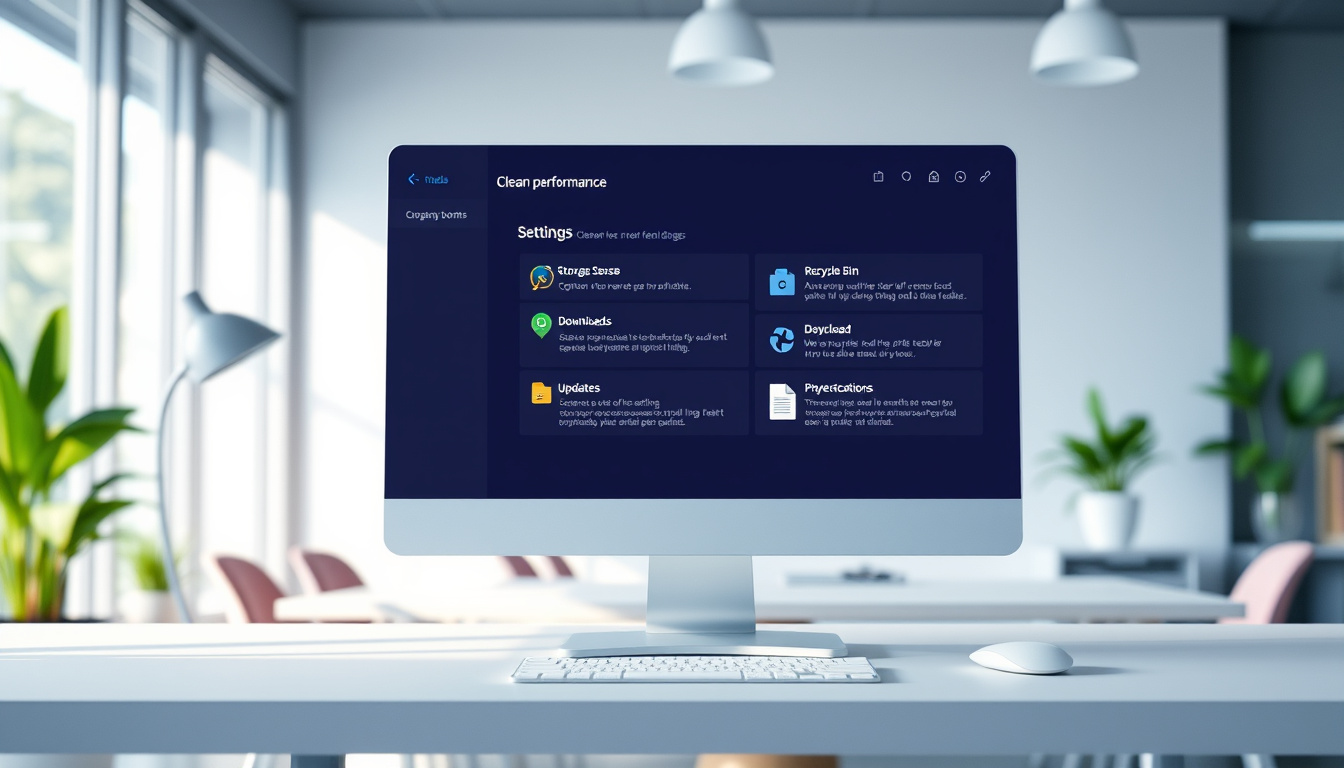
Windows includes Storage Sense, an automatic disk cleaning tool that manages:
- Temporary files
- Files in the Recycle Bin
- System cache
- Old files in Downloads (based on user preference)
Once activated (found under Settings > System > Storage), Storage Sense can regularly clear clutter without user intervention. This native feature removes the risk of installing potentially unwanted or unsafe software and eliminates advertisements or upselling common in some third-party cleaners.
Other Built-In Utilities
- Disk Cleanup: A traditional tool for manual deletion of unnecessary files.
- Task Manager Startup Tab: For managing programs running at boot.
- System File Checker (sfc /scannow): Repairs corrupted system files, enhancing stability.
- Storage Settings: Gives insight and control over disk usage with no extra application.
Given the power of these built-in tools, many tech experts recommend relying on them for routine maintenance.
Potential Risks of Third-Party Cleaning Software
Despite their popularity, third-party cleaners can introduce drawbacks:
- Unnecessary bloat: Some apps add more software components, leading to slowed systems.
- Aggressive cleanup: Overzealous deletion might remove important files or registry entries.
- Privacy concerns: Some may track user data or promote ads within the app.
- False positives and user confusion: Reports of non-issues may alarm users to take unneeded actions.
- Malware risk: Downloading software from unverified sources can expose devices to threats.
Therefore, exercising caution is critical when selecting and using third-party cleaners. Researching trusted tools, reading user reviews, and backing up data before use are prudent practices.
Community Insights: When and How to Use Third-Party Cleaners
Discussion among tech enthusiasts reveals a balanced view:
- Not always necessary: Routine automatic cleanup by Windows is often sufficient if the system is not overloaded with junk.
- Useful for specific cases: Issues like persistent leftover registry keys, stubborn startup errors, or incomplete software uninstallations might benefit from specialized cleaning tools.
- Manual intervention preferred: Experienced users may attempt manual fixes before resorting to third-party apps.
- Regular but moderate use: Frequent deep scans of every small file are generally unnecessary; targeted cleanup is more efficient.
Many users emphasize that knowledge of what to clean and why matters more than the tool itself.
Best Practices for Using Third-Party Cleaning Software
If you decide third-party cleaning software fits your needs, consider these guidelines:
- Choose reputable software: Favor well-reviewed, widely used tools with transparent privacy policies.
- Download from official sources: Avoid third-party download sites to reduce malware risks.
- Backup important data: Always create system or file backups in case cleanup removes something vital.
- Use default or recommended settings: Resist aggressive or deep-clean options if unsure.
- Run tools sparingly: Regular use is not required; perform cleanup during troubleshooting or noticeable slowdowns.
- Combine with built-in tools: Enhance effectiveness by using Windows’ native utilities alongside third-party software.
Conclusion
Modern operating systems like Windows 10 and 11 provide powerful built-in cleaning and optimization features that suffice for most users’ needs. While third-party cleaning software can offer additional features and targeted solutions, they come with risks and are not universally necessary. A thoughtful approach balancing native tools and selective use of trusted third-party applications unlocks your device’s potential safely and effectively.
Quick Tips to Keep Your PC Clean and Fast
- Enable and configure Storage Sense for automatic maintenance.
- Regularly empty the Recycle Bin and Downloads folder manually.
- Manage startup programs via Task Manager to speed up boot times.
- Keep your system updated to benefit from the latest performance improvements.
- Periodically restart your computer to clear temporary caches.
By applying these practices and understanding the landscape of cleaning tools, you can maintain your computer’s optimal performance without unnecessary hassle.
About the Author