
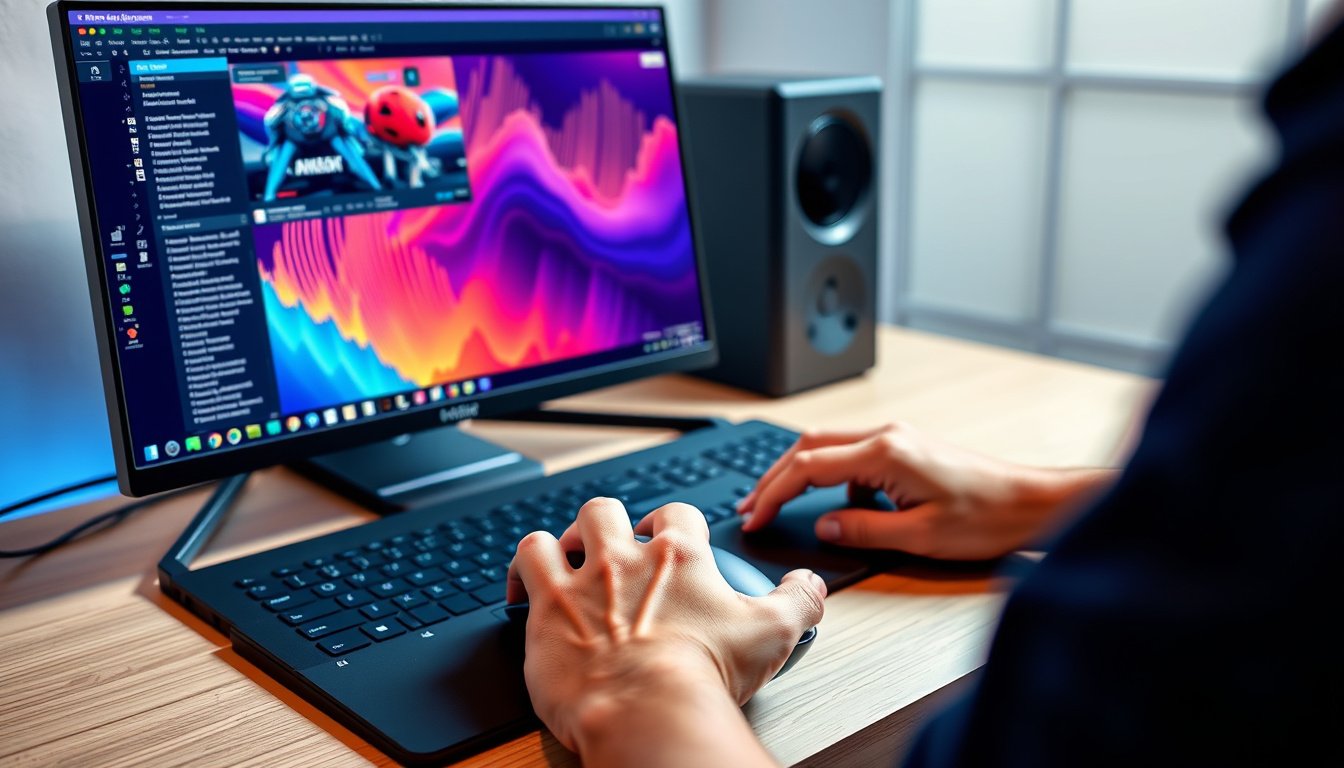

When it comes to performing precision tasks—whether designing graphics, editing photos, gaming competitively, or coding—using the right input device can significantly impact accuracy, comfort, and overall efficiency. While laptop touchpads and basic mice might suffice for everyday use, an external mouse tailored for precision can elevate your productivity and accuracy to a whole new level. This article explores the advantages of using an external mouse for precision tasks, the key features to look for, and tips to optimize your setup.


Why Choose an External Mouse for Precision?
Superior Accuracy and Control
An external mouse, especially those designed with precision in mind, offers enhanced control over cursor movement compared to touchpads or standard mice. They usually feature higher sensitivity settings (measured in DPI—dots per inch), allowing finer control with less physical movement. This capability is essential for tasks like graphic design, detailed photo editing, CAD applications, and even gaming, where precise cursor placement is critical.
Ergonomics and Comfort
Extended periods of computer use demand devices that reduce strain and fatigue. External mice are generally designed with ergonomics as a priority, offering shapes that fit comfortably in your hand and support natural wrist posture. This design helps prevent repetitive strain injuries and improves comfort during long precision tasks.
Customizable Features for Efficiency
Many modern external mice come loaded with programmable buttons, adjustable DPI settings, and the ability to pair with multiple devices. These features allow users to customize their workflow, assign macros, and switch device control seamlessly, thus improving efficiency and productivity.
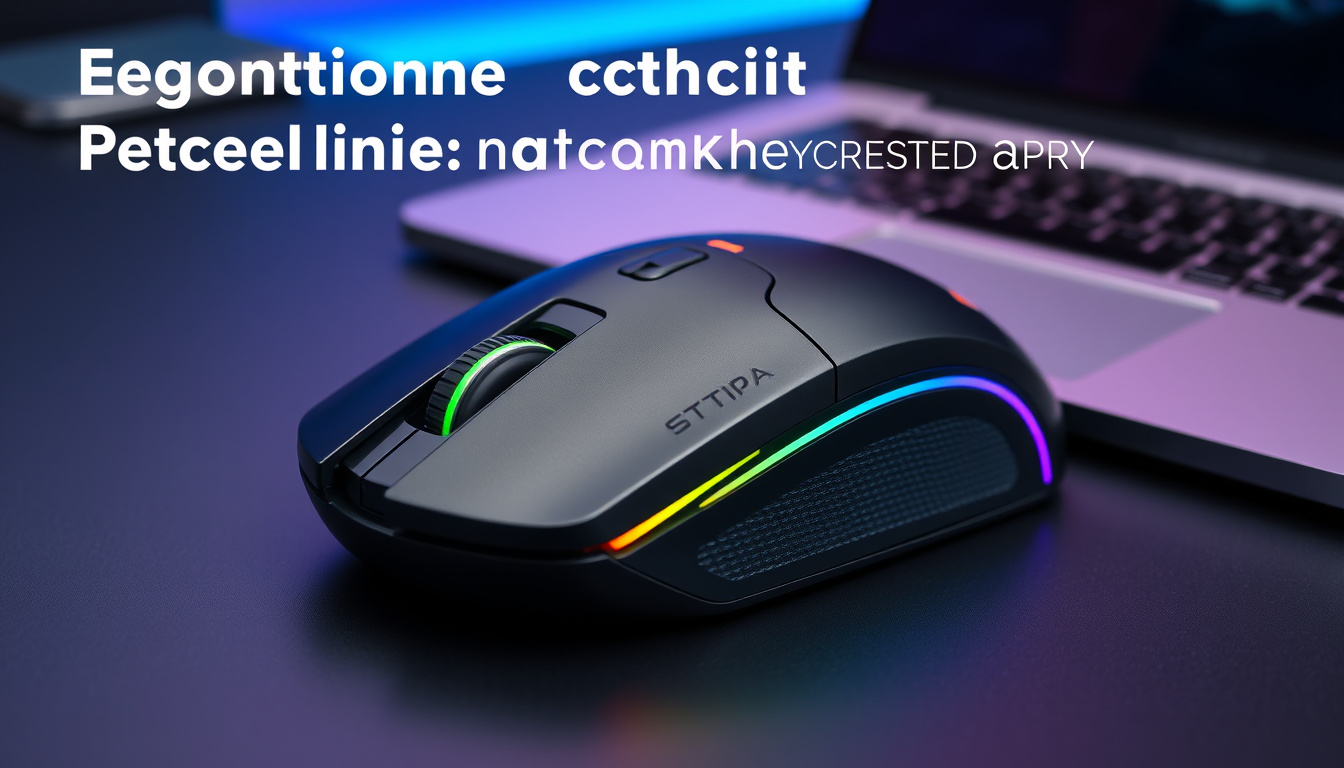
Key Features of an External Precision Mouse
Adjustable DPI (Dots Per Inch)
DPI dictates how far the cursor moves on your screen relative to the physical movement of the mouse. A higher DPI means the cursor moves farther with less hand movement, allowing for quick navigation, while lower DPI settings enable accurate, fine control. Look for a mouse with adjustable DPI settings so you can tailor sensitivity to your task.
Programmable Buttons
Customizable buttons allow you to assign shortcuts, macros, or frequently used commands, reducing the need to switch back and forth between keyboard and mouse. For example, graphic designers can program tool-switching buttons, gamers can map essential commands, and programmers can create shortcuts for common tasks.
Multi-Device Pairing and Smart Switch
Certain advanced mice, like Microsoft’s Surface Precision Mouse, can pair with up to three devices simultaneously and allow smooth switching between them. This is ideal for professionals who frequently move between devices, maintaining a consistent workflow without the hassle of re-pairing devices.
Wireless Connectivity with Low Latency
While wired mice offer stable connections, modern wireless mice have bridged the gap with minimal latency and longer battery life, offering freedom of movement and reducing workspace clutter. For precision tasks, it’s important to choose a mouse with reliable and fast responsiveness.
Ergonomic Design
Choose a mouse that fits your hand well and supports neutral wrist positions to avoid discomfort or injury during extended use. Some designs include thumb rests, contoured shapes, or materials optimized for grip and comfort.
Optimizing Your External Mouse for Precision
- Turn Off Mouse Acceleration: Mouse acceleration can make cursor movement inconsistent by varying speed based on your hand movement speed. Disabling this setting ensures that cursor movement is directly proportional to physical mouse movement, enhancing predictability and precision.
- Adjust DPI According to Task: Use lower DPI settings when performing detailed work such as photo editing or CAD design, and higher DPI for faster navigation or different tasks.
- Leverage Software Customization: Utilize software like Microsoft’s Mouse and Keyboard Center or gaming mouse software suites to customize button functions, tune DPI, and manage multiple device connections with ease.
- Keep Your Mouse Clean and Maintained: Regularly clean your mouse sensor and surface to ensure smooth tracking and responsiveness.
- Ergonomic Setup: Pair your external mouse with an ergonomic desk setup including a supportive wrist rest and appropriate desk height to minimize fatigue.
Specialized External Mice for Precision Tasks
- Microsoft Surface Precision Mouse: Designed specifically for accuracy, comfort, and control with three customizable thumb buttons, multiple device pairing, and long battery life.
- Gaming Mice: These offer advanced precision capabilities with adjustable DPI, programmable buttons, and ergonomic designs suitable not only for gaming but also for precision work in creative or technical fields.
Conclusion
Using an external mouse crafted for precision tasks dramatically enhances your control, comfort, and efficiency. Whether you’re a creative professional, programmer, or casual gamer, investing in a high-quality external mouse with features such as adjustable DPI, programmable buttons, ergonomic design, and multi-device support can make a noticeable difference in your daily computing experience. Optimize your settings by disabling unwanted acceleration and customizing sensitivity to suit your needs, and you’ll unlock greater accuracy and smoother workflow across all your precision activities.
About the Author