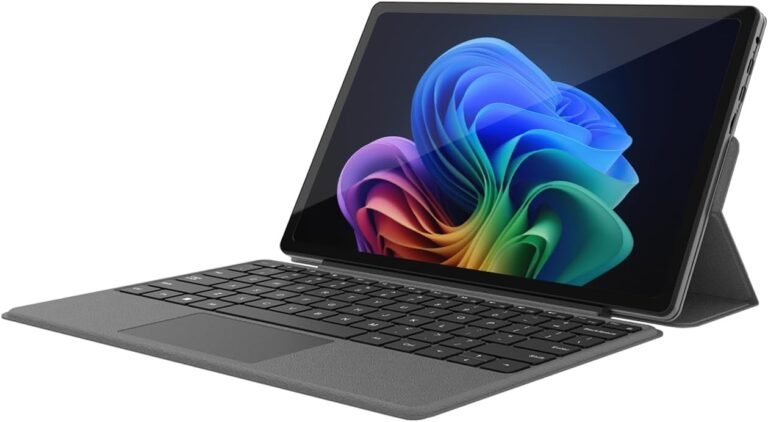
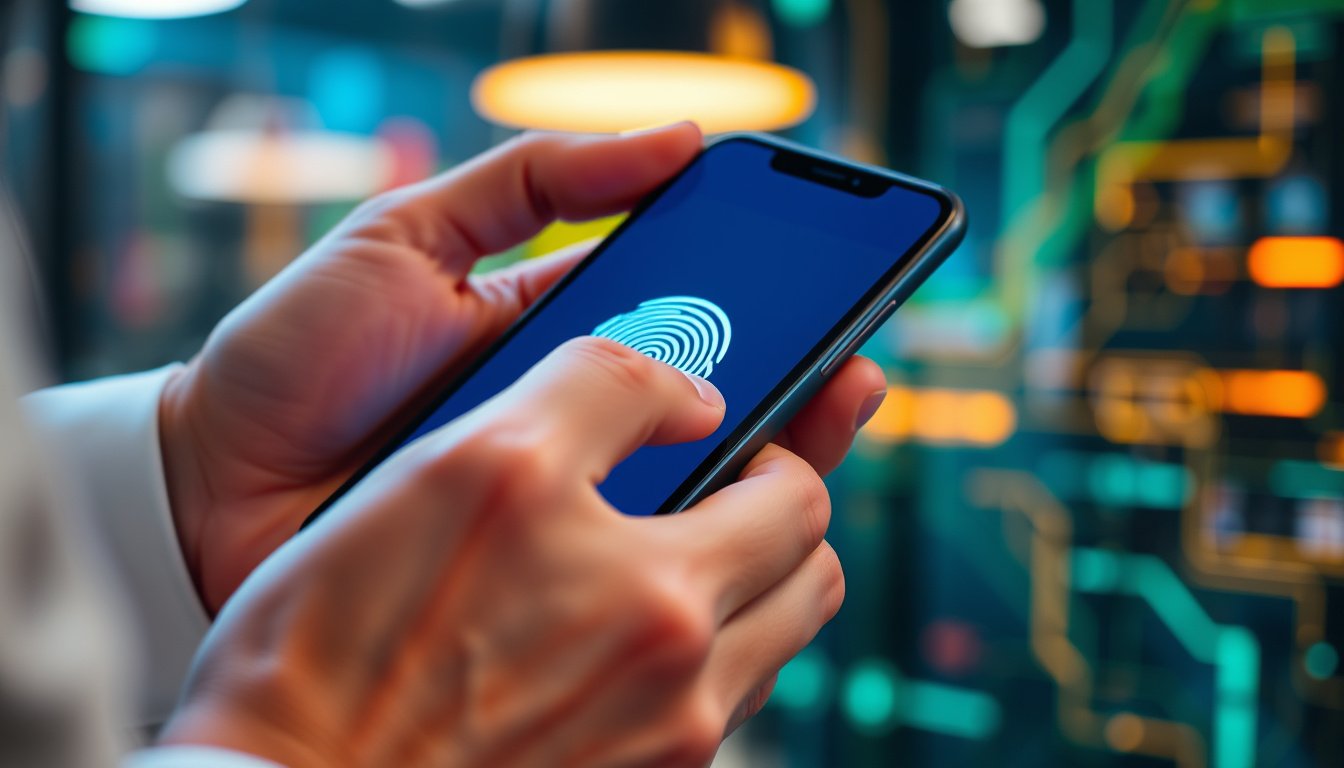
Fingerprint login offers a seamless, secure, and user-friendly way to access your device without the hassle of remembering complex passwords. By utilizing biometric authentication through a fingerprint reader, Windows devices provide an added layer of security that is also convenient. This guide will walk you through the process of enabling fingerprint login on Windows 10 and Windows 11 devices, address common challenges, and explain important considerations for users in different environments such as domain-connected laptops.


What is Fingerprint Login?
Fingerprint login is part of Microsoft’s Windows Hello, a biometric authentication system that allows users to unlock their devices using their fingerprint. This functionality replaces or supplements the traditional password system with fingerprint recognition or other biometric methods like facial recognition. It enhances security by relying on unique physical attributes that are difficult to replicate.
Prerequisites for Enabling Fingerprint Login
Before enabling fingerprint login, ensure your device meets these requirements:
- Fingerprint Reader: Your device must have a built-in fingerprint scanner or an external fingerprint reader connected via USB.
- Compatible Operating System: Windows 10 or Windows 11.
- Windows Hello Support: The device firmware and Windows build should support Windows Hello biometric authentication.
- Active Device Drivers: Verify that fingerprint sensor drivers are installed and up to date.
How to Enable Fingerprint Login on Windows 10 or 11

Follow these simple steps to set up fingerprint login on your device:
-
Access Settings:
- Open the Start menu and select Settings (gear icon).
- Navigate to Accounts > Sign-in options.
-
Locate Windows Hello Fingerprint:
- Under the section labeled Ways to sign in, find Fingerprint recognition (Windows Hello).
- Click the Set up button.
-
Set Up Your Fingerprint:
- Click Get Started.
- If you haven’t set up a PIN, you will be prompted to create one first as a fallback login method.
- Follow the on-screen instructions to scan your finger multiple times until Windows registers your fingerprint accurately.
-
Add Additional Fingers (Optional):
- For convenience, you can add more fingerprints by selecting Add another.
-
Complete the Setup:
- Once fingerprint registration is complete, you can use your fingerprint to sign in to your device.
Tips for Using Fingerprint Login
- Keep Your Finger Clean: Dirt, moisture, or cuts can affect fingerprint recognition accuracy.
- Update Drivers Regularly: Outdated or incompatible fingerprint reader drivers can cause failures.
- Use a Backup Sign-In Method: Always maintain a PIN or password for cases where fingerprint recognition is unavailable.
Enabling Fingerprint Login on Domain-Connected Devices
Users with laptops managed by organizational domains (Active Directory) might face restrictions enabling Windows Hello features like fingerprint login. Commonly, attempting to enable fingerprint login returns a message stating, "This option is currently unavailable."
Why Does This Happen?
Domain-joined devices are often governed by Group Policy settings or registry configurations determined by an IT administrator. These settings might disable Windows Hello PIN and biometric logins to comply with organizational security policies.
How to Enable Fingerprint on Domain Devices
If you have administrative privileges or IT support, you can try the following:
-
Modify Registry Settings:
- Open the Registry Editor (
regedit). - Navigate to:
HKEY_LOCAL_MACHINE\SOFTWARE\Policies\Microsoft\Windows\System - Look for a DWORD value named
AllowDomainPINLogon. - If it does not exist, create it:
- Right-click on the right pane > New > DWORD (32-bit) Value.
- Name it
AllowDomainPINLogon.
- Set the value data to
1. - Close Registry Editor and restart your computer.
- Open the Registry Editor (
-
Verify Group Policies:
- Use the Group Policy Editor (
gpedit.msc) to check for policies restricting Windows Hello. - Navigate to:
Computer Configuration > Administrative Templates > Windows Components > Biometrics - Make sure the policies Allow the use of biometrics and Allow users to log on using biometrics are enabled.
- Use the Group Policy Editor (
-
Consult IT Support:
If you lack permissions or are unsure, reach out to your organization’s IT department to request changes or guidance.
Note: Modifying registry and group policy settings can have system-wide effects. Always back up important data and consider creating a system restore point before proceeding.
Troubleshooting Fingerprint Login Issues
-
Fingerprint Option Missing or Greyed Out:
- Check device compatibility and driver installation.
- Ensure biometrics are enabled in Group Policy.
-
Fingerprint Not Recognized:
- Clean the fingerprint sensor and your finger.
- Re-register your fingerprint.
-
Windows Hello Setup Not Completing:
- Make sure the TPM (Trusted Platform Module) chip is enabled.
- Check for Windows updates and install all pending updates.
Conclusion
Enabling fingerprint login on your Windows device adds a convenient and secure method of access, blending ease of use with biometric safety. Whether you’re a home user or part of an organization with domain-connected devices, following the outlined steps and considerations will help you unlock this functionality effectively. Remember to keep your biometric data safeguarded and consult IT professionals when managing domain policies.
By embracing fingerprint login, you not only speed up your sign-in process but also enhance the security of your device, making your digital life safer and more user-friendly.
About the Author