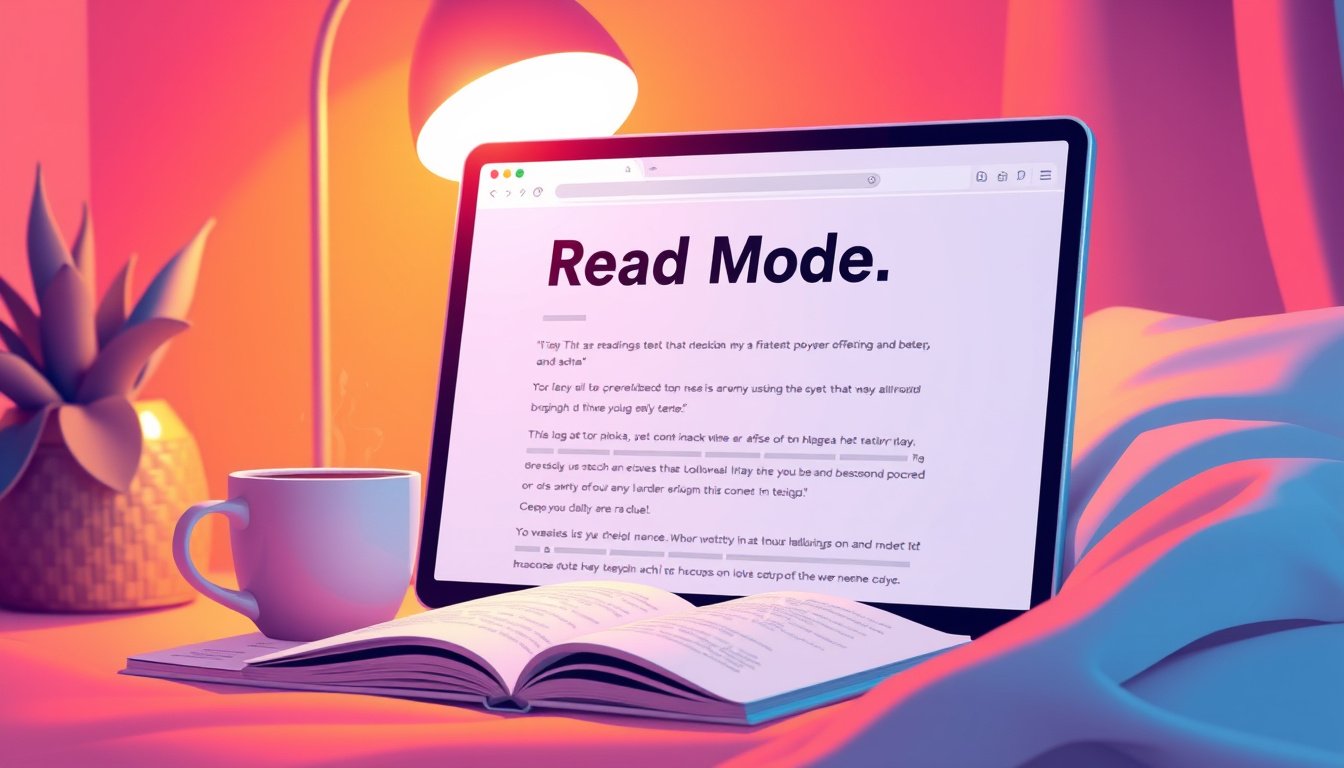

In today’s digital age, reading online content can sometimes be a cluttered and frustrating experience. Ads, pop-ups, sidebars, and other distractions often make it difficult to focus on the main text of an article or webpage. This is where the Read Mode feature in modern web browsers becomes incredibly useful. It strips away the unnecessary elements of a webpage, presenting you with a clean, easy-to-read version of the content. In this article, we’ll explore what Read Mode is, why you should use it, and how to enable it across popular browsers.


What is Read Mode?
Read Mode—also known as Reading View, Immersive Mode, or Speedreader depending on your browser—is a feature designed to enhance the reading experience. When activated, it removes ads, background images, navigation bars, and other distractions, allowing you to focus solely on the core content like text and essential images. This mode is especially helpful when reading long articles or research papers online.
Using Read Mode can also improve browser performance on ad-heavy sites since it cuts down on loading extraneous content. Additionally, it often makes text easier to digest by using simplified fonts, bigger text sizes, and optimized layouts.
Why Use Read Mode?
- Distraction-Free Reading: Eliminate ads, popups, and other visual noise.
- Improved Focus: Concentrate on the article or story without interruptions.
- Faster Load Times: Reduced page elements mean quicker rendering.
- Customizable Experience: Many browsers allow you to change font size, background color, and more in Read Mode.
- Better Accessibility: Easier to read for users with visual impairments.
How to Use Read Mode in Popular Browsers

Here’s how to activate Read Mode on some of today’s top web browsers:
Google Chrome
While Chrome does not have a permanent, visible Read Mode toggle by default, it includes a hidden feature you can enable:
- Open Chrome and go to the page you want to read.
- Right-click on a blank section of the page.
- Select “Open in Reading Mode” if available (this may require enabling through Chrome flags or extensions).
- Optionally, you can pin the reading mode icon to your toolbar for quicker access.
Note: Chrome’s Read Mode can also be accessed via extensions like “Reader View.”
Safari (Mac and iOS)
Safari offers a user-friendly reading mode:
- Navigate to the desired webpage in Safari.
- Look for the Reader icon at the left edge of the address bar—it looks like a page of text.
- Click the icon; the page will refresh to a clean reading view.
Bonus: Safari allows you to automatically enable Reader Mode for specific websites, so those pages always open distraction-free.
Mozilla Firefox
Firefox calls its mode Reading View:
- Open Firefox and load your preferred article.
- Click the Reading View icon near the right edge of the address bar—it looks like an open book.
- The page will instantly switch to a simplified format.
Unlike Safari, Firefox’s icon remains visible as you browse.
Microsoft Edge
In Edge, the mode is called Immersive Reader:
- Navigate to the webpage you want to read.
- Click the book icon near the right side of the address bar.
- Edge will present a decluttered, easy-to-read page.
Edge’s Immersive Reader also includes options for adjusting text spacing, themes, and reading aloud.
Brave Browser
Brave’s reading feature is known as Speedreader:
- Open Brave and go to your article.
- Click the Speedreader icon (a small page symbol) located near the right edge of the address bar.
- The page transforms into a minimalist reading mode.
Tips for Getting the Most Out of Read Mode
- Customize Settings: Many browsers let you change text size, background color (light, dark, sepia), and font style to suit your preferences.
- Use Keyboard Shortcuts: Some browsers support shortcuts to quickly toggle reading mode (e.g., Safari’s Cmd+Shift+R).
- Install Extensions: If your browser lacks a native Read Mode, third-party extensions like “Reader View” or “Mercury Reader” can fill the gap.
- Save or Print Clean Versions: After enabling Read Mode, you can save or print pages free from clutter.
Conclusion
Read Mode is a powerful tool that transforms your browsing experience by removing distractions and emphasizing the content you want to read. Whether you’re studying, catching up on news, or enjoying a novel online, activating Read Mode across your favorite browser can make your reading clearer, more comfortable, and more immersive. Try it today and unlock a better way to consume web content.
By using Read Mode features consistently, you empower yourself to focus, absorb information efficiently, and enjoy the web without distractions. Happy reading!
About the Author