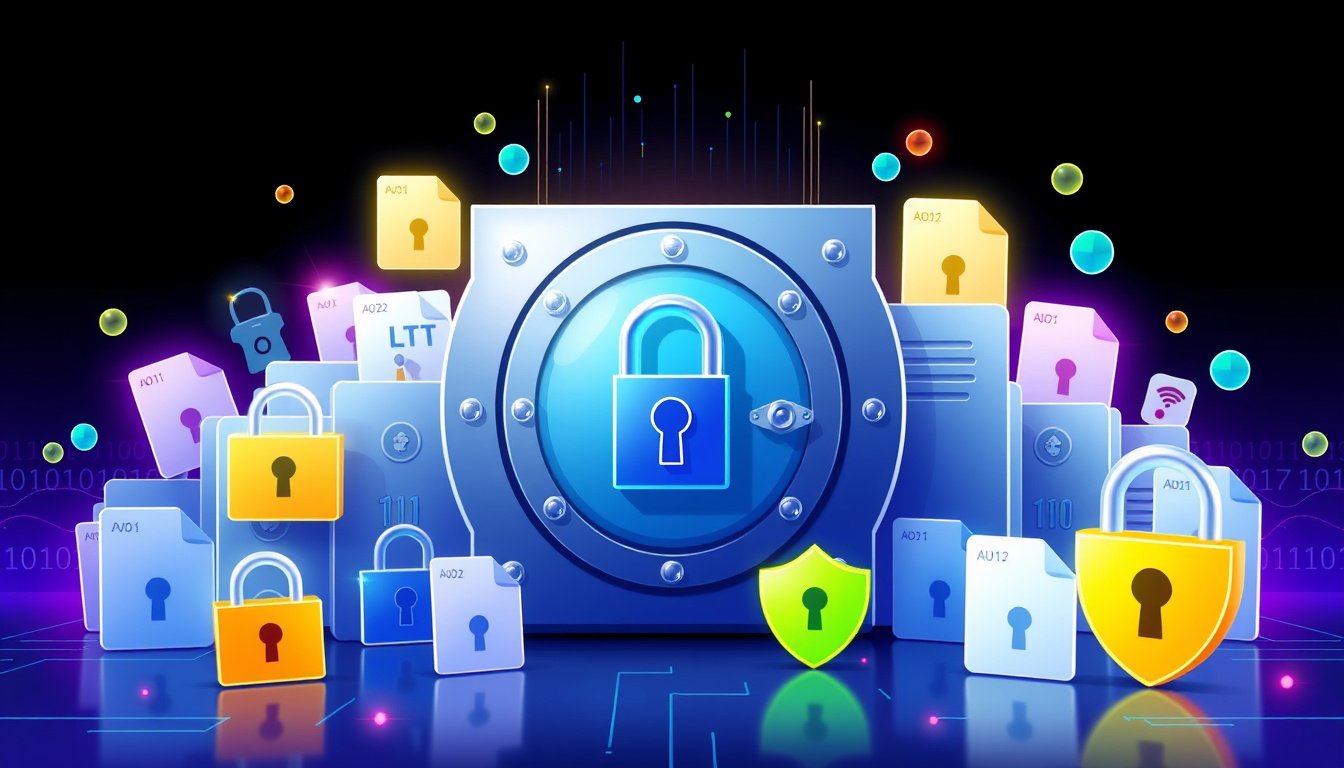

In an age where digital threats and data breaches are increasingly common, encrypting sensitive files has become a vital practice for protecting your personal and professional information. Encryption transforms your data into an unreadable format, accessible only to those possessing the correct decryption key or password. This guide provides an in-depth overview of how to encrypt files securely across various platforms and devices, ensuring your sensitive information remains confidential and protected against unauthorized access.


Why Encrypt Sensitive Files?
Understanding the importance of encryption helps emphasize why you should adopt it as a standard security measure:
- Protect Data from Unauthorized Access: Encryption converts readable data into ciphertext, effectively hiding the content from hackers and malicious users.
- Preserve Privacy: Whether files are stored locally or on portable drives, encryption ensures privacy even if devices fall into the wrong hands.
- Regulatory Compliance: Many industries mandate encryption to comply with standards such as GDPR, HIPAA, or PCI-DSS.
- Secure Data Transfer: When sharing files over networks, encryption safeguards information from interception.
- Peace of Mind: Knowing your files are encrypted provides reassurance amid increasing cyber threats.
How to Encrypt Files on Different Systems

Encrypting Files on Windows
Windows users have multiple native options depending on their edition:
Using Encrypting File System (EFS) on Windows Pro, Enterprise, and Education
- Right-click the file or folder you want to encrypt.
- Select Properties from the context menu.
- Click the Advanced… button in the General tab.
- Check the box Encrypt contents to secure data.
- Click OK, then Apply.
- Choose to encrypt just the file or the parent folder as well.
- Confirm by clicking OK.
Files encrypted with EFS are only accessible to the authorized Windows user account.
Using BitLocker for Drive Encryption
BitLocker allows full-drive encryption, effective for USB drives and external hard disks:
- Connect the drive to your computer.
- Open File Explorer, right-click the drive, and select Turn on BitLocker.
- Follow instructions to set a password or smart card for unlocking.
- Save your recovery key securely.
- Choose to encrypt used disk space only or the entire drive.
- Begin encryption.
Note: BitLocker is available in Windows Pro and Enterprise editions.
For Windows Home Users: Third-Party Software
Windows Home doesn’t support EFS or BitLocker. Instead, use reputable third-party tools like VeraCrypt:
- Download and install VeraCrypt.
- Create an encrypted file container or encrypt entire drives.
- Select strong encryption algorithms (AES recommended).
- Set complex passwords.
- Mount encrypted containers to access files securely.
Encrypting Files on macOS
macOS offers built-in encryption tools for users aiming to protect individual files or entire disks:
Full Disk Encryption with FileVault
- Navigate to System Preferences > Security & Privacy > FileVault.
- Click Turn On FileVault.
- Set up unlocking methods and recovery keys.
- Wait for the encryption process to complete—it may take several hours.
Encrypt Individual Files or Folders
- Open Disk Utility (Applications > Utilities).
- Go to File > New Image > Image from Folder.
- Select the folder to encrypt.
- Choose encryption level (128-bit or 256-bit AES).
- Set and verify a strong password.
- Save the encrypted disk image.
- Access it by mounting the image and entering the password.
Encrypting Sensitive Files on Mobile Devices
Android
Most modern Android devices come with built-in device encryption:
- Go to Settings > Security > Encrypt phone/tablet.
- Follow prompts to encrypt device storage.
For encrypting particular files, third-party apps like Solid Explorer or Crypto Ghost offer file-level encryption.
iOS
iOS devices automatically encrypt data when a passcode is enabled:
- Go to Settings > Face ID & Passcode (or Touch ID & Passcode).
- Set up a secure passcode.
- For additional file options, use apps like Folder Lock or Secret Space Encryptor.
Encrypting External Storage Devices
USB Drives and Flash Drives
- Windows: Use BitLocker To Go to encrypt external drives.
- macOS: Use Disk Utility to format and encrypt drives with a password.
- Choose encrypted file system formats like Mac OS Extended (Journaled, Encrypted).
External Hard Drives
Encrypt entire external hard drives similarly using:
- BitLocker on Windows.
- FileVault or Disk Utility on macOS.
- VeraCrypt for cross-platform encrypted volumes.
Encrypting Specific File Types
- PDF Files: Use Adobe Acrobat’s security settings to add password protection and restrict access.
- Microsoft Office Documents: Encrypt documents by navigating to File > Info > Protect Document > Encrypt with Password.
- ZIP Files: When compressing files, add passwords to the ZIP archive for encryption.
Best Practices for File Encryption
- Use Strong, Unique Passwords: Complex passwords reduce risk of unauthorized access.
- Secure Encryption Keys: Store keys or passwords in safe, separate locations.
- Keep Software Updated: Update encryption tools regularly to benefit from security patches.
- Encrypt Backups: Always encrypt backup copies of sensitive files.
- Leverage Cloud Encryption: Use cloud services with end-to-end encryption or encrypt files before uploading.
- Be Mindful of Shared Devices: Avoid leaving decrypted sensitive data accessible on shared machines.
- Consider Full Disk Encryption: For maximum security, encrypt entire drives instead of individual files.
- Protect Physical Security: Use laptop locks and handle storage devices with care.
Conclusion
Encrypting sensitive files is an essential defense in the modern digital landscape. Whether you’re using built-in operating system tools or trusted third-party applications, consistent encryption practices help mitigate risks posed by unauthorized access, data theft, and cyberattacks. Stay proactive by regularly updating your encryption methods and maintaining strict password protocols. By fortifying your data with encryption, you take a crucial step toward ultimate information security in 2024 and beyond.
By adopting these encryption techniques, you safeguard not just your digital files, but also your privacy and peace of mind in an increasingly connected world.
About the Author