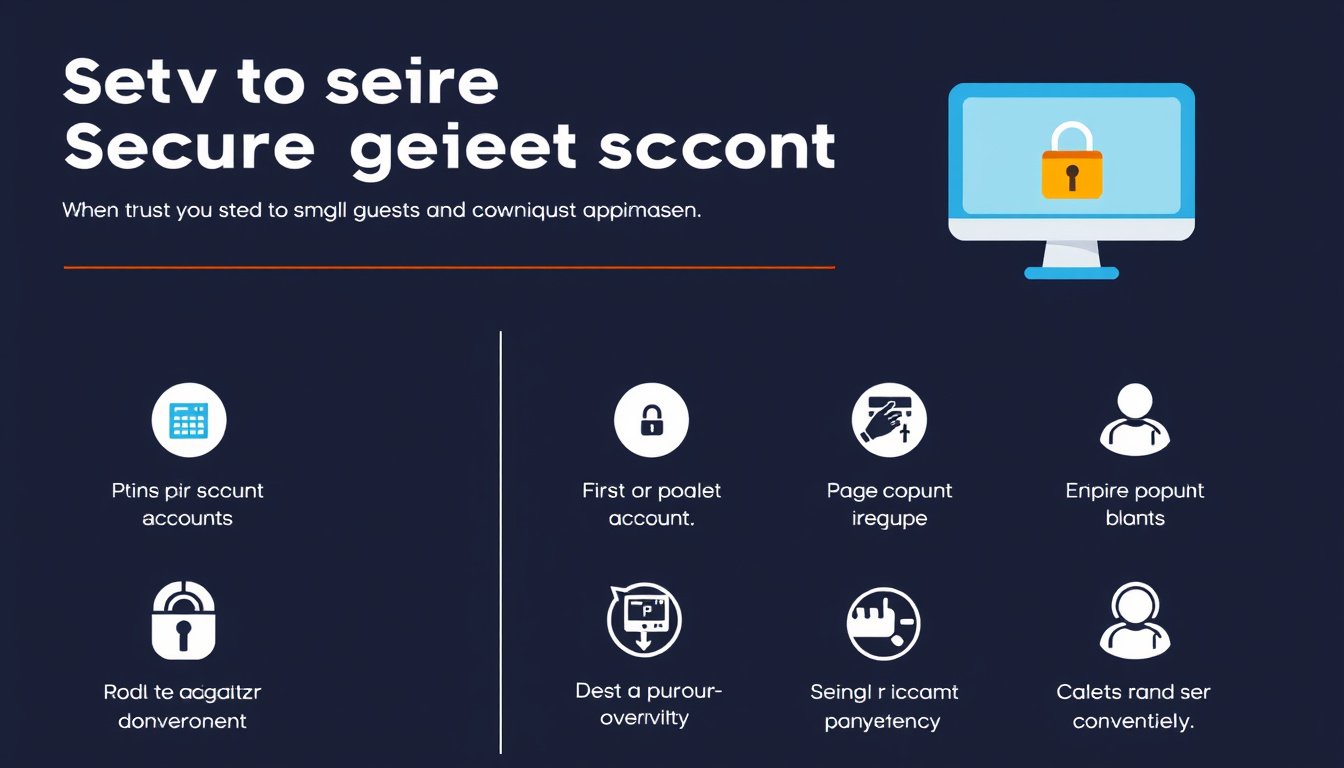

In today’s digital world, sharing devices or online platforms with guests is common, whether at home or work. Setting up a guest account offers a secure, convenient way to provide temporary access without compromising your own data or settings. This guide walks you through the essentials of creating guest accounts on Windows PCs and web hosting platforms, ensuring restricted, manageable access tailored to guest needs.


What Is a Guest Account and Why Use One?
A guest account is a user profile that allows someone temporary or limited access to a device or online service without requiring your personal login credentials. This boosts security by isolating guest activity from the main user profile and lets you control which features or data the guest can see or modify.
Common benefits of guest accounts include:
- Protecting personal files and settings
- Restricting access to sensitive controls or information
- Giving a safe environment for temporary users
- Ease of managing multiple users on a device or platform
How to Set Up a Guest Account on a Windows PC
Windows no longer includes a simple "Guest" user by default in recent versions, but you can create a similar restricted user account or enable the built-in guest account via command prompt.
Option 1: Create a Local Guest User Account (Windows 10/11)
-
Open Settings
Click the Start button and select the gear icon to open Settings. -
Navigate to Accounts
Select Accounts > Family & other users. -
Add a New User
Under Other users, click Add someone else to this PC. -
Skip Microsoft Account Sign-In
Choose I don’t have this person’s sign-in info, then click Add a user without a Microsoft account to create a local account. -
Set Up the Account
Enter a user name such as “Guest” and choose whether to add a simple password or leave it blank. Click Next. -
Change Account Type
Back in Family & other users, select the new account, click Change account type, then set it to Standard User to restrict permissions.
Option 2: Activate Built-In Guest Account (Command Prompt)
-
Open Command Prompt as Administrator
PressWindows + R, typecmd, then pressCtrl + Shift + Enterto run as admin. -
Activate the Guest Account
Enter the command:net user guest /active:yes -
Set a Password (Optional)
To add a password, type:net user guest *and follow the prompts.
-
Disable Guest Account When Not Needed
For security, disable the guest account after use with:net user guest /active:no
How to Set Up a Guest User on Web Control Panels (Example: one.com)
Guest user functionality is not limited to PCs. Web hosting services like one.com allow you to create guest accounts for your Control Panel, enabling third parties to manage specific web services without having full access.
Steps to Create a Guest User on one.com
-
Log in to your Control Panel
Access your one.com account online. -
Navigate to Guest Users
Under Advanced settings, click Guest users. -
Add New Guest User
Click Add new guest user and enter the email address of the guest user. -
Set User Permissions
You decide what the guest can access, such as:- DNS settings
- Mail administration (virus & spam filters)
- PHP/database settings
- Website analytics
- Website files and online shop administration
- WordPress management
- SEO tools (e.g., marketgoo)
-
Confirm and Add
Click Add to finalize. The guest will receive an email with instructions to set their password. -
Manage or Revoke Access Anytime
You can update permissions or revoke guest access anytime via the Control Panel.
Best Practices for Managing Guest Accounts
- Limit permissions to necessary functions only to minimize security risks.
- Create unique passwords or leave blank if appropriate, but ensure guest users cannot change sensitive settings.
- Disable guest accounts when not in use especially for built-in accounts on Windows.
- Regularly review active guest accounts to avoid unauthorized access.
- Communicate clearly with guests about account usage and limitations to avoid misunderstandings.
Conclusion
Setting up guest accounts provides a secure, convenient way to share access without undermining privacy or system integrity. Whether on a personal PC or through web hosting platforms, the ability to manage guest user permissions empowers you to maintain control while offering flexibility. By following the step-by-step instructions outlined above, you can confidently set up guest accounts tailored to your specific needs.
By mastering guest accounts, you ensure your systems and data stay safe while conveniently accommodating visitors or collaborators.
About the Author