
Efficiently managing multiple applications and tasks on your Windows computer can dramatically improve your productivity and reduce clutter. One of the best features designed to help with this is Task View — a versatile tool introduced with Windows 10 and enhanced in Windows 11. By mastering Task View, you can organize your workspace, switch seamlessly between tasks, and maintain focus effortlessly. 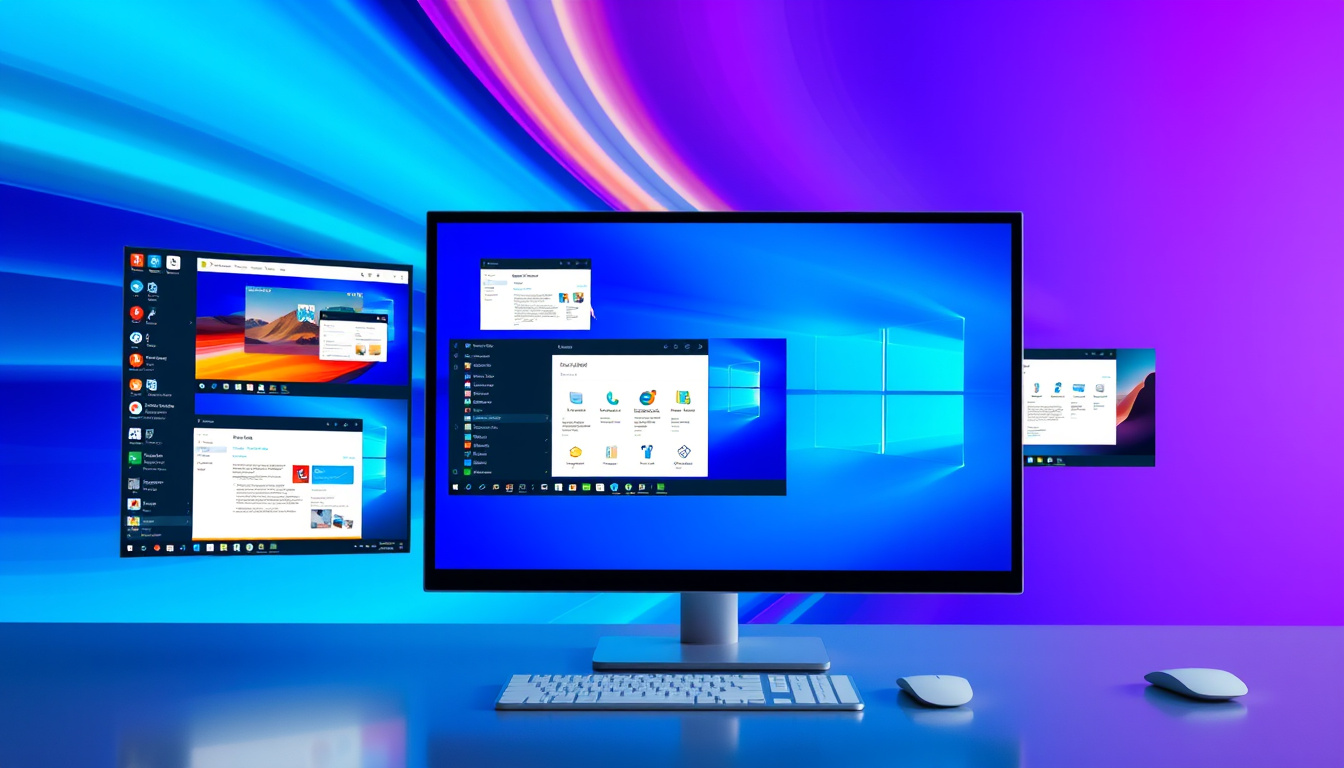


Here’s everything you need to know to become a Task View pro.
What Is Task View?
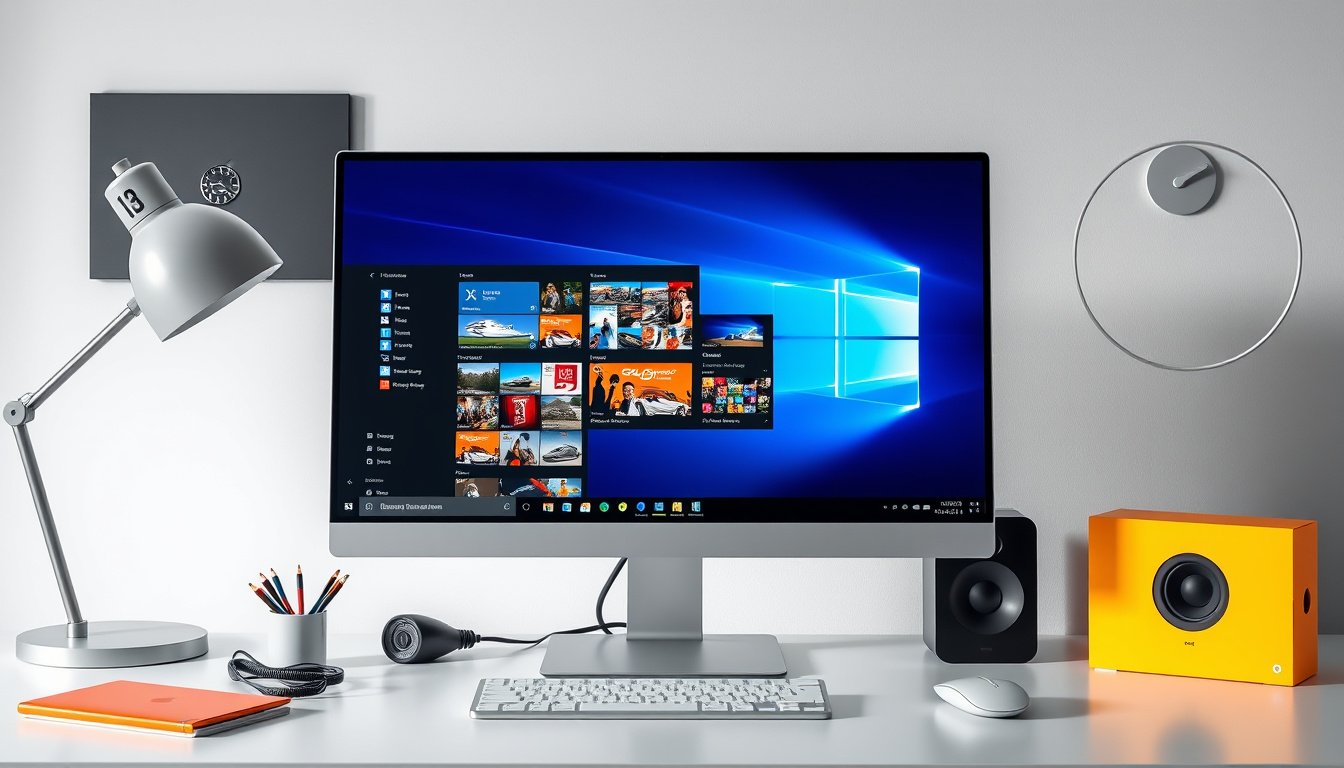
Task View is a window and desktop management feature that displays all your open windows and allows you to create and switch between multiple virtual desktops. Think of it as having several separate workspaces on one computer, each dedicated to different projects or activities.
Unlike the traditional Alt+Tab method, which only cycles through open windows, Task View provides a visual overview of your desktops and their contents, giving you greater control over your workflow.
How to Access Task View
- Click the Task View button — a rectangular icon next to the Start menu on the taskbar.
- Use the keyboard shortcut Win + Tab for quick access.
Key Features and Benefits of Task View
1. View All Open Windows at a Glance
Task View displays thumbnails of every open application, making it easy to locate and switch to the window you need without hunting through cluttered screens.
2. Create and Manage Multiple Virtual Desktops
- Click New desktop in Task View to create a separate workspace.
- You can organize different aspects of your work life into these desktops, for example:
- One for writing and research,
- Another for communication (email, chat apps),
- A social media desktop,
- Or a gaming and entertainment space.
3. Switch Between Desktops Efficiently
- Use Ctrl + Win + Left Arrow or Ctrl + Win + Right Arrow to move between virtual desktops quickly.
- Hover over the Task View icon to see your desktops in a pop-up preview and switch with one click.
4. Rename and Customize Desktops
To stay organized, you can rename desktops with descriptive titles. Windows 11 also allows you to set custom backgrounds per virtual desktop, making it easier to visually distinguish between desks.
5. Drag and Drop Windows Between Desktops
While in Task View, simply drag a window’s thumbnail from one desktop to another to reorganize your apps on the fly.
6. Close Apps from Task View
Hover over an app thumbnail and click the small “X” to close it directly without navigating to the app.
Practical Ways to Use Task View for Enhanced Productivity
Organize by Task Layouts
Inspired by macOS’s Stage Manager, consider using each virtual desktop as a dedicated workspace layout, grouping related windows side-by-side. For example, keep your writing app and research browser on one desktop and communication tools on another. This approach reduces distractions and helps maintain focus.
Separate Work and Personal Life
Virtual desktops are ideal for creating boundaries. Keep work apps on one desktop and personal browsing or entertainment on another, helping maintain work-life balance.
Project Management Made Simple
Assign a desktop to each project to compartmentalize tasks, documents, and applications. Switch desktops when you need to change focus without disrupting your workflow.
Prepare for Meetings
Have a desktop preloaded with all necessary files and applications ready to launch before your meeting begins for a smooth transition and professional presentation.
Tips for Getting the Most from Task View
- Disable animations: Turning off animation effects in Windows (Settings → Accessibility → Visual Effects) can make the desktop switching feel faster and more responsive.
- Use PowerToys Workspaces: Microsoft’s free PowerToys app extends Task View by allowing you to save and restore window layouts, perfect for recurring workflows.
- Show windows on all desktops: Customize how windows appear on the taskbar and Alt+Tab via Settings to either focus on the current desktop or display apps from all desktops depending on your preference.
Task View vs. Traditional Window Management
While Alt+Tab is good for quick app switching, Task View offers:
- A comprehensive visual overview,
- The ability to organize tasks into multiple desktops,
- Customization of each desktop’s environment,
- And easier management of large numbers of open windows.
How to Create and Customize Multiple Desktops
- Open Task View (Win + Tab).
- Click New desktop at the bottom right.
- To rename, right-click the desktop thumbnail and select Rename.
- To set custom backgrounds:
- Right-click on a desktop thumbnail.
- Select Choose background and pick a picture.
To adjust taskbar and Alt+Tab behavior across desktops:
- Go to Settings → System → Multitasking → Desktops,
- Choose options like showing windows only on the current desktop or all desktops.
Ideal Scenarios to Use Task View
- Multitasking researchers can separate browsing, note-taking, and writing.
- Programmers can dedicate desktops to coding, debugging, and documentation.
- Creative professionals can isolate different stages of a project (design, editing, review).
- Users working with multiple monitors can optimize workspace on each screen.
- Anyone looking to reduce cognitive overload by decluttering their workspace.
Conclusion
Mastering Task View empowers you to take full control of your Windows environment. By organizing your work across multiple virtual desktops, you gain clarity, reduce distractions, and dramatically improve your multitasking capabilities. Whether for work, study, or leisure, Task View is a powerful ally in creating a seamless, focused, and efficient computing experience.
Give Task View a try today — your desktop will thank you.
References: Lenovo US, Advisorator, Microsoft Support
About the Author