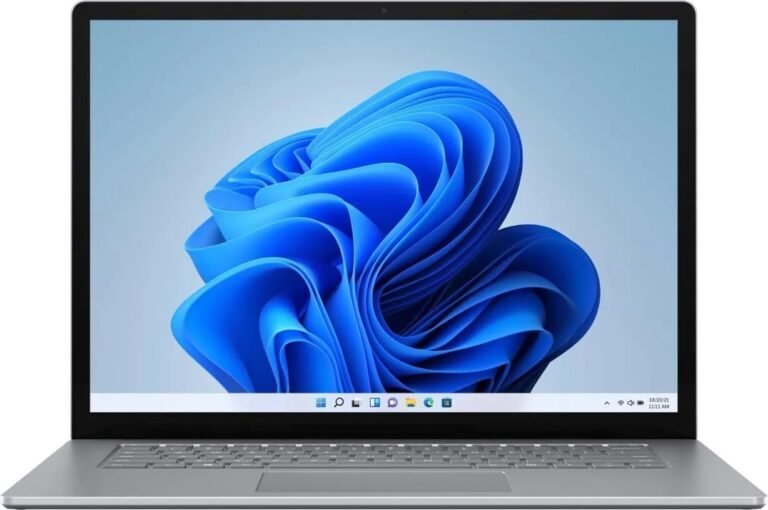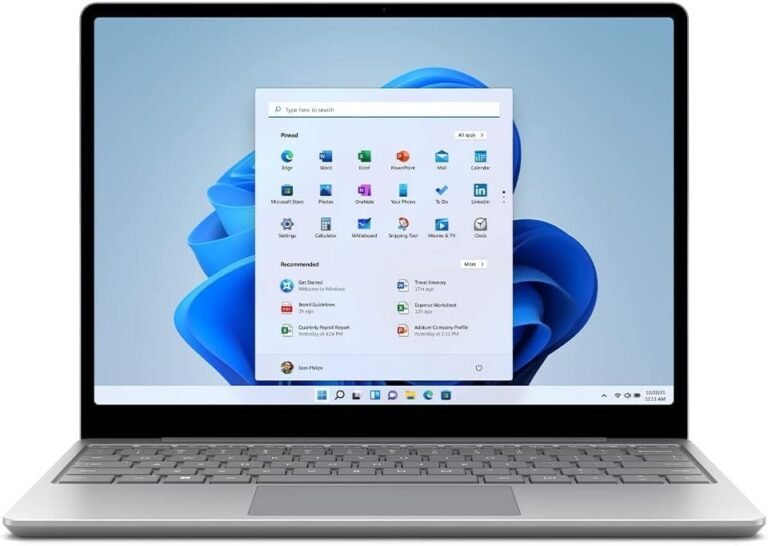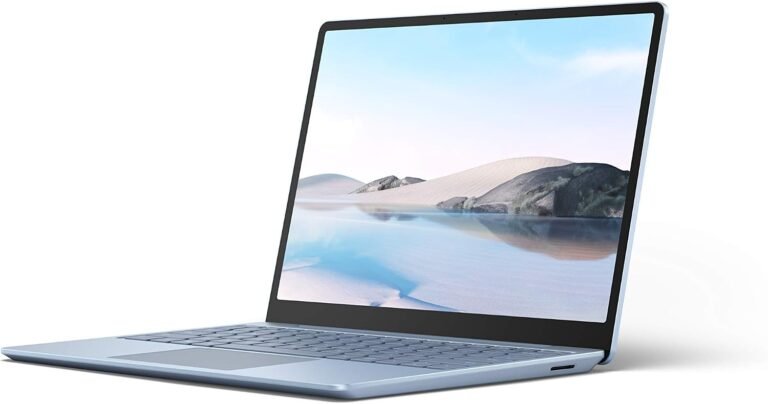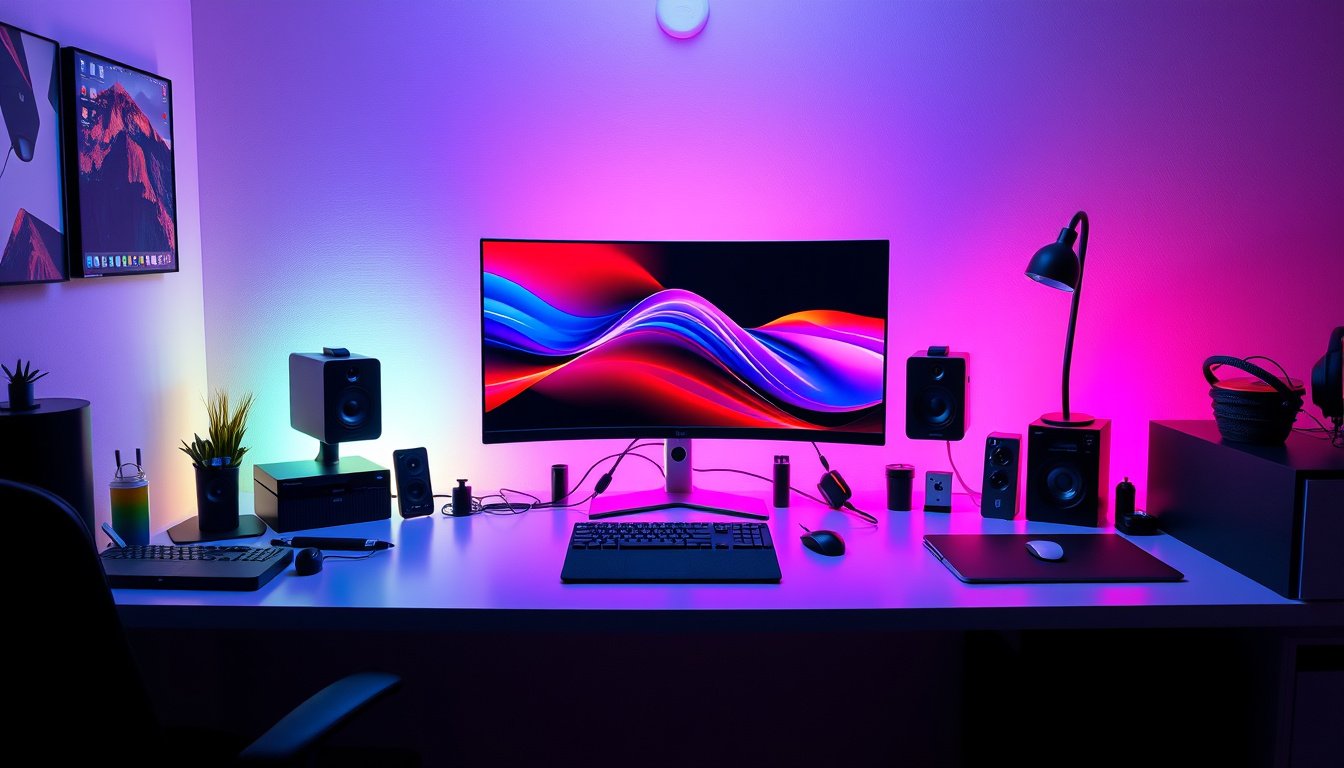

In today’s dynamic work environment, having an efficient and organized workspace is crucial. Whether you’re working from home, at the office, or at a university, a docking station can transform how you use your laptop, extending its functionality while simplifying your setup. This guide explores what a docking station is, why you should consider using one, how to set it up, and tips for getting the most out of it. 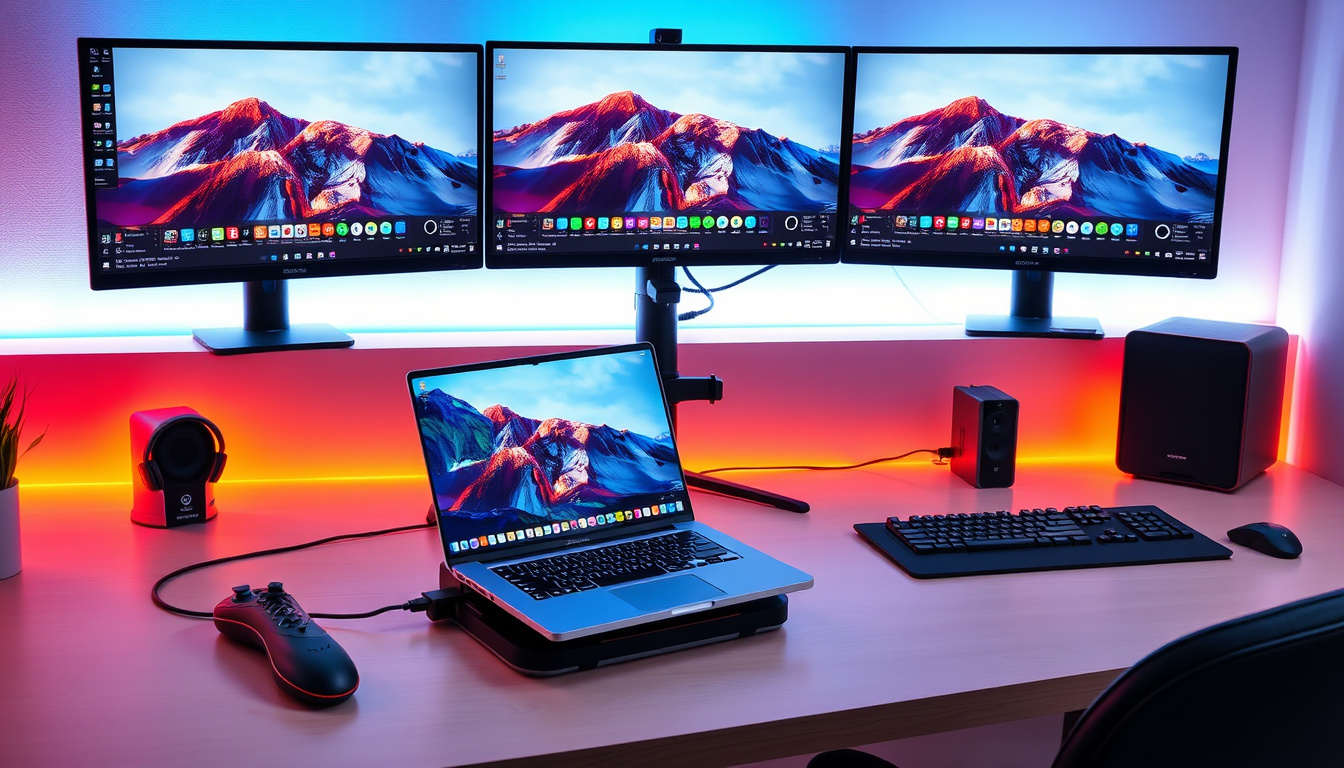


What Is a Docking Station?
A docking station is an accessory device designed to expand the connectivity options of your laptop or mobile device. By physically connecting your laptop to a docking station, you gain access to multiple ports and peripherals through a single connection. Typical ports found on docking stations include USB (Type-A and Type-C), HDMI or DisplayPort for video output, Ethernet for wired internet, and audio jacks.
Docking stations effectively turn your portable laptop into a desktop-like workstation by enabling easy connection to monitors, keyboards, mice, printers, external drives, and more.
Why Use a Docking Station?
Using a docking station offers several benefits:
- Simplified Cable Management: Instead of plugging and unplugging multiple cables from your laptop every day, you connect a single cable to the docking station.
- Quick Device Switching: Easily dock and undock your laptop to move between workspaces or meetings without hassle.
- Extended or Multiple Displays: Enhances your productivity by enabling additional or larger monitor setups.
- Power Delivery: Many docking stations can charge your laptop while connected, reducing the need for extra power adapters.
- Improved Ergonomics: Connect a full-sized keyboard, mouse, and larger monitors to create a more comfortable and efficient work environment.
- Versatility: Compatible with Windows and Mac laptops, enabling broader use for mixed-device ecosystems.
- Enhanced Collaboration: In workplace or academic settings, shared docking stations allow multiple users to connect quickly to common peripherals like projectors and printers.
How To Set Up a Docking Station
Setting up a docking station is straightforward. Follow these general steps:
- Connect Power Supply: Plug the docking station into a power outlet.
- Connect to Laptop: Use the appropriate connection cable, usually USB-C or Thunderbolt, to connect the docking station to your laptop.
- Install Necessary Drivers: Ensure that your laptop has any required drivers or software for the docking station to function correctly.
- Attach Peripherals: Connect monitors, keyboard, mouse, external drives, and other devices to the docking station.
- Power On Devices: If needed, press the power button on the docking station and any connected monitors.
Understanding Connection Types and Compatibility
USB-C and Thunderbolt Docking Stations
Modern docking stations often rely on USB-C or Thunderbolt connections:
- USB-C Docking Stations: These support charging, video, and data transfer on a single cable if your laptop supports these features.
- Thunderbolt Docking Stations: Suitable for high-speed data transfer and support for multiple high-resolution monitors—ideal for creative professionals and data-intensive tasks.
HDMI and Other Connections
If your laptop doesn’t support video over USB-C, you may need to use an HDMI cable or adapters to connect to external displays. Some docking stations provide both USB-C and HDMI connections to accommodate different laptops.
Compatibility Checks
Compatibility between your laptop and docking station is essential. Confirm that:
- Your laptop’s ports match those on the docking station.
- The operating system supports the docking station drivers.
- The docking station supports the resolution and refresh rate of your monitors.
- Power delivery is appropriate for your laptop model.
Using Multiple or Extended Displays
Docking stations allow you to add a second monitor, providing more screen real estate:
- Extended Mode: Use the additional monitor as an extension of your desktop, increasing workspace.
- Duplicate Mode: Mirror your laptop display on the external monitor, ideal for presentations.
How to Enable Extended Displays:
- Windows: Press
Windows + P, then select ‘Extend’ to use multiple screens. - Mac: Go to Apple Menu > System Preferences > Displays > Arrangement, then drag the monitors to arrange and ensure the ‘Extend Display’ mode is selected.
Troubleshooting Common Docking Station Issues
- Laptop Not Recognizing Docking Station: Check all cables and connections, ensure drivers are installed and updated, and verify compatibility.
- Display Not Extending to Monitor: Confirm display settings on your laptop and the monitor’s power status. Restart your laptop or update graphics drivers if necessary.
- No Audio Output: Check audio device settings and connections between docking station and speakers or headphones.
- Docking Station Not Powering Laptop: Ensure the docking station supports power delivery compatible with your laptop.
Wireless Docking Stations: When to Consider Them
Wireless docking stations offer cable-free convenience, useful in environments where wiring is inconvenient, such as shared office spaces or conference rooms. They allow connection to monitors and peripherals through wireless technologies, enhancing mobility without sacrificing connectivity.
Maximizing Your Workspace with Accessories
Docking stations provide multiple USB ports (both Type-A and Type-C), allowing you to connect:
- External keyboards and mice for better ergonomics.
- USB drives for simple file transfer.
- Audio headsets or speakers for improved sound.
- Printers and scanners for office tasks.
Ensure your docking station offers the ports you need and check whether it supports your accessories fully, especially with mixed device ecosystems.
Conclusion
A docking station is a valuable tool that can significantly enhance your workspace by providing the convenience of a desktop environment with the flexibility of a laptop. From improving cable management and boosting productivity with multiple screens, to supporting various peripherals and enabling quicker transitions between work settings, docking stations offer versatile advantages suited to professionals, students, and gamers alike.
By understanding your laptop’s capabilities, checking compatibility, and following best practices for setup and troubleshooting, you can make the most of your docking station and create an efficient, comfortable, and productive work environment.
Embrace the power of a docking station today to maximize your workspace and elevate your work experience!
About the Author