
In today’s fast-paced world, staying connected is essential, and a device with a low battery can disrupt your flow. Thankfully, fast charging technology allows you to quickly boost your device’s battery level, reducing waiting time and keeping you productive. However, to truly capitalize on the benefits of fast charging modes, you need to understand how to use them correctly and safely. This comprehensive guide will walk you through the essentials of fast charging, how to enable it, and best practices to protect your device’s battery health.


Understanding Fast Charging Modes
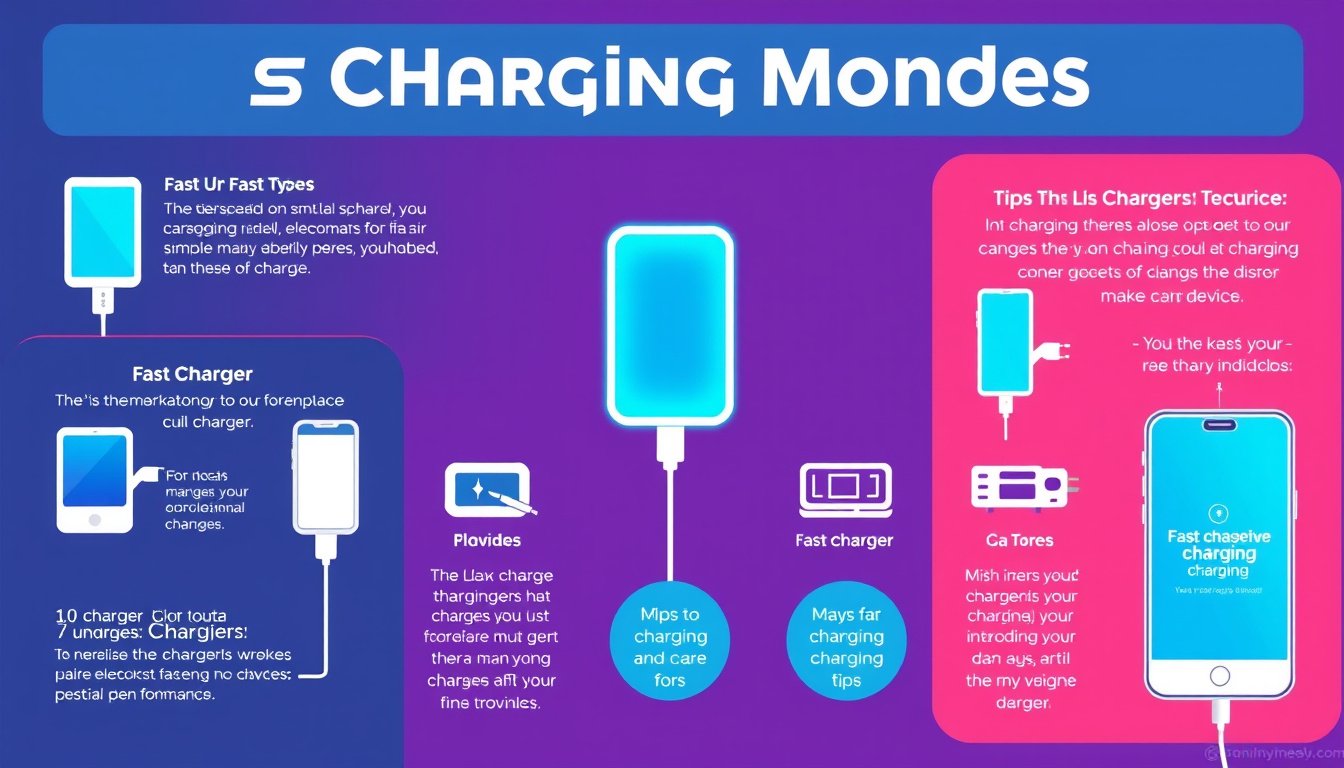
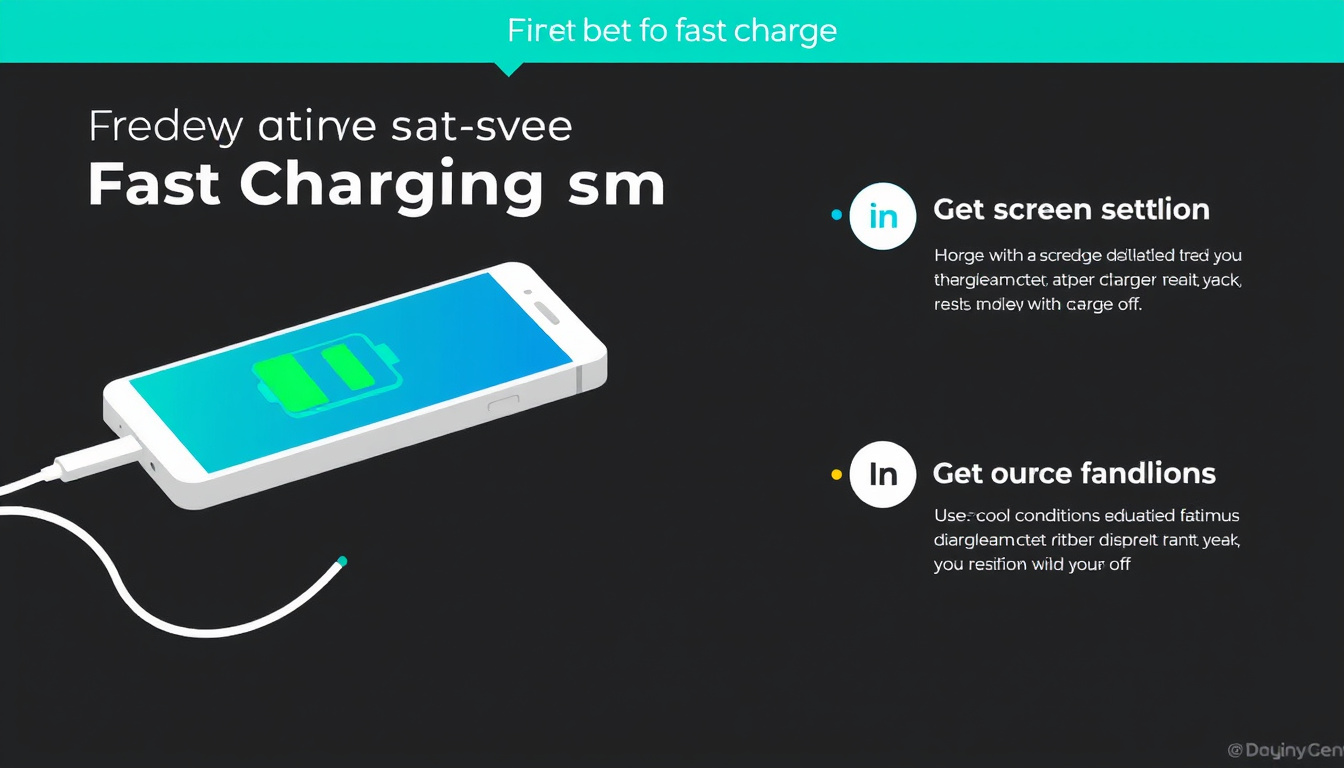
Fast charging is designed to reduce the amount of time it takes to recharge your smartphone, tablet, or other devices. Different brands have their own variants of fast charging technologies:
- Standard Charging: The traditional charging method, which charges your device at a normal rate.
- QuickCharge / Adaptive Fast Charging: These modes increase charging speed by delivering more current or voltage while maintaining safe operation.
- Super Fast Charge / SuperCharge: Advanced fast charging that requires compatible chargers and cables to deliver exceptionally high charging speeds.
For instance, Samsung devices use modes like Fast Charging, Super Fast Charging, and Fast Wireless Charging, while Huawei utilizes QuickCharge and SuperCharge formats. Each mode often corresponds to specific chargers and cables designed to safely deliver higher power without damaging the battery.
How to Enable Fast Charging on Your Device
Fast charging is typically not enabled by default on some devices, so you may need to activate it manually. Here’s a step-by-step process based on common smartphone settings (Samsung Galaxy series example):
- Go to Settings.
- Navigate to Device Care or Battery settings.
- Tap on the Battery menu, then locate and select Charging.
- Toggle the fast charging options according to your charger type:
- Enable Fast Charging if using an adaptive fast wired charger.
- Enable Super Fast Charging if using a compatible USB Power Delivery super fast charger.
- Enable Fast Wireless Charging if using an authorized wireless fast charger.
Note: You cannot toggle fast charging modes while charging is in progress; ensure the device is unplugged before switching settings.
Choosing the Right Charger and Cable
Fast charging requires compatible hardware:
-
Authorized Chargers: Use chargers certified by your device manufacturer to ensure safety and optimal charging speeds. For example, Samsung authorizes specific Adaptive Fast Charging and Super Fast Charging adapters.
-
Proper Cable Connection: A loose USB cable connection can significantly reduce charging speed. Always ensure the USB cable is firmly plugged into both the device and the charger.
-
Avoid Third-Party Chargers Without Certification: Using uncertified or incompatible chargers can slow charging, harm your battery, or even pose safety risks.
Tips for Maximizing Fast Charging Efficiency
To get the most out of your fast charging mode, consider these recommendations:
-
Turn Off Your Device or Screen: Devices charge faster when turned off or when the screen is off, as background processes consume less power.
-
Avoid Using the Device While Charging: Activities like gaming or streaming generate heat and draw power simultaneously, slowing down the charge rate.
-
Cool Environment: High ambient temperatures or device overheating trigger automatic throttling to protect battery health, slowing charging speed. Charge in a cool, ventilated area.
-
Wireless Fast Charging Considerations: Some fast wireless chargers include built-in fans that may produce noise and help manage heat, enhancing charging performance.
Understanding Battery Health and Fast Charging
One common concern users have is whether fast charging degrades battery health faster than standard charging. Modern devices are equipped with sophisticated battery management systems that regulate voltage, current, and temperature to minimize wear.
However, routinely exposing batteries to high temperatures or overcharging should be avoided to extend battery lifespan. Balancing fast charging with occasional standard charging can help maintain optimal battery health over time.
Troubleshooting Fast Charging Issues
If your device isn’t charging rapidly despite enabling fast charging:
- Check Charger Compatibility: Ensure your charger supports the specific fast charging standard of your device.
- Inspect Cable and Ports: Damaged cables or dirty ports can interrupt current flow.
- Update Software: Some charging technologies are optimized via software updates.
- Review Device Settings: Reconfirm that fast charging modes are enabled.
- Avoid Charging in Extreme Temperatures: Charging performance is impacted by very cold or hot environments.
Conclusion
Fast charging is a valuable feature that significantly reduces downtime by quickly replenishing your device’s battery. By understanding how to enable the correct fast charging mode, using proper authorized chargers and cables, and following best practices like charging in cool environments and turning off your device during charging, you can maximize efficiency while protecting your battery’s health.
Implement these strategies to harness the full potential of fast charging technology and keep your digital life powered up and ready to go.
Quick Reference: Fast Charging Best Practices
- Use manufacturer-authorized fast chargers and cables.
- Enable fast charging modes in device settings.
- Ensure proper cable connections.
- Charge with the device off or screen locked.
- Avoid heat buildup by charging in cool conditions.
- Occasionally charge using standard mode to preserve battery health.
By keeping these guidelines in mind, you ensure not only rapid charging but also a longer-lasting, healthier battery for your device.
About the Author