
In today’s energy-conscious computing environment, efficient power management is key to balancing performance with battery life and system stability. A fundamental feature in Windows operating systems that aids in this balance is USB Selective Suspend. Understanding how to use this setting effectively can resolve common USB connectivity issues and optimize your system’s power consumption.


What Is USB Selective Suspend?
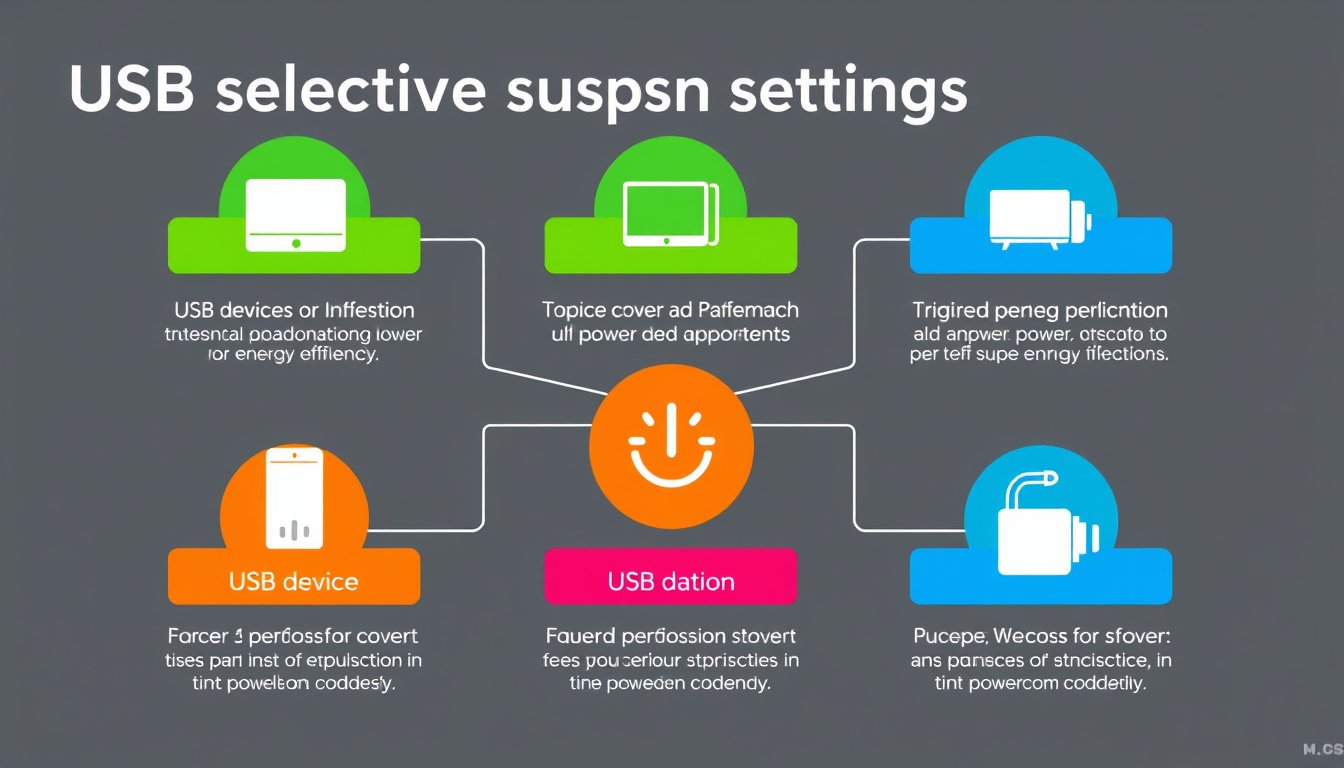
USB Selective Suspend is a Windows power management capability available in both Windows 10 and Windows 11. This feature allows the operating system to put individual USB ports into a low-power or suspended state when they are idle, rather than powering down all USB ports simultaneously. By doing so, devices connected to these ports that do not need continuous power—such as mice, keyboards, and scanners—conserve energy without impacting the functionality of other active devices plugged into the same hub.
When activated, USB Selective Suspend automatically “wakes” a USB device from its suspended state the moment user interaction or device activity requires it, such as moving a mouse or scanning a document.
Benefits and Considerations of USB Selective Suspend
The key benefit of USB Selective Suspend is power saving, which helps extend battery life on laptops and reduces overall energy consumption on desktops. It improves energy efficiency by suspending USB devices that are not actively in use, which is particularly valuable for mobile users.
However, this feature is not without drawbacks in certain circumstances. Older USB devices or those with sensitive timing needs—like some gaming peripherals or audio interfaces—may not respond well to being suspended. Users may notice delays when devices “wake up,” or in some cases, devices might fail to reconnect properly after suspension. In these instances, USB Selective Suspend can cause intermittent disconnections or device unresponsiveness at startup and during use.
When to Enable or Disable USB Selective Suspend
By default, Windows enables USB Selective Suspend, as it generally balances power savings with device usability effectively. However, consider disabling it if:
- You experience persistent USB device disconnections or failures to reconnect on startup.
- Performance-sensitive USB devices show lag or dropout after system sleep or hibernation.
- You use older hardware that doesn’t fully support selective suspend functionality.
On the other hand, if your USB devices work without issues and you want to maximize battery life, keeping USB Selective Suspend enabled is recommended.
How to Configure USB Selective Suspend Settings in Windows

Disabling or enabling USB Selective Suspend can be achieved via the Windows Power Options interface, with similar steps for Windows 10 and Windows 11. Step-by-Step Guide:
-
Access Power Options
- Press the Start button, type Control Panel, and press Enter.
- Navigate to Hardware and Sound > Power Options.
-
Edit Your Current Power Plan
- Click on Change plan settings next to your selected power plan.
- Select Change advanced power settings.
-
Locate USB Selective Suspend Settings
- In the Power Options dialog, expand USB settings.
- Expand USB selective suspend setting.
-
Modify USB Selective Suspend Settings
- You will see two options: On battery and Plugged in.
- To disable selective suspend, set both to Disabled.
- To enable selective suspend, set both to Enabled.
-
Apply and Save
- Click Apply then OK to save your changes.
-
Reboot Your Computer
- Restart your device to ensure the new settings take effect.
Additional Power Management Tweaks
For increased stability, especially if disabling USB Selective Suspend does not fully resolve issues, adjust device-specific power management settings:
- Open Device Manager (press Win + X and select Device Manager).
- Expand the Universal Serial Bus controllers section.
- For each USB Root Hub or Generic USB Hub device:
- Right-click and choose Properties.
- Go to the Power Management tab.
- Uncheck Allow the computer to turn off this device to save power.
- Click OK.
- Repeat this for all USB hubs listed.
This prevents Windows from selectively powering off USB hubs, which can improve device connectivity and reliability.
Impacts on Hardware and Performance
Disabling USB Selective Suspend may increase power consumption slightly and could reduce the lifespan of some USB devices, such as external mechanical hard drives that remain spinning continuously without power-saving suspension. Users should balance the need for connectivity reliability against potential hardware wear and battery life impacts.
Troubleshooting USB Device Issues with USB Selective Suspend
If you notice devices disconnecting, freezing, or requiring reconnection frequently:
- Temporarily disable USB Selective Suspend to check if the issue resolves.
- Update USB device drivers to the latest versions from manufacturers.
- Inspect USB ports and cables for physical damage.
- For enterprise users, consider centralized USB power management configuration tools to handle settings across multiple devices.
Conclusion
USB Selective Suspend is a valuable Windows feature facilitating power-saving by intelligently managing USB port power states. For most users, the default enabled setting offers a good balance between device responsiveness and energy efficiency. However, disabling it can solve stubborn USB connectivity issues, particularly with specific devices or configurations.
By understanding when and how to adjust USB Selective Suspend settings, you can enhance system stability, reduce USB device dropouts, and tailor power management to your precise needs—mastering an often-overlooked aspect of Windows power management for optimal performance.