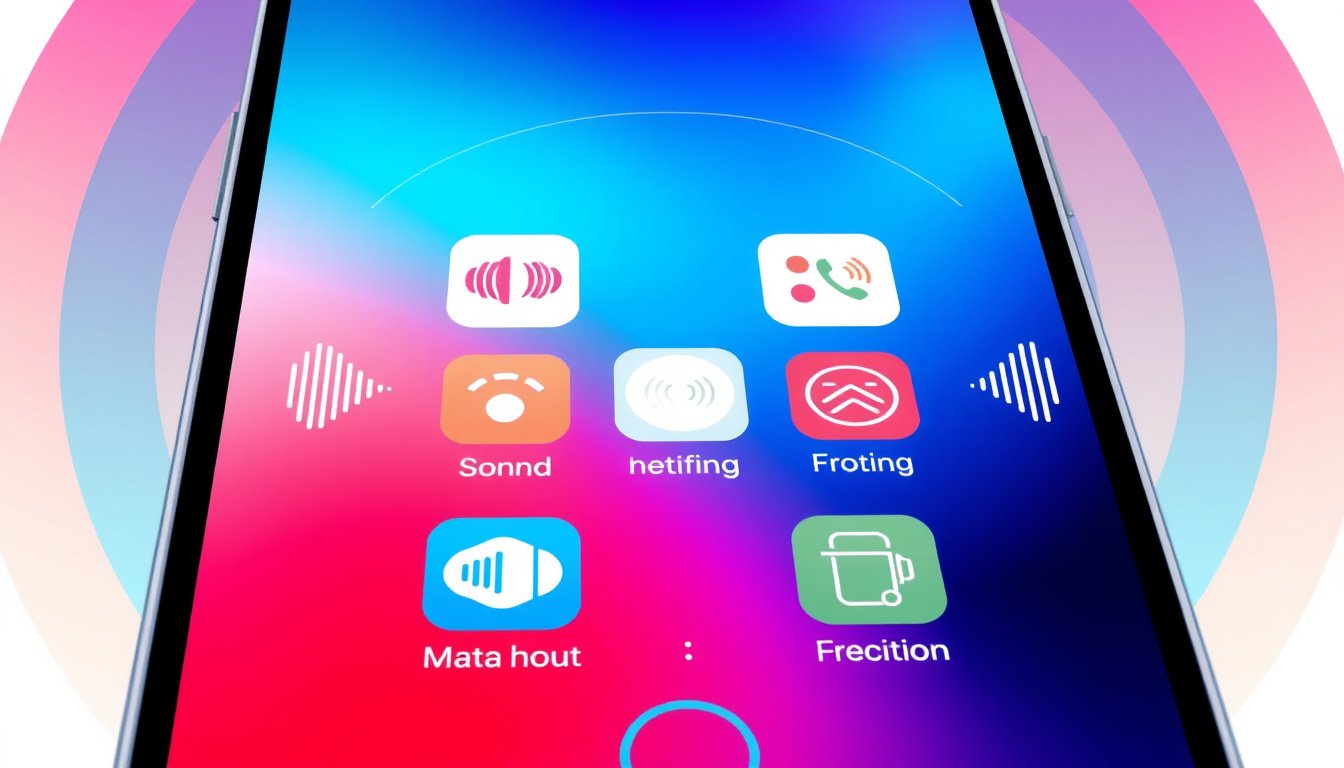

In today’s digital age, smartphones have become an essential extension of ourselves. Notifications keep us informed, but standard alert sounds can blend together, making it easy to miss important updates or simply grow tired of repetitive tones. Customizing notification sounds for each app unlocks a more personalized and organized experience, letting you know exactly what’s buzzing without even looking. Whether you want to assign unique sounds for messages, emails, social media, or other apps, here’s a comprehensive guide on how to tailor notification sounds to suit your style and needs.


Why Customize Notification Sounds?
Custom notification sounds enhance usability by providing instant audio cues that help differentiate the source of a notification. This personalization can:
- Improve response time by immediately identifying the app notifying you.
- Reduce the likelihood of missing urgent alerts.
- Add a touch of personality and fun to your device.
- Help manage your focus by assigning priority through sound.
General Steps to Customize Notification Sounds on Your Smartphone
Different devices and operating systems have different settings, but most modern smartphones support individual app notification sound customization. Here’s a typical process using Android (based on Samsung Galaxy phones) as an example, but iPhone users can have similar options with iOS.
1. Prepare Your Desired Notification Sounds
To use custom sounds, they usually need to be stored in a specific folder on your device. For Samsung Galaxy phones, for example:
- Save or download your preferred audio files.
- Use the file manager app (like My Files on Samsung) to move audio files into the Notifications folder in your internal storage. Sound files stored here can be selected for notification alerts.
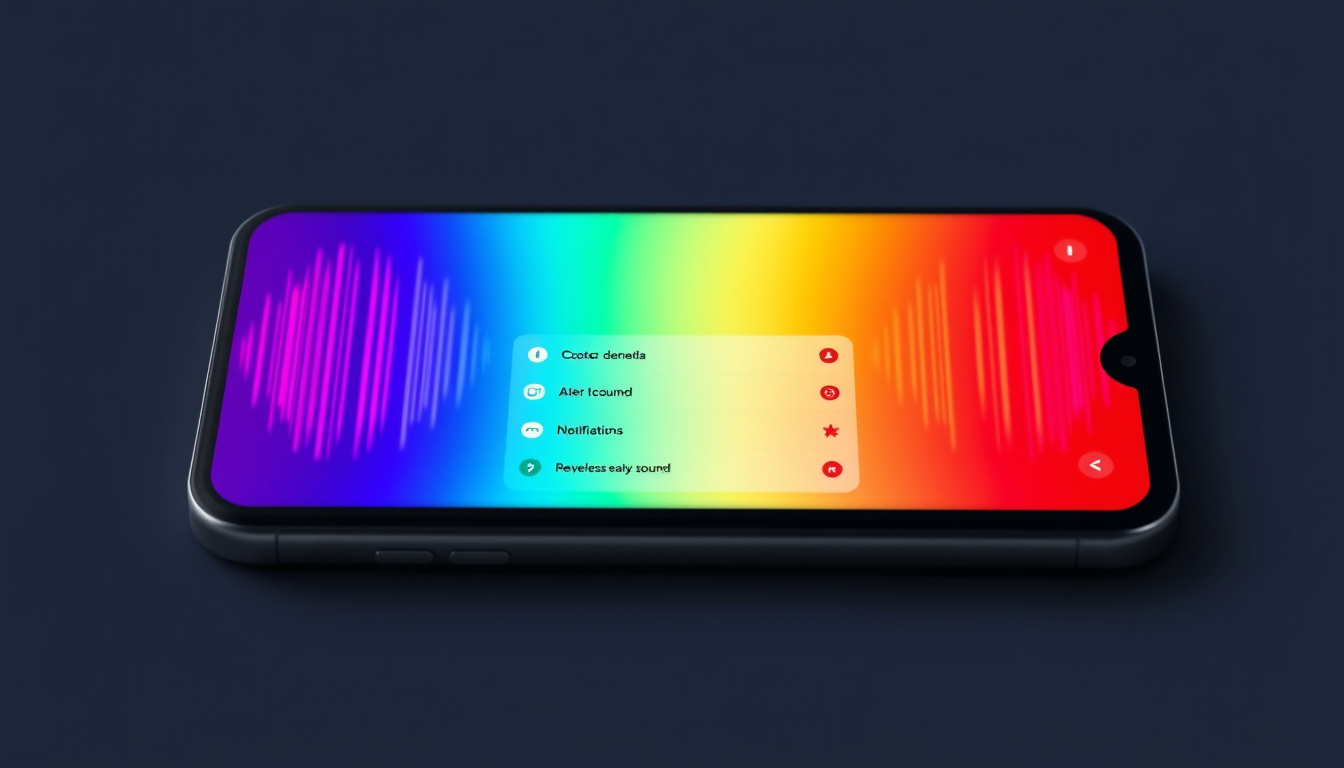
2. Set Notification Sounds for Individual Apps
On Samsung Galaxy devices (One UI), follow these steps:
- Open Settings.
- Tap Apps and select the app you want to personalize.
- Choose Notifications.
- Tap on the relevant notification category (e.g., General notifications).
- Tap Sound.
- Select your preferred notification sound from the list, including any custom file you added.
This process allows you to assign different sounds for apps like Messages, Email, WhatsApp, or any other apps that support notification customization.
3. Update Your Device for Best Experience
Ensure your device and apps are updated to the latest versions since some customization features rely on updated software.
- Go to Settings > Software update on Samsung phones.
- Tap Download and install if updates are available.
Keeping your software current ensures smooth functioning and access to the latest personalization options.
Customizing Notification Sounds on iPhone (iOS)
While iPhones do not natively allow extensive per-app notification sounds customization like Android, you can customize sounds for system apps (such as Messages and Mail):
- Go to Settings > Sounds & Haptics.
- Tap on the type of alert you want to change (e.g., Text Tone, New Mail).
- Select from built-in tones or purchase new ones from the Tone Store.
For third-party apps, customization depends on the app’s own settings. Many messaging apps like WhatsApp allow choosing custom notification tones within the app’s settings.
Tips for an Optimal Notification Sound Setup
- Choose distinctive sounds: Pick tones that are easy to distinguish from one another.
- Keep sound length short: Short notification sounds get your attention without annoyance.
- Use silent notifications for low priority apps: To avoid distractions, some apps can be set to vibrate only or silent notifications.
- Explore app-specific customization: Many apps offer internal settings for notifications, including sound options that override system settings.
Conclusion
Customizing notification sounds is a simple yet powerful way to revamp how you interact with your device. By assigning different sounds to each app, you gain an audible system that helps efficiently identify alerts and adds a personal flair to your phone. Using built-in settings on Android or iOS, or even downloading custom sound files, you can turn generic notifications into a personalized, seamless experience. Unlock your smartphone’s full potential by tailoring notification sounds — your ears will thank you!
By following the steps above, you can start personalizing your notification sounds today and transform how you receive and react to alerts on your smartphone.
About the Author