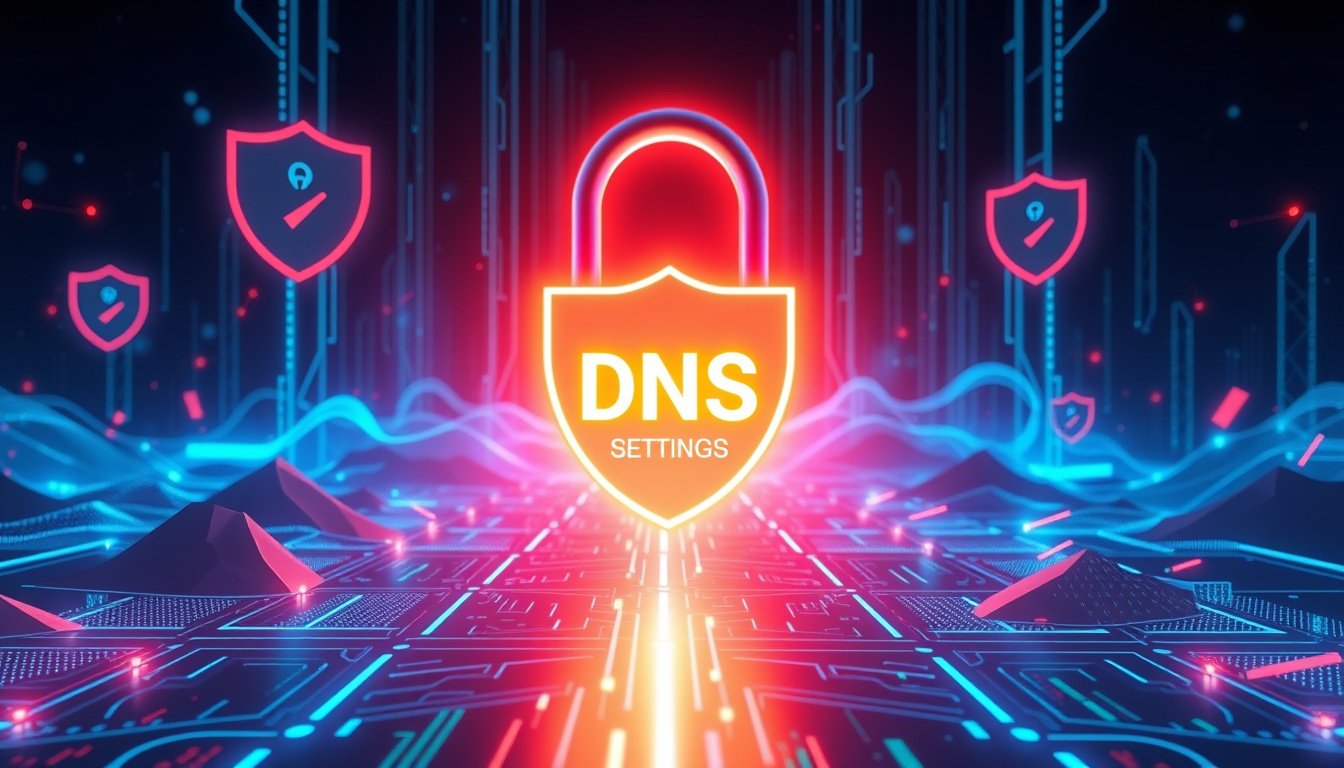

The Domain Name System (DNS) serves as the internet’s phone book, translating human-friendly domain names like www.example.com into machine-readable IP addresses that computers use to find and communicate with each other. While internet service providers (ISPs) typically handle DNS resolution by default, users have the option to customize their DNS settings. Doing so can unlock improved internet performance, stronger privacy, and enhanced security. This article explores what custom DNS is, the benefits of using it, and step-by-step guidance on how to configure custom DNS settings across various devices.


What is Custom DNS?
Custom DNS refers to manually setting your device or network to use a third-party DNS resolver rather than the default server provided by your ISP. These alternative DNS services often provide faster query responses, better privacy protections, additional filtering controls, and sometimes security-enhanced features like malware blocking.
When connected to a VPN like Proton VPN, your DNS requests usually route through the encrypted VPN tunnel to the VPN provider’s DNS servers, ensuring your queries remain private and cannot be tracked back to your real IP address. Custom DNS settings enable you to override this default behavior, choosing which DNS servers handle your requests.
Why Use Custom DNS?
1. Improved Internet Speed and Reliability
Some third-party DNS resolvers boast lower latency and faster query speeds. Services like Cloudflare’s 1.1.1.1 or Google DNS (8.8.8.8) maintain globally distributed servers optimized for performance, which can reduce the time it takes to resolve domain names and accelerate web browsing.
2. Enhanced Security
Certain DNS providers offer advanced security features such as blocking access to known malicious websites, phishing domains, or trackers. This can protect your device from malware or unwanted content before it even loads.
3. Greater Privacy
By using a respected third-party DNS resolver that has a strict no-logs policy and supports DNS over HTTPS (DoH) or DNS over TLS (DoT), you minimize exposure of your browsing habits to your ISP or other third parties. When combined with a VPN, your DNS traffic is anonymized and secured.
4. Content Filtering and Parental Controls
Some DNS services offer configurable filtering, allowing users to block adult content, gambling sites, or advertisements. This capability can be useful for families or organizations wanting to control access.
Is Using Custom DNS Safe?
Yes, provided you choose trustworthy DNS services. Using a reputable DNS resolver ensures your browsing data is handled responsibly, adhering to privacy standards and avoiding logging or selling your data. Custom DNS queries sent through a secure VPN tunnel add an additional layer of privacy by masking your true IP address from the resolver.
However, when using custom DNS, some VPN features like DNS-based ad-blockers may not function because these features rely on DNS queries being processed by the VPN provider’s resolver. It is important to understand such trade-offs if you require those protections.
How to Use Custom DNS Settings
Here is a general guide on how to enable and configure custom DNS on diverse operating systems and devices, with Proton VPN as an example demonstrating custom DNS configuration within a VPN context.

Windows
- Open the Proton VPN Windows app.
- Navigate to Settings → Connection → Advanced Settings → Custom DNS servers.
- Toggle on Custom DNS servers and acknowledge any warning prompts.
- Enter the IP address(es) of your preferred third-party DNS resolver(s).
- Add multiple servers to provide redundancy, rearranging them as needed.
- Click Apply or Reconnect if currently connected.
macOS
- Open the Proton VPN app from the macOS menu bar.
- Go to Settings → Advanced tab → Custom DNS.
- Turn on Custom DNS servers, bypassing any warning related to DNS filtering features.
- Add one or more DNS server IPs, ordering as desired.
- Note: If you use firewall or DNS encryption tools such as Little Snitch, disable their DNS encryption to avoid conflicts.
Linux (GUI & CLI)
- GUI: Similar to Windows/macOS, use Proton VPN’s Linux app to toggle and add custom DNS under settings.
- CLI: Run terminal commands like
protonvpn config set custom-dns --dns 1.1.1.1,8.8.8.8 onto enable and set custom DNS servers. Use
protonvpn config set custom-dns offto disable.
Android & Android TV
- In the Proton VPN Android app, go to Settings → Connection → Advanced Settings → Custom DNS.
- Add the IPv4 or IPv6 address(es) of preferred DNS resolvers.
- Toggle the custom DNS feature on or off.
- On Android TV, the process is accessible through the system Settings → Custom DNS menu.
iOS and iPadOS
- Open the Proton VPN app.
- Select Settings → Connection → Custom DNS.
- Add your DNS server addresses.
- Confirm any warnings related to incompatible features like ad-blocking DNS filters.
Important Notes
- Custom DNS generally cannot be used together with certain VPN DNS filtering or ad-blocking features because queries are redirected outside the VPN provider’s filtering service.
- Adding multiple DNS servers ensures failover — if one resolver is unavailable, the next will be tried.
- Common reliable public DNS servers include Cloudflare (1.1.1.1), Google (8.8.8.8), Quad9 (9.9.9.9), and OpenDNS.
Conclusion
Configuring custom DNS settings empowers you to take control over your internet experience, potentially boosting speed, improving privacy, and enhancing security. Whether integrated inside a VPN app or set directly on your device or router, custom DNS adds versatility to how your domain queries are resolved. Understanding the implications and how to properly set up these settings is key to maximizing the benefits and maintaining a safe, smooth web browsing experience.
By embracing custom DNS, you unlock a vital tool in your toolkit for a faster, safer, and more private internet journey.
About the Author