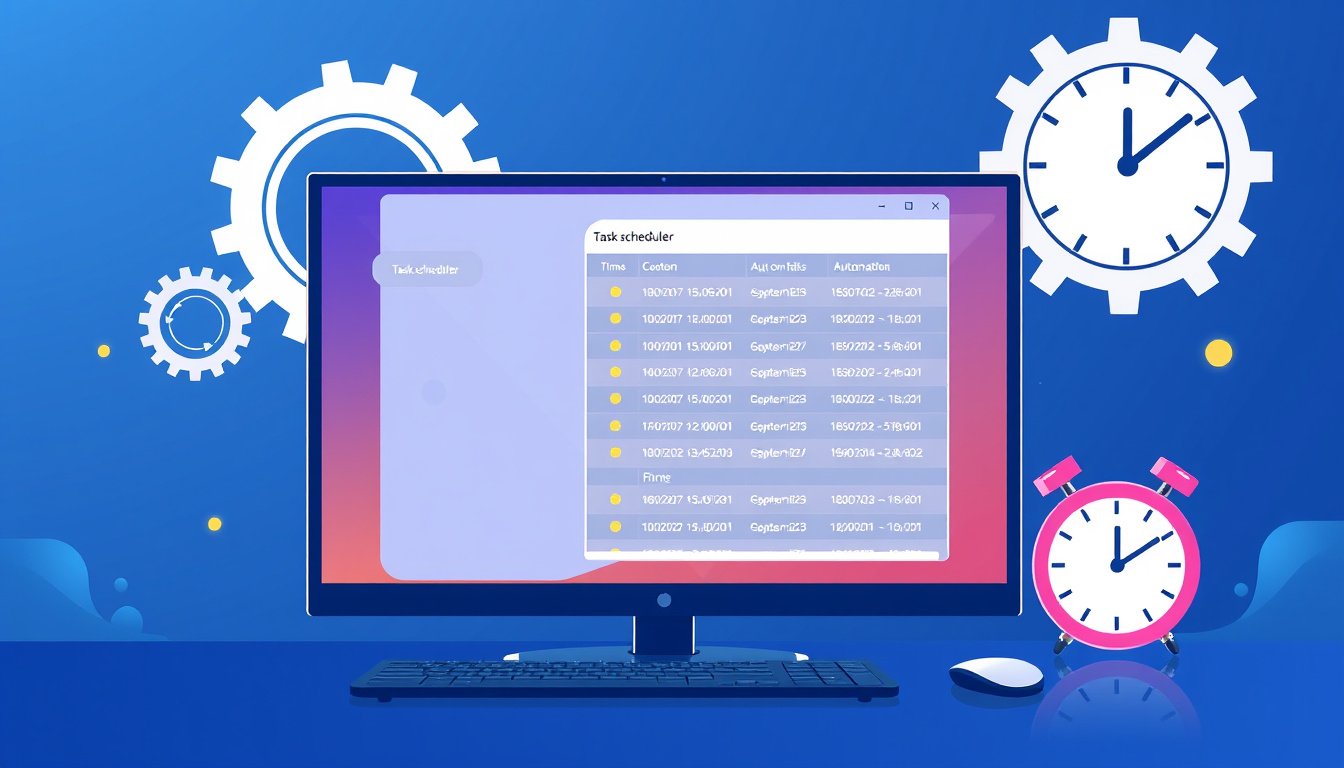

In modern computing, automating routine tasks is a cornerstone of productivity and efficient system management. Windows Task Scheduler is a powerful built-in utility that enables users and administrators to automate actions such as running programs, executing scripts, and sending notifications at pre-defined times or in response to system events. This guide will walk you through the essentials of using Task Scheduler to streamline your workflows and maintain a smoothly running system without constant manual intervention.


What Is Task Scheduler?
Task Scheduler is a Windows utility designed to automate the execution of repetitive or time-sensitive tasks. Instead of manually performing routine activities like running backups, launching maintenance scripts, or starting applications, Task Scheduler lets you set up those actions to occur automatically based on triggers you specify.
How Does Task Scheduler Work?
Tasks in Task Scheduler are composed of two core parts:
- Triggers: Conditions or events that initiate the execution of a task. These can be time-based (e.g., daily at 8 AM), event-based (e.g., system startup, user logon), or condition-based (e.g., when the computer is idle).
- Actions: The operations performed when the trigger conditions are met. Examples include starting a program, sending an email, displaying a message, or running a script.
By defining triggers and corresponding actions, Task Scheduler monitors your system and runs tasks automatically according to your configuration.
Common Triggers and Actions
Triggers include:
- At a specific time (one-time, daily, weekly, monthly)
- When the computer boots up
- When a user logs on
- When the system enters idle state
- When a specific system event occurs
Actions include:
- Starting a program or script
- Sending an email notification
- Displaying a message box or alert
Benefits of Using Task Scheduler
- Automation of repetitive tasks: Saves time and effort by running tasks without manual intervention.
- Consistency and reliability: Ensures tasks run at the correct time or event, reducing human error.
- Resource optimization: Schedule tasks to run during off-peak hours or when the system is idle.
- Notification and monitoring: Receive alerts when tasks complete or encounter errors.
- Remote task management: Manage scheduled tasks on networked computers from a single interface.
Step-by-Step Guide to Creating a Basic Task
- Open Task Scheduler:
- Type "Task Scheduler" in the Windows search bar and select it.
- Create a Basic Task:
- Click on Create Basic Task in the Action pane.
- Name your task and optionally enter a description.
- Set the Trigger:
- Choose when the task should run (e.g., daily, weekly, at logon).
- Specify additional trigger options like the start time and recurrence.
- Define the Action:
- Select what the task should do, such as start a program.
- Browse to the application or script you want to run.
- Review and Finish:
- Confirm all settings and click Finish.
- Manage Your Task:
- Locate your task in the Task Scheduler Library.
- Enable, disable, edit, or delete the task as needed.
Advanced Task Configuration
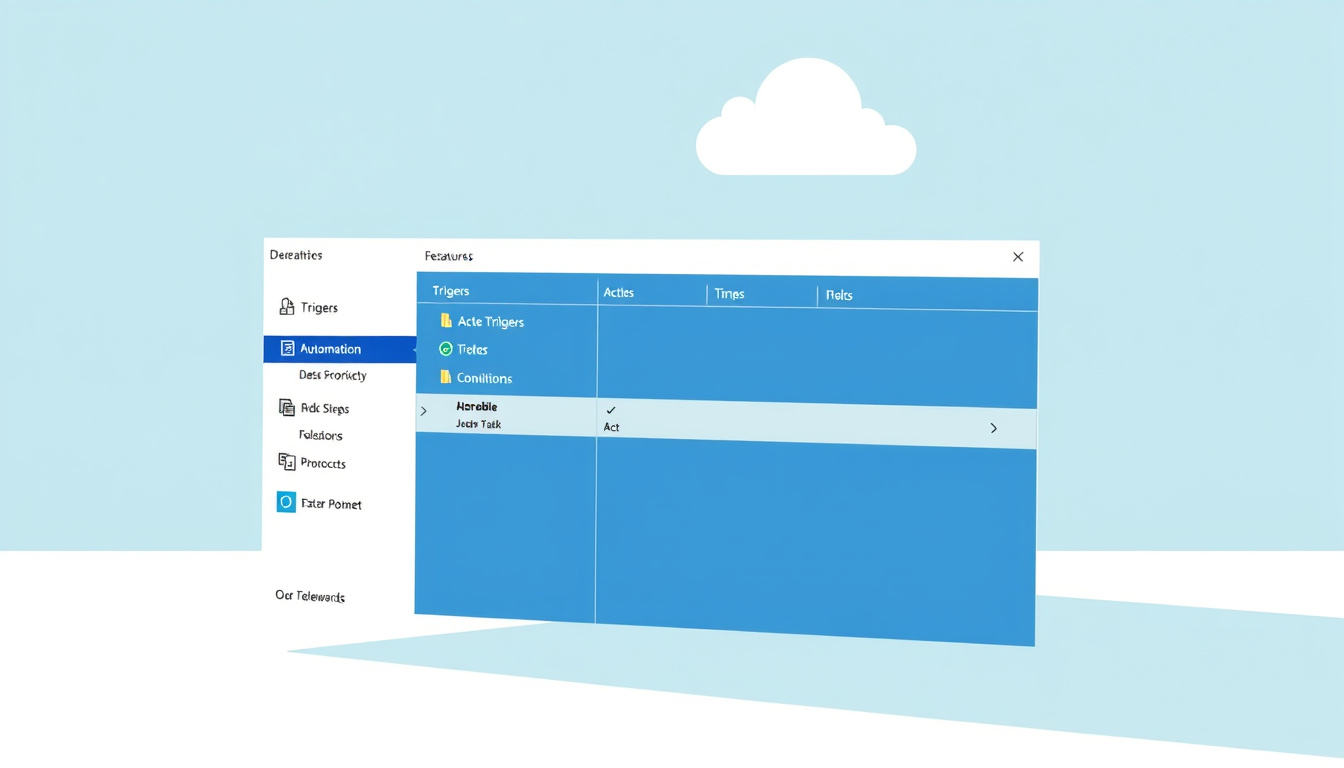
For more granular control, use Create Task instead of the basic task wizard. Here you can:
- Set multiple triggers and actions.
- Define conditions like running only if the computer is idle or on AC power.
- Configure settings such as task priority, security options, and retry policies.
- Access detailed history logs to monitor task execution success and troubleshoot errors.
Important Usage Tips
- Use the Run with highest privileges option for tasks requiring administrator access.
- Ensure scheduled programs or scripts come from trusted sources to avoid security risks.
- If your computer is off during a scheduled task, Task Scheduler attempts to run the missed task at next startup (depending on settings).
- Tasks can run simultaneously without interfering, as Task Scheduler handles resource allocation.
- Export and import tasks in XML format to backup or transfer scheduled tasks across computers.
Conclusion
Mastering Windows Task Scheduler empowers you to automate a variety of tasks effortlessly, freeing you from repetitive manual actions and enhancing system efficiency. Whether you are managing a personal PC or administering complex server environments, utilizing triggers, actions, and custom conditions within Task Scheduler ensures your system performs effortlessly and reliably. Start automating today and experience smoother operations and improved productivity with minimal ongoing effort.
About the Author