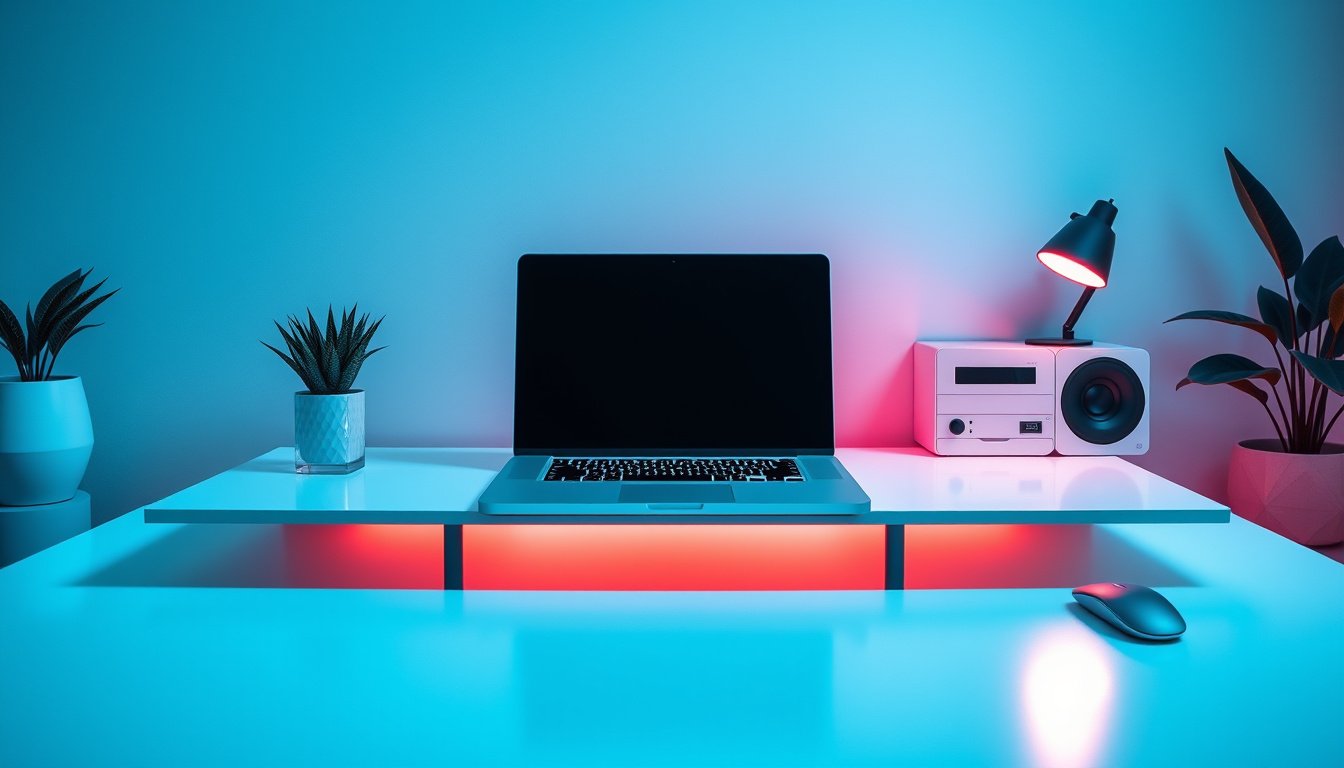

Using a laptop in a cool environment not only enhances your comfort while working but also plays an essential role in optimizing your device’s performance and longevity. Laptops generate considerable heat from internal components such as the processor and graphics card during operation. Overheating can impair functionality, shorten the lifespan of hardware, and cause discomfort to users. This article explores best practices for utilizing your laptop in cool surroundings to maintain optimal performance and user comfort.


Why Environment Temperature Matters for Laptop Performance
The temperature of the environment where your laptop is used significantly affects how well heat dissipates from its internal components. Cooler, well-ventilated spaces facilitate heat transfer away from the device, helping prevent overheating. Conversely, warm or poorly ventilated environments trap heat, making it harder for your laptop to maintain safe operating temperatures. By working in a cool environment, such as an air-conditioned room, you inherently reduce the risk of heat buildup.
Best Practices for Using Your Laptop in a Cool Environment
1. Use Hard, Flat Surfaces
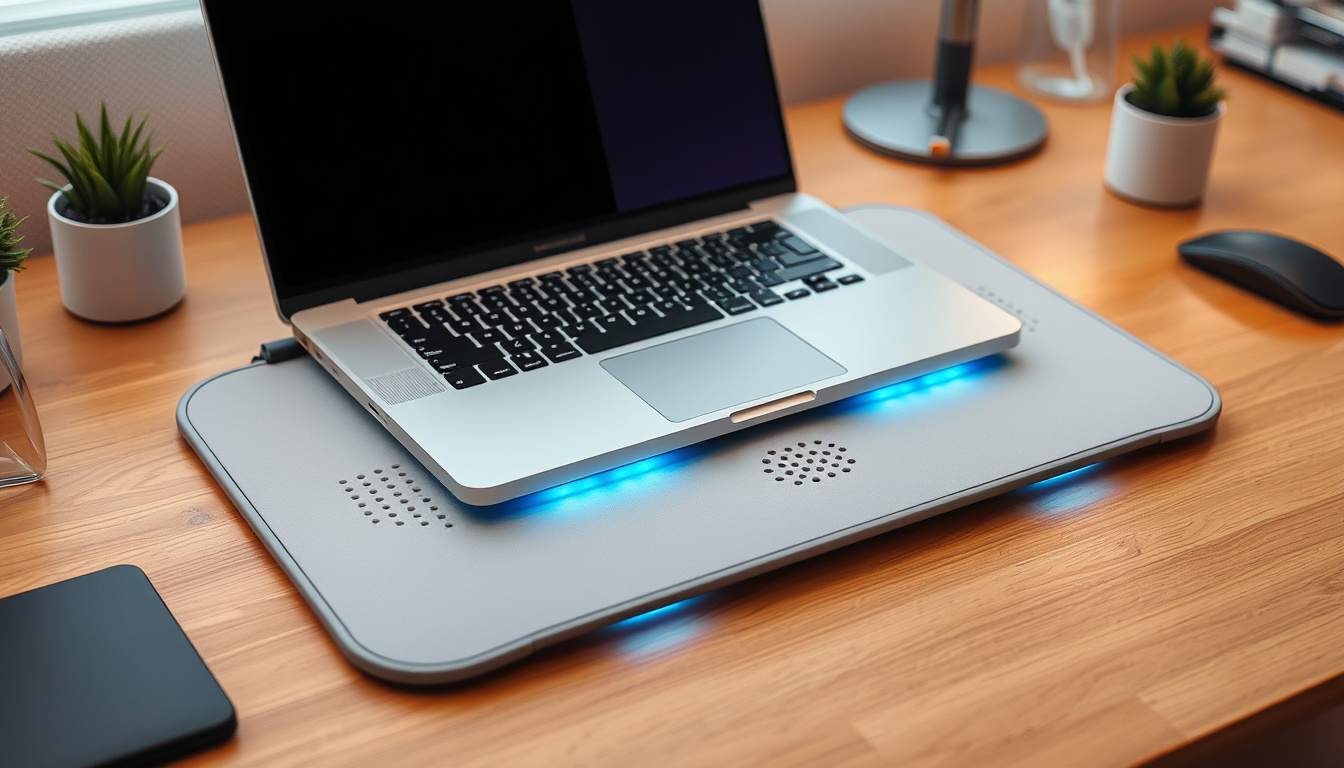
Placing your laptop on a hard, flat surface such as a desk or table allows for unobstructed airflow around the device. Avoid using your laptop on soft surfaces like beds or cushions, which obstruct air vents and trap heat. In a cool environment, a sturdy table further ensures better heat dissipation.
2. Maintain Adequate Ventilation
Ensure that your laptop’s air vents and cooling fans aren’t blocked. Position your laptop so that air can freely pass through intake and exhaust vents. Supplemental airflow can be encouraged by using external USB fans or portable desk fans positioned nearby to enhance circulation.
3. Employ Cooling Accessories
Cooling pads equipped with built-in fans are effective tools to improve ventilation. These devices lift the laptop, providing extra space underneath and actively blowing cool air to maintain lower surface temperatures. Laptop stands that elevate the device can also improve airflow and enhance ergonomic comfort.
4. Regularly Clean Your Laptop
Dust and debris can accumulate on vents, fans, and heat sinks, reducing the cooling system’s efficiency. Regular cleaning using compressed air or a gentle brush helps maintain optimal airflow and prevents overheating.
5. Adjust Power and Performance Settings
Reducing your laptop’s performance load when full power is unnecessary helps manage heat generation. Lower screen brightness, switch to power-saving modes, and close any applications or processes not in use. These steps reduce CPU and GPU strain, consequently lowering the internal temperature.
6. Monitor Temperature and Fan Speed
Installing temperature monitoring software such as HWMonitor or Core Temp allows you to track your laptop’s thermal performance. You can also use fan control utilities to manually increase fan speeds when temperatures rise, offering additional cooling.
Addressing Concerns About Using Laptops in Cold or Air-Conditioned Spaces
There’s a common misconception that using a laptop in air-conditioned rooms or cold environments might cause condensation inside the device, potentially damaging sensitive electronics. While rapid temperature changes—from hot to cold environments—can cause moisture buildup, gradual acclimation and maintaining a stable room temperature significantly mitigate this risk. Avoid moving your laptop directly from a hot outdoor environment into an extremely cold room without allowing it to adjust naturally at room temperature for several minutes.
Summary: Key Benefits of Using Your Laptop in a Cool Environment
- Improved Heat Dissipation: Cooler ambient temperatures assist your laptop’s internal cooling systems.
- Enhanced Performance: Reduced heat allows your CPU and GPU to operate efficiently without throttling.
- Increased Hardware Longevity: Keeping components cooler prevents premature wear and failure.
- Greater User Comfort: Cooler surroundings make extended laptop use more comfortable.
Final Tips
- Always ensure vents are clear and unobstructed.
- Prefer working spaces with good airflow and controlled temperatures.
- Maintain your laptop’s cooling system through cleaning and monitoring tools.
- Use laptop cooling pads or stands to boost ventilation.
- Adjust performance settings based on your workload to reduce excess heat.
By integrating these practices, you can master the cool environment approach to laptop use, ensuring both optimal performance for your device and a comfortable user experience.
About the Author