
In today’s fast-paced digital world, efficient and accurate text entry on mobile devices and computers is essential. Predictive text input technology has emerged as a powerful tool for speeding up communication, reducing errors, and enhancing user experience. This article explores what predictive text input is, its benefits, how it works on popular devices, and tips to make the most of this smart typing assistant.


What Is Predictive Text Input?
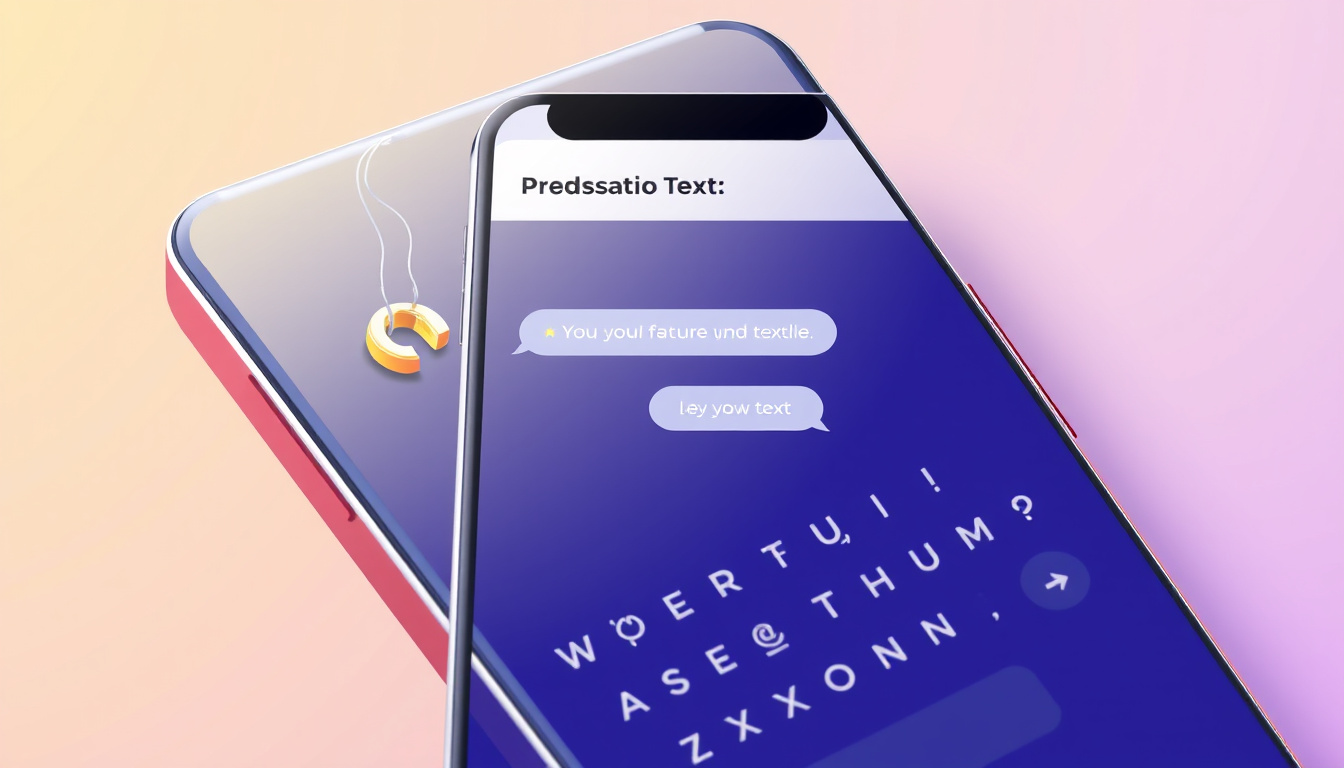
Predictive text input is a technology that anticipates the word or phrase you intend to type based on the initial characters you enter. Unlike traditional multi-tap typing on numeric keypads or manual typing letter-by-letter, predictive text suggests entire words or phrases, allowing for faster writing with fewer keystrokes.
Originally developed for physical keypads on feature phones, predictive text is now integral to virtual keyboards on smartphones, tablets, and computers. It relies on dictionaries and statistical models to offer the most probable word completions, adapting over time to the user’s typing habits and vocabulary.
How Predictive Text Works
There are two main types of predictive text systems:
-
Dictionary-based systems: These refer to a built-in dictionary of commonly used words. As you type, the system matches your input to dictionary entries and suggests the most probable words. Examples include T9 and iTap technologies.
-
Non-dictionary systems: These use statistical models and linguistic rules to construct words dynamically, often able to handle new or unusual words without prior dictionary entries. LetterWise is an example of such a system.
Modern predictive text engines combine these approaches, learning from your typing patterns to improve relevance and accuracy. They store your personalized vocabulary, including names, slang, and frequently used phrases, to make suggestions that are unique to your writing style.
Benefits of Using Predictive Text Input
-
Speed: By reducing the number of keystrokes needed to form words, predictive text lets you type messages, emails, or documents faster.
-
Accuracy: It works together with spell check to reduce typing errors and auto-corrects common misspellings.
-
Convenience: Useful on small-screen devices where typing is more challenging, predictive text helps minimize effort.
-
Personalization: Over time, it adapts to your writing style, including custom phrases, enhancing the quality of suggestions.
How to Enable and Use Predictive Text on Your Device
On Samsung Phones
Samsung devices equipped with the Samsung Keyboard include robust predictive text features that can be easily enabled or disabled:
- While the Samsung keyboard is open, tap the Settings icon.
- Toggle the switch next to Predictive text to turn it on or off.
Alternatively, access through:
- Settings > General management > Samsung Keyboard settings > Predictive text
Samsung keyboards also support personalized features such as:
- Text shortcuts: Create shortcuts for frequently used phrases.
- Auto replace: Automatically completes words.
- Auto spell check, Auto capitalization, and Auto spacing to further enhance typing experience.
To maintain or refresh personalized predictions, users can erase learned data via:
- Settings > General management > Samsung Keyboard settings > Reset to default settings > Erase personalised predictions
Users can manually add or remove words from the predictive dictionary to refine suggestions.
On iPhone
Apple devices running iOS offer predictive text functionality integrated into the default keyboard:
- Go to Settings > General > Keyboard.
- Toggle on Predictive to enable word suggestions above the keyboard.
Additional tools include:
- Text replacements: Create custom shortcuts that expand into full phrases.
- Auto-correction and spell check features work closely with predictive text to improve typing accuracy.
On Other Devices and Keyboards
While native predictive text is standard in most smartphone operating systems, third-party keyboards may have their own versions with varying features. It is essential to check the settings specific to your keyboard app for activation and customization.
Tips for Mastering Predictive Text Input
- Personalize your dictionary: Add frequently used words or shortcuts to enhance relevance.
- Review suggestions carefully: Predictive text may occasionally suggest incorrect words—always check your input before sending.
- Use auto-correct features wisely: Enable spell check and auto-capitalization to reduce manual corrections.
- Reset learned data if needed: If predictions become inaccurate, clearing personalized suggestions can help refresh the learning.
- Practice regularly: Familiarity with your keyboard’s predictive text system will speed up your typing proficiency.
Potential Challenges and Considerations
While predictive text boosts efficiency, there are some challenges:
- Ambiguity and errors: The system may choose incorrect words, especially with slang, proper nouns, or new terminology.
- Learning curve: Users may need time to adapt to predictive text behaviors and customize settings.
- Privacy concerns: Personalized dictionaries store frequently used words, raising considerations about data handling.
The Evolution of Predictive Text
Predictive text was originally developed to overcome the limitations of numeric keypads on early mobile phones, drastically reducing the keystrokes needed to type by associating multiple letters with a single key and predicting users’ intended words with systems like T9. Today, sophisticated algorithms, machine learning, and natural language processing drive predictive text on virtual keyboards across devices. The technology continues to evolve, integrating context awareness, grammar understanding, and user preferences to facilitate seamless and rapid communication.
Conclusion
Predictive text input is a cornerstone technology for efficient modern communication, helping users type with speed and accuracy on compact devices. By understanding how to enable, personalize, and use predictive text effectively, you can unlock a smoother typing experience and communicate more proficiently whether on a Samsung phone, iPhone, or other devices. Embrace predictive text to save time, reduce errors, and enjoy smarter, faster messaging.
References:
- Samsung UK Support. How to personalise & turn predictive text on & off on my Samsung phone.
- Wikipedia contributors. Predictive text. Wikipedia.
- Apple Support. Use predictive text on iPhone.
About the Author