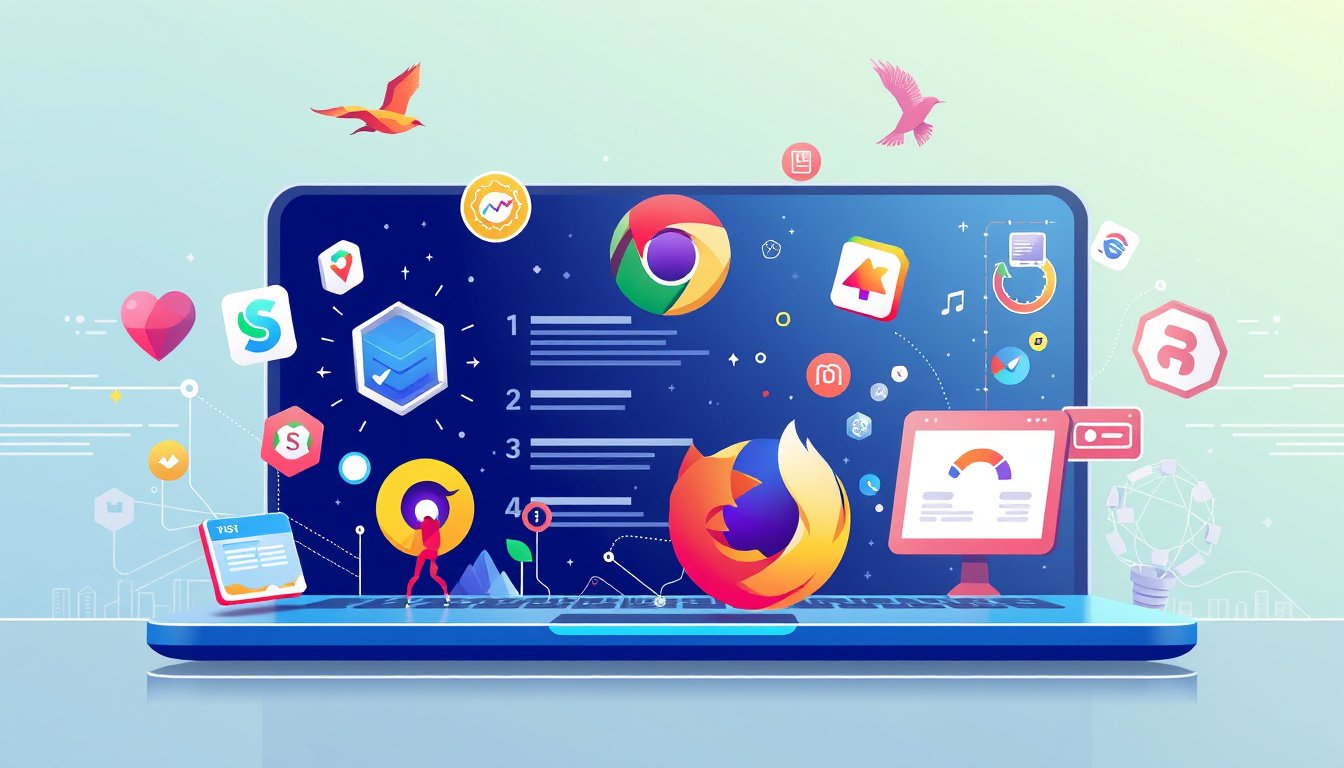

In today’s fast-paced digital world, your web browser is much more than a tool for accessing websites—it’s a powerful platform that can be customized to fit your unique needs. Browser extensions enhance functionality, improve productivity, boost security, and personalize your online experience. But what exactly are browser extensions, and how can you make the best use of them? Let’s dive in.


What Are Browser Extensions?
Browser extensions are small software add-ons that you can install in your web browser to extend its capabilities. Built using standard web technologies such as HTML, CSS, and JavaScript, extensions interact with the browser and webpages to add useful features, automate routine tasks, and modify or enhance content.
For example, extensions can block ads, manage your passwords, assist with online shopping, enable note-taking, or provide quick access to social media tools—all without needing to open separate applications.
How Do Browser Extensions Work?
At their core, extensions operate by interacting with web pages, browser events, and network requests through well-defined APIs provided by browsers like Chrome, Firefox, and Edge. For Chrome extensions, key components include:
- Manifest File (
manifest.json): This file contains metadata about the extension, declares the required permissions, and specifies background scripts or content scripts. - Service Workers: Run in the background, handling events like user actions or network requests without needing webpage interaction.
- Content Scripts: Injected into specific webpages to modify or enhance content dynamically.
- Toolbar and Side Panel Actions: Allow interaction through toolbar icons or sidebar interfaces.
These components work together to deliver a seamless user experience by tightly integrating with browser infrastructure.
Why Use Browser Extensions?
- Increase Productivity: Extensions like tab managers, note-taking tools, or email assistants help streamline your workflow.
- Enhance Privacy and Security: Ad-blockers, anti-tracking tools, and password managers can safeguard your data while you browse.
- Personalize Browsing: Customize the look and feel of websites, automate repetitive tasks, or add language translation features.
- Access Developer Tools: Developers can utilize extensions to debug web pages, check performance metrics, or test different web conditions.
Must-Try Browser Extensions to Unlock Your Browser’s Potential
While there are thousands of extensions available, here are some popular categories and examples to get you started:
- Productivity Boosters: Extensions like Todoist, OneTab, or Evernote Web Clipper help you manage tasks, organize tabs, and save content for later.
- Security Enhancers: uBlock Origin for ad-blocking, LastPass or Bitwarden for secure password management, and HTTPS Everywhere to ensure encrypted connections.
- Shopping Helpers: Honey or Rakuten help you find coupons and cashback offers automatically.
- Reading and Note-Taking: Pocket and Grammarly improve your reading experience and writing quality.
- Developer Tools: React Developer Tools, Lighthouse, and Web Developer facilitate web development and testing.
How to Add Extensions to Your Browser
Most browsers maintain official stores where you can browse, install, and manage extensions safely:
- Google Chrome: Chrome Web Store
- Mozilla Firefox: Firefox Add-ons
- Microsoft Edge: Edge Add-ons
To install an extension:
- Visit the browser’s extension store.
- Search for the extension by name or feature.
- Click Add to Chrome/Firefox/Edge.
- Review permissions and confirm installation.
Always ensure that you install extensions from trusted sources to avoid security risks.
Developing Your Own Browser Extension
If you’re a developer looking to create custom browser extensions, here are some essentials:
- Use HTML, CSS, and JavaScript to build your extension.
- Define your extension’s configuration and permissions in the
manifest.jsonfile. - Leverage Chrome Extension APIs to interact with browser functionality.
- Test your extension locally before publishing.
- Follow browser-specific policies and guidelines if you plan to distribute your extension publicly.
Google Chrome offers comprehensive documentation and tutorials to help you get started with extension development, including creating your first "Hello World" extension, managing tabs, handling background events, and debugging.
Best Practices When Using Extensions
- Limit the number of extensions to those you truly need; too many can slow down your browser.
- Check permissions carefully before installation to protect your privacy.
- Keep extensions updated to benefit from security patches and new features.
- Remove or disable unused extensions periodically to maintain optimal browser performance.
Conclusion
Browser extensions are invaluable tools that can transform the way you surf the web—from enhancing productivity and security to tailoring your browsing environment exactly the way you want it. Whether you choose to explore popular extensions or even create your own, unlocking their full potential allows you to get the most out of your online experience.
Start exploring the world of browser extensions today and elevate your browsing to a whole new level!
About the Author