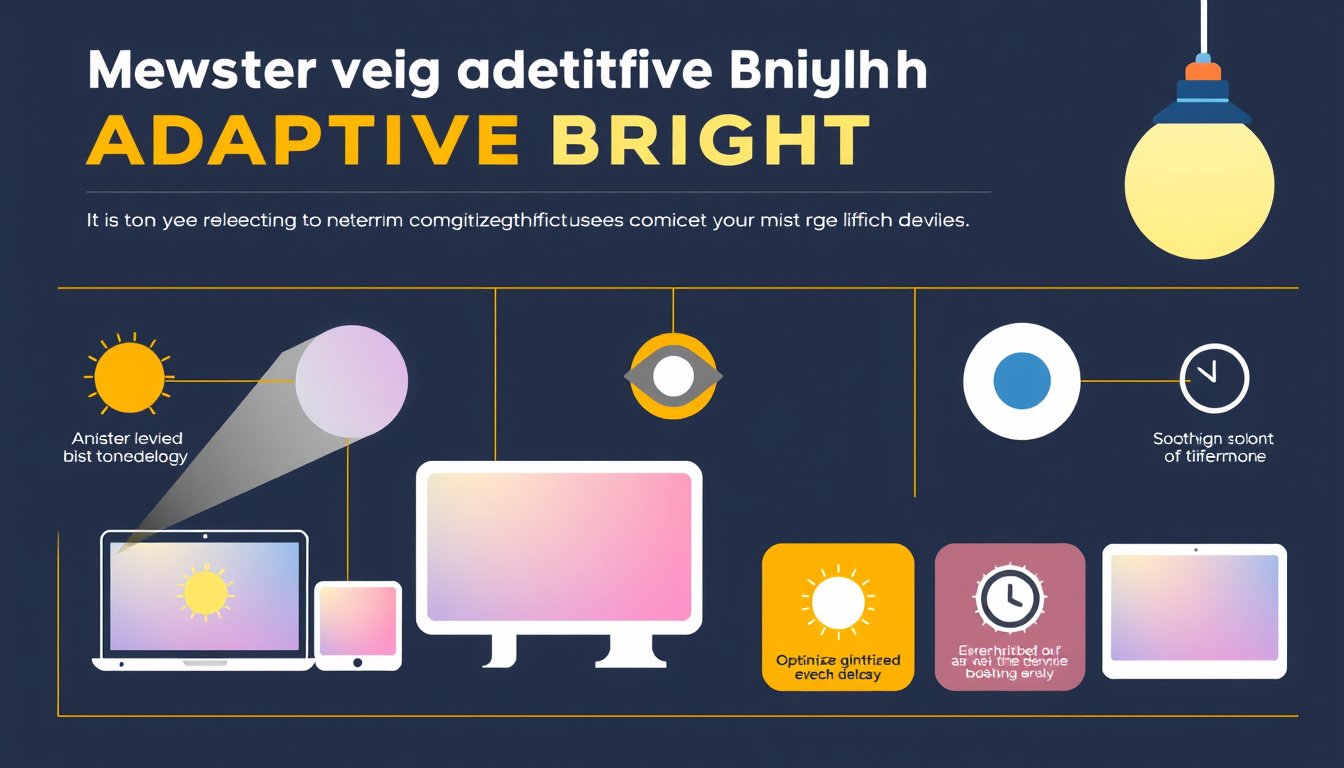

In today’s digital world, device screens have become a constant companion, whether on smartphones, laptops, or tablets. One feature designed to improve your visual comfort and protect your eyes is Adaptive Brightness. Understanding how to use adaptive brightness effectively can significantly enhance your viewing experience while also conserving battery life. This article delves into what adaptive brightness is, how it works, and how you can best utilize it for optimal display performance.


What Is Adaptive Brightness?
Adaptive brightness is a smart display feature that automatically adjusts your screen’s brightness based on the ambient lighting conditions detected by sensors in your device. Its primary goal is to maintain optimal screen visibility for any environment while minimizing eye strain and preserving battery life.
For example, when you shift from a dimly lit room to bright outdoor sunlight, the screen’s brightness ramps up automatically, ensuring content remains readable. Conversely, in darker settings, the screen dims to prevent discomfort caused by overly bright light in your eyes.
How Does Adaptive Brightness Work?
Your device typically uses an ambient light sensor (ALS) to monitor surrounding lighting. The sensor feeds light level data to the system, which then calculates and applies the appropriate screen brightness level. Modern systems also incorporate a learning algorithm that adjusts settings based on your manual brightness preferences at various light levels. Over time, this adaptive process hones the brightness adjustments for a personalized experience.
Learning from User Preferences
If you manually adjust brightness while adaptive brightness is enabled, the system records the ambient light condition and your preferred brightness setting. This feedback helps the device learn and fine-tune automatic brightness levels to better match how you like your screen’s appearance across different environments.
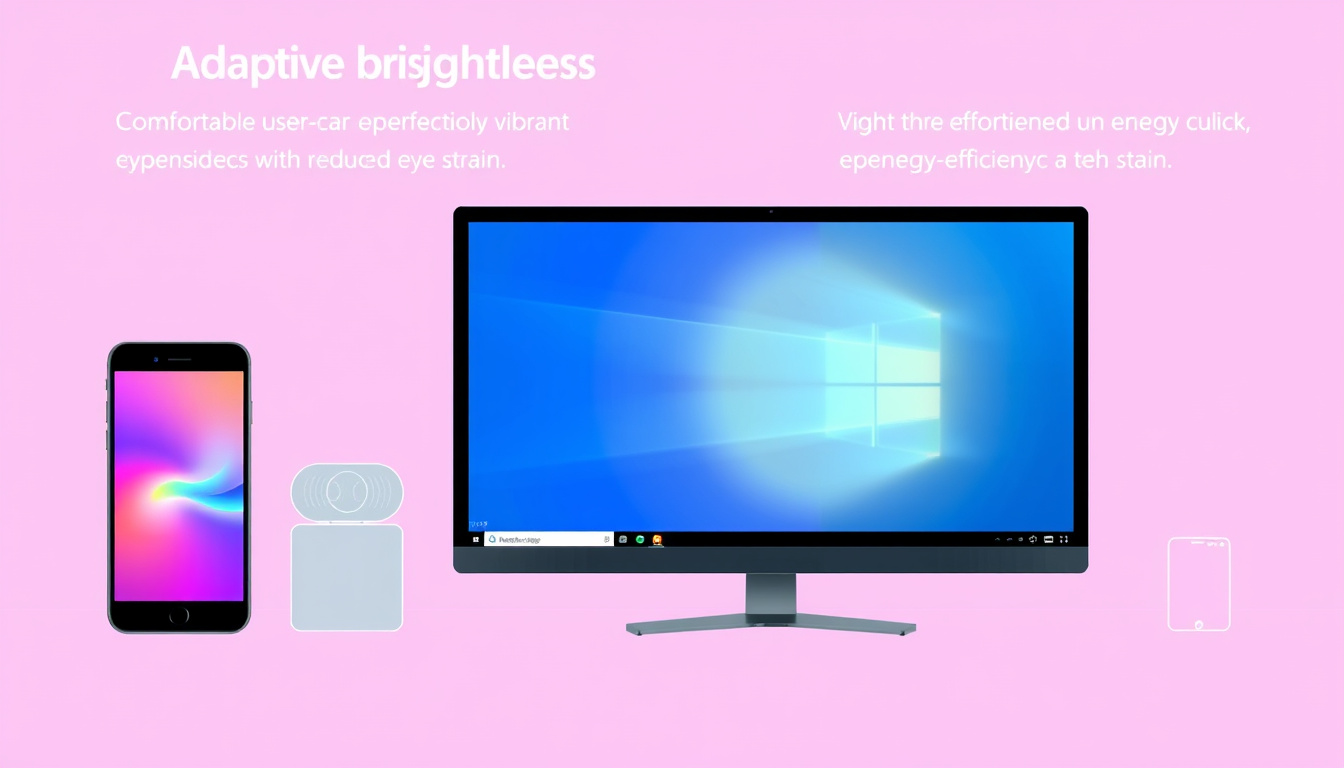
Adaptive Brightness in Windows Devices
Adaptive brightness has evolved considerably in Windows operating systems, especially from Windows 10 to Windows 11. Windows uses either percentage-based or nits-based brightness control mechanisms depending on the device’s display driver capabilities.
-
Percentage-based Control: Brightness levels are adjusted using 101 steps (0% to 100%). This method is more common on older or less sophisticated systems.
-
Nits-based Control: Measured in candelas per square meter (nits), this offers finer, smoother brightness transitions and better calibration. Devices exposing the advanced DXGK_BRIGHTNESS_INTERFACE_3 interface support this method and deliver a more natural and perceptually linear brightness experience.
To reduce frequent screen brightness fluctuations due to sensor noise, Windows 11 introduced a bucketized ambient light response curve. This system groups ranges of ambient light (lux levels) into "buckets," each mapped to a target brightness. This "hysteresis" effect prevents unnecessary rapid changes, creating a more stable and pleasant user experience.
Benefits of Using Adaptive Brightness
-
Reduced Eye Strain: By automatically adjusting brightness to suit the environment, adaptive brightness helps prevent discomfort caused by screens that are too bright or too dim.
-
Battery Conservation: Bright screens consume more power. Automatically dimming your screen when appropriate saves precious battery life.
-
Convenience: No need to manually adjust brightness constantly when moving between different lighting conditions.
Tips to Optimize Adaptive Brightness Use
-
Enable Adaptive Brightness: On most smartphones and computers, you can turn adaptive brightness on via the display or power settings.
-
Allow Time for Learning: If your device learns from manual adjustments, give it some time to calibrate your preferences fully.
-
Manual Override: Don’t hesitate to manually adjust brightness when necessary. Adaptive brightness won’t override your manual settings instantly but will learn from them.
-
Reset Learning if Needed: If adaptive brightness behaves unpredictably, toggling it off and back on can reset its learned preferences.
-
Calibrate Sensors and Display (Advanced): On Windows devices, manufacturers often perform per-device calibration during production to ensure sensors and displays work harmoniously. This ensures better accuracy in brightness adjustment.
Common Challenges and Solutions
-
Fluctuating Brightness: Sometimes the screen’s brightness may fluctuate in environments with rapidly changing light. This typically settles once the sensor readings stabilize or with bucketized curves that smooth transitions.
-
Poor Sensor Placement or Calibration: Incorrect or uncalibrated sensors may cause improper brightness levels. Device manufacturers address this during production, but older devices may struggle.
-
Initial Learning Period: Adaptive brightness may not immediately reflect your preferences; continuous use helps improve its accuracy.
Conclusion
Adaptive brightness is a powerful tool for enhancing your device’s display quality while providing comfort and energy efficiency. By understanding how it works and using it thoughtfully, you can enjoy optimal screen visibility tailored to your environment without manual hassle. Whether on a smartphone or a Windows PC, embracing adaptive brightness means less eye strain, longer battery life, and a smoother user experience.
Empower your digital life today by mastering adaptive brightness—the smart way to see clearly and comfortably wherever you go.
About the Author