
In today’s remote and hybrid work environments, virtual meetings are the norm. To keep your audience engaged and make your presentations impactful, mastering the use of presentation mode in your meeting platform is essential. This guide will walk you through how to use presentation mode effectively during virtual meetings, focusing on Microsoft Teams and PowerPoint Live—two powerful tools designed to elevate your presentations and keep participants actively involved.


What is Presentation Mode?
Presentation mode refers to specialized features in video conferencing tools that enhance how you share content during a meeting. Rather than just sharing your screen, presentation mode allows you to combine your video feed with your presentation material in a professional, interactive layout. This approach boosts engagement by making the experience more dynamic and personal.
Using Presenter Modes in Microsoft Teams
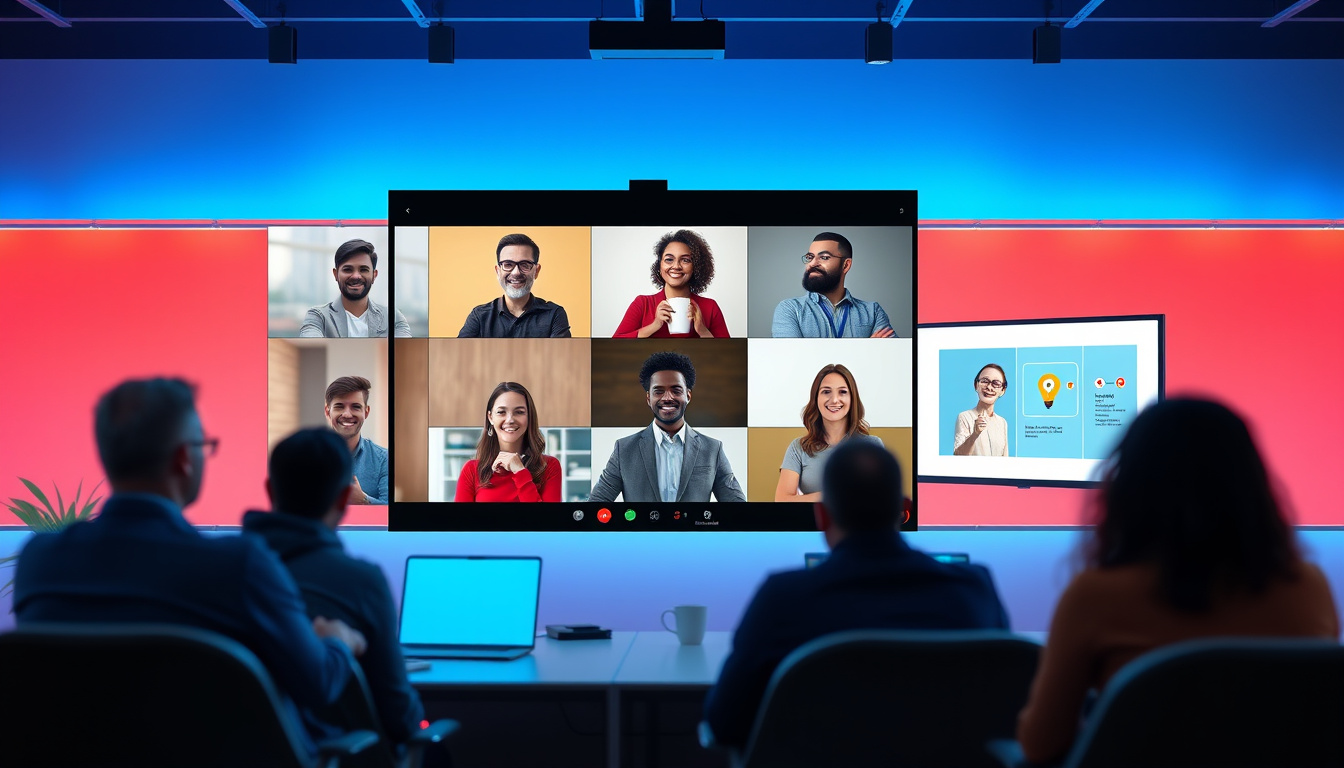
Microsoft Teams offers unique presenter modes that blend your video feed with shared content, creating a more immersive experience for attendees. Here’s what you need to know:
Types of Presenter Modes
- Standout Mode: Your video appears in front of the content, making you visually prominent while sharing slides or other media.
- Side-by-Side Mode: Your video is displayed beside your content so attendees can see both simultaneously without shifting focus.
- Reporter Mode: Your presentation content appears above your shoulder, similar to a news broadcast, keeping your video feed central while showcasing information clearly.
How to Use Presenter Modes
- Turn on your camera before starting your presentation.
- Click Share in your meeting controls.
- Under Presenter Mode, select the mode that best suits your style.
- Optionally, add a background for a cleaner or branded look.
- Choose the screen, window, or file to share.
- Use the minimized preview window to adjust the size and position of your video or shared content on the fly.
- Note that presenter modes currently work on the Teams desktop app. Mobile and web users will see the presenter video and shared screen separately.
Leveraging these modes helps you maintain a professional presence and keep attendees focused on both you and the content.
Delivering Powerful Presentations with PowerPoint Live in Microsoft Teams
PowerPoint Live within Microsoft Teams is a game-changer for virtual presenting. Instead of screen sharing, which can sometimes be clunky or reveal unnecessary desktop elements, PowerPoint Live creates a highly interactive and seamless presentation environment.
Key Features of PowerPoint Live
- Presenter View: See your notes, audience chat, raised hands, and upcoming slides all in one panel without exposing this to viewers.
- Audience Control: Attendees can navigate through slides at their own pace if allowed, zoom in on content, and even select slide translations in 19 languages, increasing accessibility.
- Seamless Transition of Control: Easily pass control of the presentation to co-presenters or take it back without interrupting the flow.
- Enhanced Accessibility: High-contrast slides and live captions improve readability and inclusiveness.
- Low Bandwidth Usage: Since PowerPoint Live streams slides directly from the cloud, it reduces network strain and improves streaming quality.
How to Present Using PowerPoint Live
- In a Teams meeting, click Share.
- Under the PowerPoint Live section, select the PowerPoint file from recent documents or browse OneDrive or your device.
- Use navigation arrows, thumbnail views, or a grid view to move through slides smoothly.
- Enable or disable features like chat and private view depending on how much control you want to give attendees.
- Engage with live audience reaction features and raised hands.
If you are the audience, PowerPoint Live allows a personalized viewing experience—zoom, pan, and translate slides without affecting others.
Tips for Mastering Presentation Mode in Virtual Meetings
- Choose the Right Mode: Decide if you want to spotlight yourself more (Standout mode) or focus primarily on content (Side-by-side or Reporter modes).
- Engage with Your Audience: Use Teams’ built-in tools to monitor chat, reactions, and raised hands. Respond promptly to keep attention and encourage interaction.
- Practice Seamless Control Transitions: Prepare co-presenters by sharing control during the meeting so slides advance smoothly without fumbling.
- Use Private View Settings: Restrict attendee navigation through slides if you want everyone to stay synced on the same slide or enable it to allow independent exploration.
- Optimize Your Environment: Ensure good lighting, a clean background, and minimal distractions to enhance professionalism and video quality.
- Leverage Accessibility Features: Enable captions, translations, and high-contrast modes to include all participants regardless of language or ability.
Conclusion
Using presentation mode effectively transforms routine virtual meetings into engaging, interactive sessions. Microsoft Teams’ presenter modes and PowerPoint Live provide all the tools you need to balance focus on yourself and your content, manage audience interaction, and deliver polished presentations. By mastering these features, you can maximize attendee engagement, improve communication clarity, and create a more dynamic meeting experience for everyone involved.
With these strategies and tools in your virtual meeting toolkit, you’re well-equipped to lead presentations that captivate and communicate effectively—no matter where your audience is joining from.
About the Author