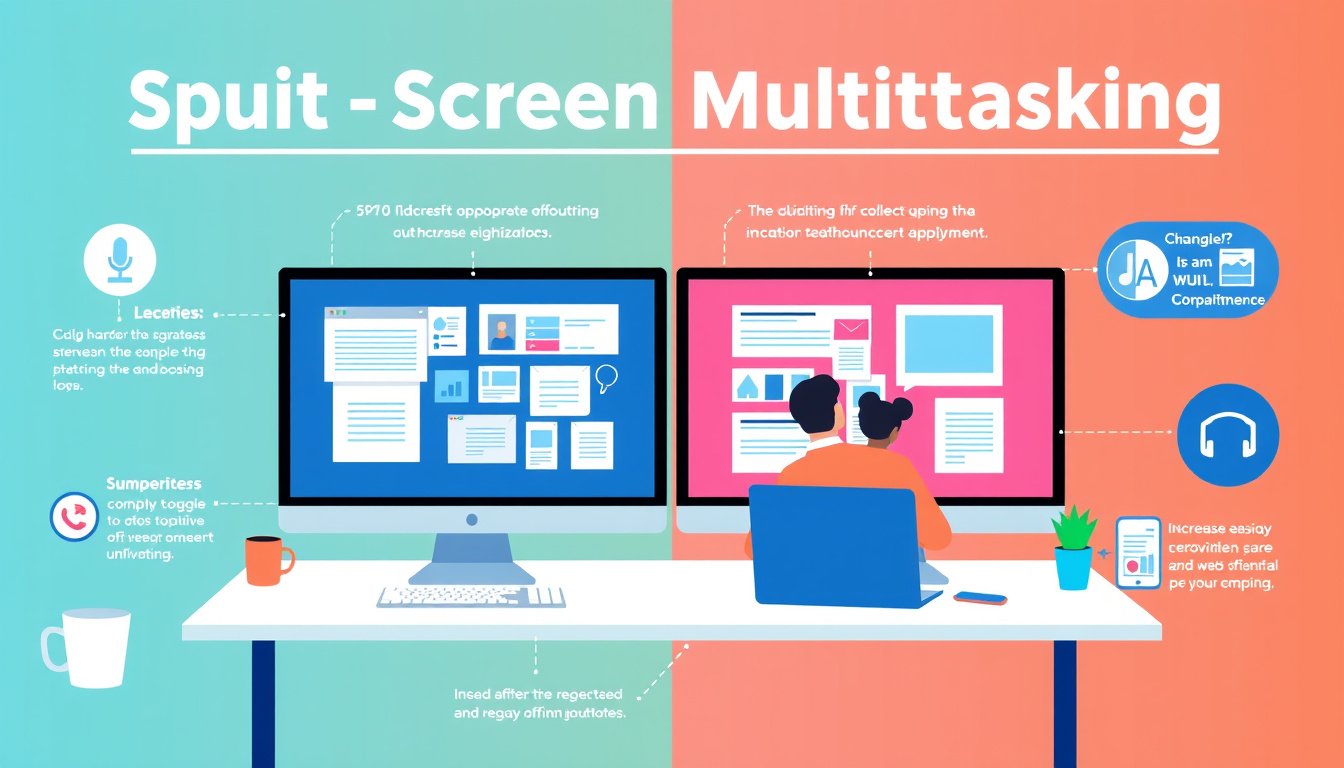

In today’s fast-paced digital world, multitasking efficiently is key to maximizing productivity. One powerful yet often underutilized feature on many devices is split-screen multitasking. This capability allows you to run two applications side by side, reducing the need to switch back and forth between apps and helping you stay focused and organized. Whether you’re working on research while taking notes, comparing documents, or chatting while browsing, mastering split-screen multitasking can revolutionize your workflow.


What is Split-Screen Multitasking?
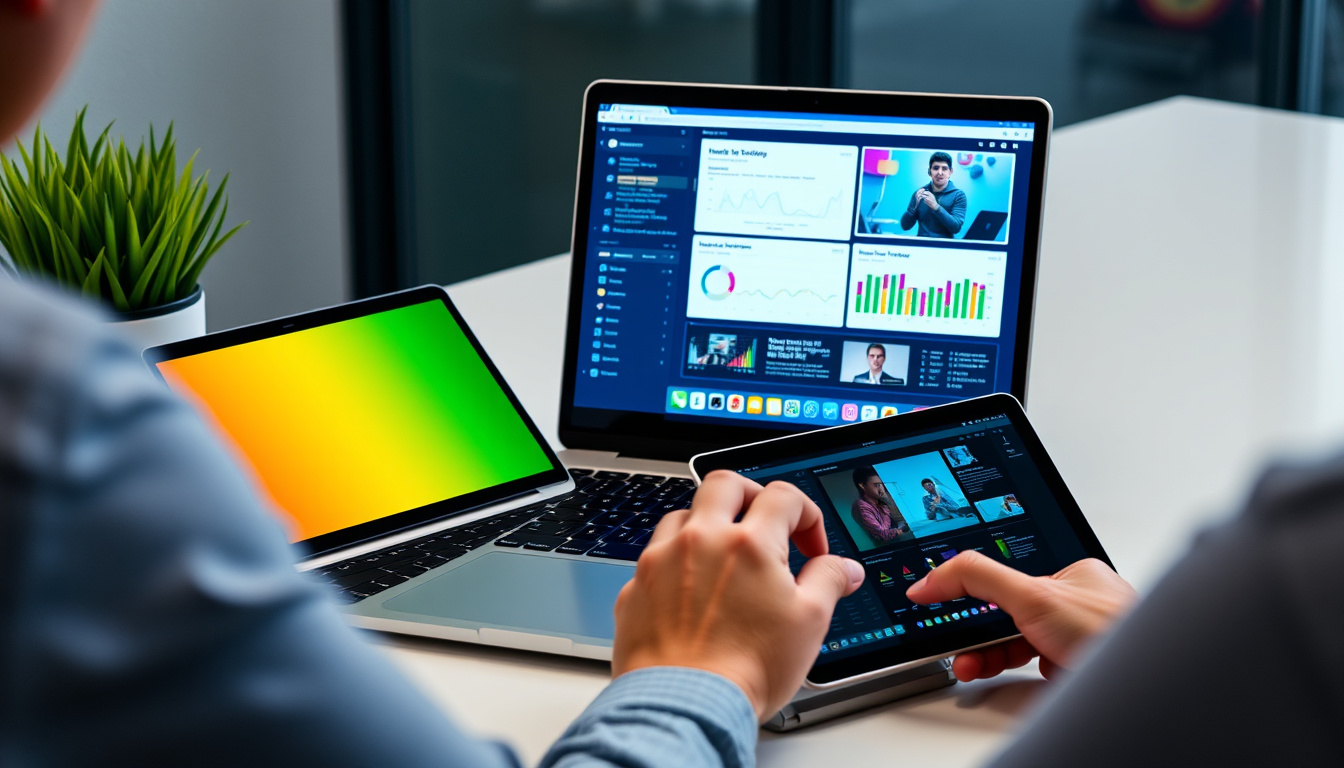
Split-screen multitasking divides your device’s display into two parts, letting you operate two apps simultaneously. This feature is especially popular on tablets, smartphones, and desktop operating systems, bringing a desktop-like experience to mobile devices. It enhances the ability to cross-reference information, manage communications, and complete tasks quicker without juggling between full-screen apps.
Benefits of Using Split-Screen Multitasking
- Enhanced Productivity: Quickly view and interact with two apps, reducing time spent switching tasks.
- Improved Focus: Organize your workspace by customizing which apps are visible, helping you minimize distractions.
- Convenient Workflow: Ideal for tasks like comparing data, watching tutorials while following instructions, or messaging while working.
How to Use Split-Screen Multitasking on Different Devices
Windows 10/11
- Open the first app you want to use.
- Drag the window to the left or right edge of your screen until it snaps.
- On the opposite side, select another app or window to fill the remaining space.
- Adjust the divider to resize each app as needed.
macOS
- Click and hold the green full-screen button on the window’s upper left.
- Choose “Tile Window to Left of Screen” or “Tile Window to Right of Screen.”
- Select the second app to fill the other half.
- You can resize windows by dragging the divider.
Android Devices (e.g., Samsung Phones)
- Open the recent apps menu.
- Tap the app icon and select “Open in split screen view.”
- Select the second app from recent apps or the app drawer.
- Adjust the divider by dragging to resize windows.
Note: Some Android manufacturers like Samsung may have slightly different gestures or steps; however, the core principles remain similar.
iPad (iPadOS)
- Open an app.
- Swipe up from the bottom to open the Dock.
- Drag a second app from the Dock to the left or right edge of the screen.
- You can adjust the space each app occupies by dragging the divider.
Tips for Effective Split-Screen Use
- Prioritize your tasks: Use split-screen for related activities (e.g., email on one side and calendar on the other).
- Use keyboard shortcuts: For example, Windows users can press
Windows Key + Left/Right Arrowto snap windows quickly. - Flip screens and orientation: Rotate your device (mobile/tablet) to landscape mode for a better split-screen experience.
- Close unused apps: Keep your device responsive by closing programs that you don’t currently need in split-screen.
Troubleshooting Common Issues
- If apps don’t support split-screen, try updating them or using alternative compatible apps.
- For slower devices, split-screen may reduce performance; close background apps to optimize speed.
- Customize display settings if the split-screen layout feels cramped.
Why You Should Start Using Split-Screen Multitasking Today
Split-screen multitasking transforms how you interact with your device by allowing more flexible and efficient task management. It is an essential skill for students, professionals, and anyone looking to enhance their digital productivity. By integrating this simple technique into your daily routine, you can save time, reduce frustration, and enhance focus.
Takeaway: Whether your device is a Windows PC, Mac, Android smartphone, or iPad, mastering split-screen multitasking is a valuable productivity booster. Explore the feature today and experience a smoother, more efficient way to work and interact with your digital world.
About the Author