
In today’s fast-paced digital world, typing speed and efficiency can significantly impact productivity. Whether you’re drafting emails, composing reports, or jotting down quick notes, voice typing offers an innovative and accessible way to speed up text input. This article explores the voice typing feature, with a focus on how to use it effectively, its benefits, supported languages, and useful tips to optimize your experience.


What is Voice Typing?
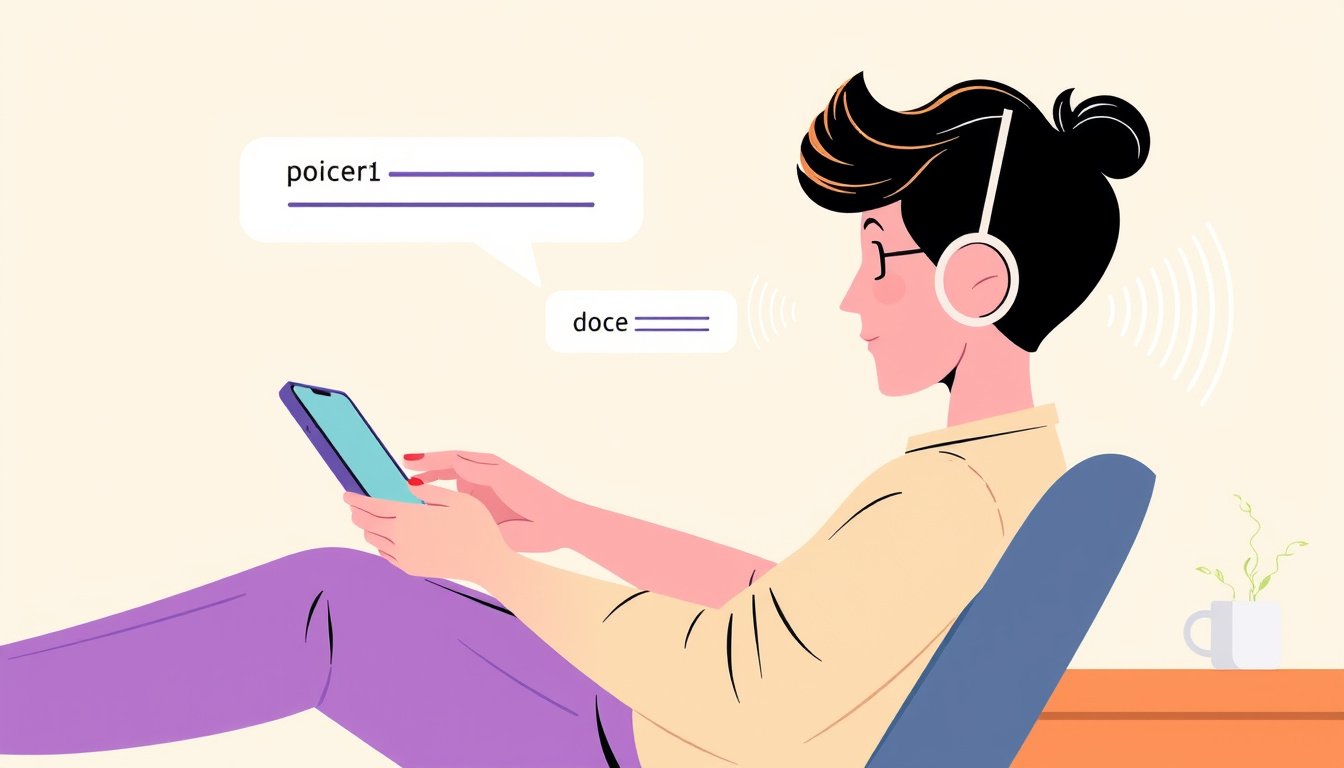
Voice typing is a speech-to-text technology that allows you to input text by simply speaking instead of typing on a keyboard. It leverages advanced speech recognition services to transcribe your spoken words into written text in real time. This hands-free method of typing not only enhances speed but also adds convenience, particularly for people who find typing physically challenging or those who want to multitask efficiently.
How to Use Voice Typing on Your PC
Voice typing is built into modern operating systems like Windows 10 and Windows 11, providing native support without the need for third-party software. Here’s how to get started:
- Ensure you have a working microphone connected and that you are online, as voice typing uses cloud-based speech recognition for accuracy.
- Place your cursor in any text input box where you want to enter text.
- To activate voice typing:
- Press Windows key + H on a hardware keyboard, or
- Tap the microphone button on the touch keyboard.
- Wait for the "Listening…" prompt to appear, then start speaking clearly.
- To stop voice typing, say voice commands such as "Stop listening" or click the microphone icon again.

Voice Typing Settings
You can access settings for voice typing by selecting the gear icon on the voice typing pop-up. Here, you can:
- Enable automatic punctuation to insert commas, periods, and other punctuation marks dynamically.
- Toggle profanity filtering to block or allow offensive language.
- Choose the default microphone if multiple devices are connected.
- Adjust wait time before acting to accommodate different speech speeds.
Fluid Dictation: Smarter and Smoother Speech-to-Text
For users with compatible Windows 11 devices (Copilot+ PCs), there is an advanced feature called Fluid dictation. It uses on-device small language models to automatically correct grammar, punctuation, and remove filler words, making the dictation cleaner and saving you from manual edits. Fluid Dictation operates seamlessly across all text editors and respects privacy by disabling itself on sensitive fields such as passwords.
Supported Languages
Windows voice typing supports a wide array of languages and dialects, including but not limited to:
- English (US, UK, Australia, Canada, India, New Zealand)
- Spanish (Spain, Mexico)
- Chinese (Simplified and Traditional variants)
- French (France, Canada)
- German, Italian, Japanese, Korean, Russian, Turkish, and many more.
You can even install additional voice typing languages distinct from your system’s display language and switch between them using the language switcher (Windows key + Spacebar). This versatility makes voice typing accessible globally and useful across multilingual contexts.
Voice Commands for Enhanced Control
Beyond dictation, voice typing supports a variety of commands that allow hands-free editing, such as:
- "Delete that"
- "Select that"
- "Undo that"
- "Press enter"
- "Press backspace"
Each supported language has its own command translations, providing localized control over text modification and navigation.
Benefits of Using Voice Typing
- Speed and Efficiency: Speak faster than you can type for quick note-taking or content creation.
- Ergonomic Advantage: Reduces the strain on fingers and wrists from prolonged keyboard use.
- Accessibility: Assists individuals with disabilities or motor impairments.
- Multitasking: Enables you to continue working while your hands are occupied.
Tips to Maximize Voice Typing Accuracy
- Use a good quality microphone and minimize background noise.
- Speak clearly and naturally, pausing slightly between commands.
- Regularly update your system to ensure you have the latest speech recognition enhancements.
- Customize settings like punctuation and wait time to suit your voice patterns.
- Utilize voice commands to streamline editing, reducing the need to switch between voice and keyboard.
Conclusion
Mastering the voice typing feature unlocks a faster, more convenient way to input text, transforming how you interact with your computer. Whether for work, study, or personal use, leveraging this technology can significantly boost your typing speed while reducing physical effort. With broad language support, intelligent features like Fluid dictation, and intuitive voice commands, voice typing is an invaluable tool for anyone looking to type effortlessly and efficiently.
By embracing voice typing on your PC, you open the door to a more productive and accessible digital experience. Give it a try today and see just how much faster and easier typing can be!
About the Author