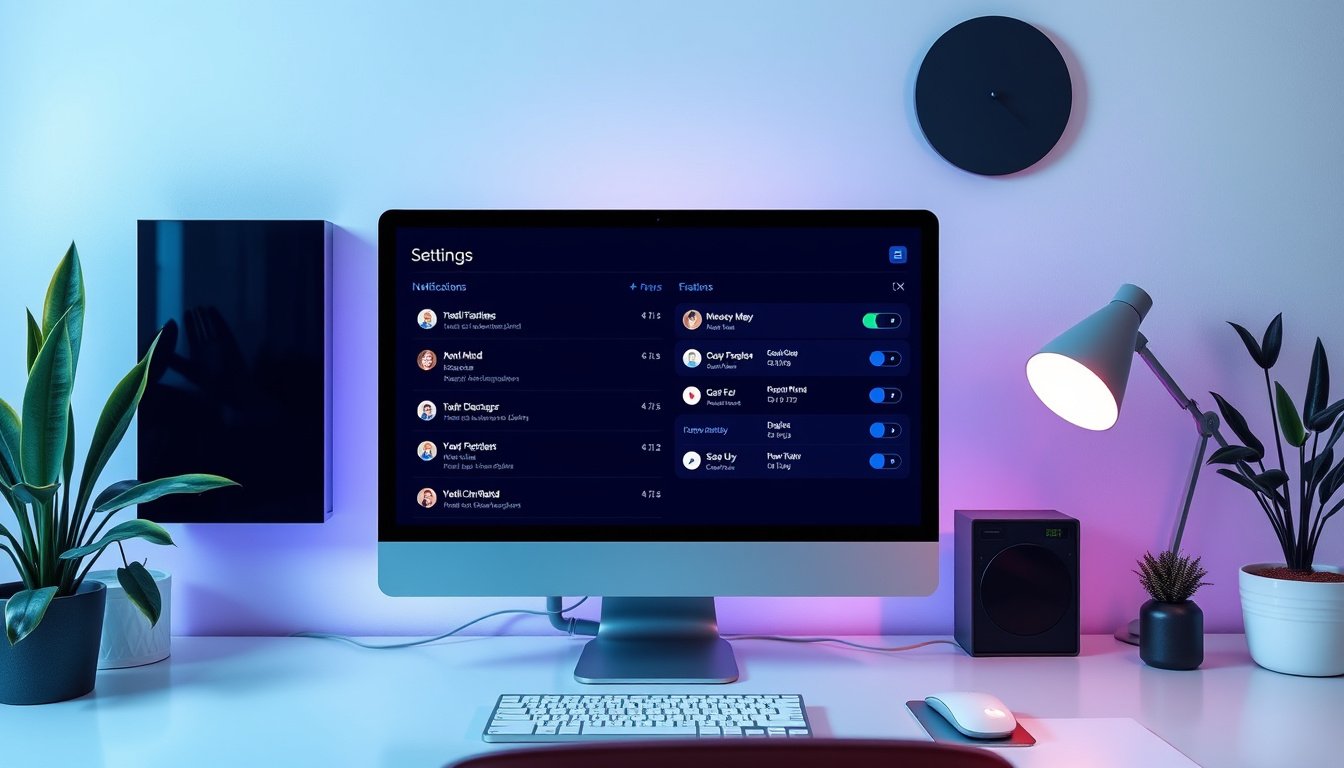

In today’s hyper-connected world, notifications keep us informed, engaged, and on top of important messages and alerts. However, the constant barrage of pings, banners, and alerts can also become overwhelming and disruptive. Mastering your notification settings can help restore balance by ensuring you only receive the alerts that truly matter—empowering you with peace of mind and improved focus.


This comprehensive guide dives into how to manage notification settings effectively across common platforms, with practical steps and tips to tailor your digital interactions to fit your lifestyle.
Why Managing Notification Settings Matters
Notifications serve as timely reminders for messages, appointments, social media updates, news, and app activities. Yet, indiscriminate notifications can lead to:
- Information overload: Too many alerts can shut down productivity and increase stress.
- Battery drain: Constant notifications consume device resources.
- Privacy issues: Some notifications display sensitive content on your lock screen.
- Sleep disruption: Alerts during rest hours interfere with healthy sleep cycles.
By carefully controlling notification preferences, you gain control over your digital environment, reduce distractions, and protect your privacy while staying connected.
General Principles of Managing Notifications
Before delving into device-specific instructions, consider these universal strategies:
- Prioritize apps: Identify which apps need immediate notifications (e.g., messaging, calendar) versus those that can be limited.
- Use notification types: Modern devices allow you to choose alert styles like banners, sounds, badges, or silent notifications.
- Apply Do Not Disturb (DND) and Focus modes: These features temporarily silence notifications during working hours, meetings, or sleep.
- Customize lock screen content: Choose whether notification previews should be visible or hidden for privacy.
- Group notifications: Many operating systems group related notifications to reduce clutter.
- Regularly review settings: Notification needs change over time; adjusting periodically ensures settings remain appropriate.
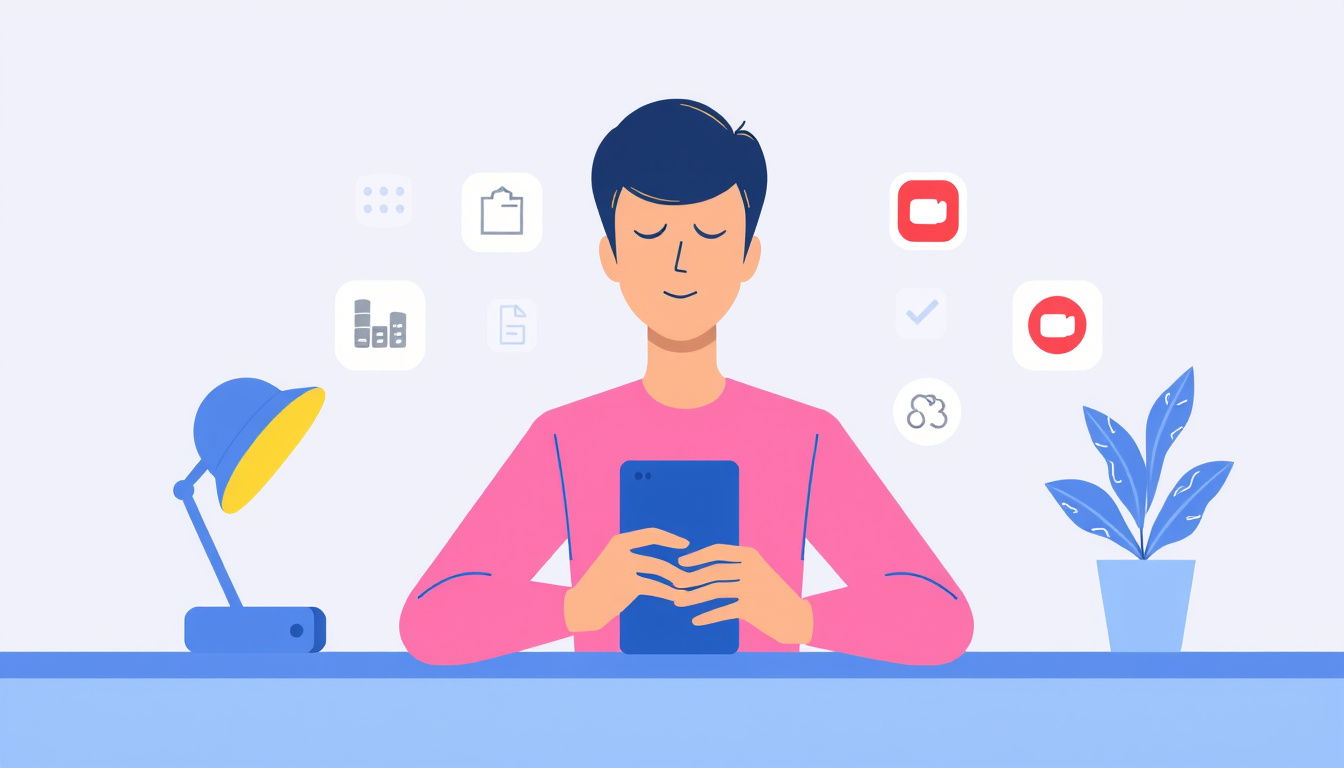
Managing Notification Settings on iPhone (iOS 16 to iOS 26)
Apple’s iPhone offers granular control over notifications through its Settings app and Focus modes. Here’s how to customize notification settings for a streamlined experience:
Step 1: Access Notification Settings
- Open Settings on your iPhone.
- Tap Notifications to view all apps with notification permissions.
Step 2: Customize per App
- Select an app to modify its notification behavior.
- Choose whether to Allow Notifications.
- If enabled, customize:
- Alert Style: None, Banners, or Alerts (persistent pop-ups).
- Sounds: Enable or disable notification sounds.
- Badges: Show or hide the red app icon badge count.
- Notification Grouping: Automatically group notifications or keep separate.
Step 3: Adjust Lock Screen and Notification Center Preferences
- Under Notification settings, you can choose if notifications appear on your Lock Screen or Notification Center.
- Enable or disable Show Previews to protect privacy when notifications arrive.
Step 4: Setup and Use Focus Modes
- Return to Settings and tap Focus.
- Create custom Focus profiles such as Work, Sleep, or Personal.
- Customize which people or apps can send notifications during these Focus periods.
- Schedule automatic Focus activations based on time or location.
- Activate Focus modes from the Control Center quick-access menu to filter notifications instantly.
Step 5: Use Live Activities and Dynamic Island
- For supported iPhones, use live activity notifications and interactive alerts for ongoing events, minimizing constant app checking.
Managing Notifications on Android Devices
Android phones, while diverse, follow similar notification management principles:
Step 1: Open Notification Settings
- Go to Settings > Apps & Notifications > Notifications.
Step 2: App Notifications
- View all apps and adjust notification settings individually.
- Options include turning off notifications, silencing sounds, or prioritizing alerts.
Step 3: Use Do Not Disturb and Focus Mode
- Enable Do Not Disturb manually or set schedules.
- Use Focus Mode to pause distracting apps temporarily.
Step 4: Customize Lock Screen Notifications
- Choose to show or hide notification content on the lock screen to maintain privacy.
Step 5: Notification Channels
- For supported apps, configure notification channels to select types of alerts you want (e.g., promotional vs. transactional).
Tips for Efficient Notification Management
- Batch check notifications: Resist impulse checking; set specific times to review notifications.
- Turn off non-essential notifications: Sound and banner alerts can be restricted to important apps.
- Leverage widgets and summaries: Use notification summaries where possible to view information collectively.
- Regularly uninstall unused apps: Reduce notification clutter by removing apps no longer needed.
- Educate yourself on app permissions: Some apps request more access than necessary; limit notifications accordingly.
Conclusion
Thoughtful management of your notification settings not only enhances your digital well-being but also helps reclaim focus, energy, and privacy. Whether you use an iPhone with iOS 16-26 or an Android device, investing a few minutes today to master notification settings paves the path to a calmer, more intentional digital life.
By prioritizing essential alerts, customizing notification delivery, and leveraging built-in Focus and Do Not Disturb features, you can experience a balanced flow of information—only when you want it, where you want it.
Embrace these practices to master your digital experience, transforming disruptive pings into purposeful communication that supports your productivity and peace of mind.
About the Author