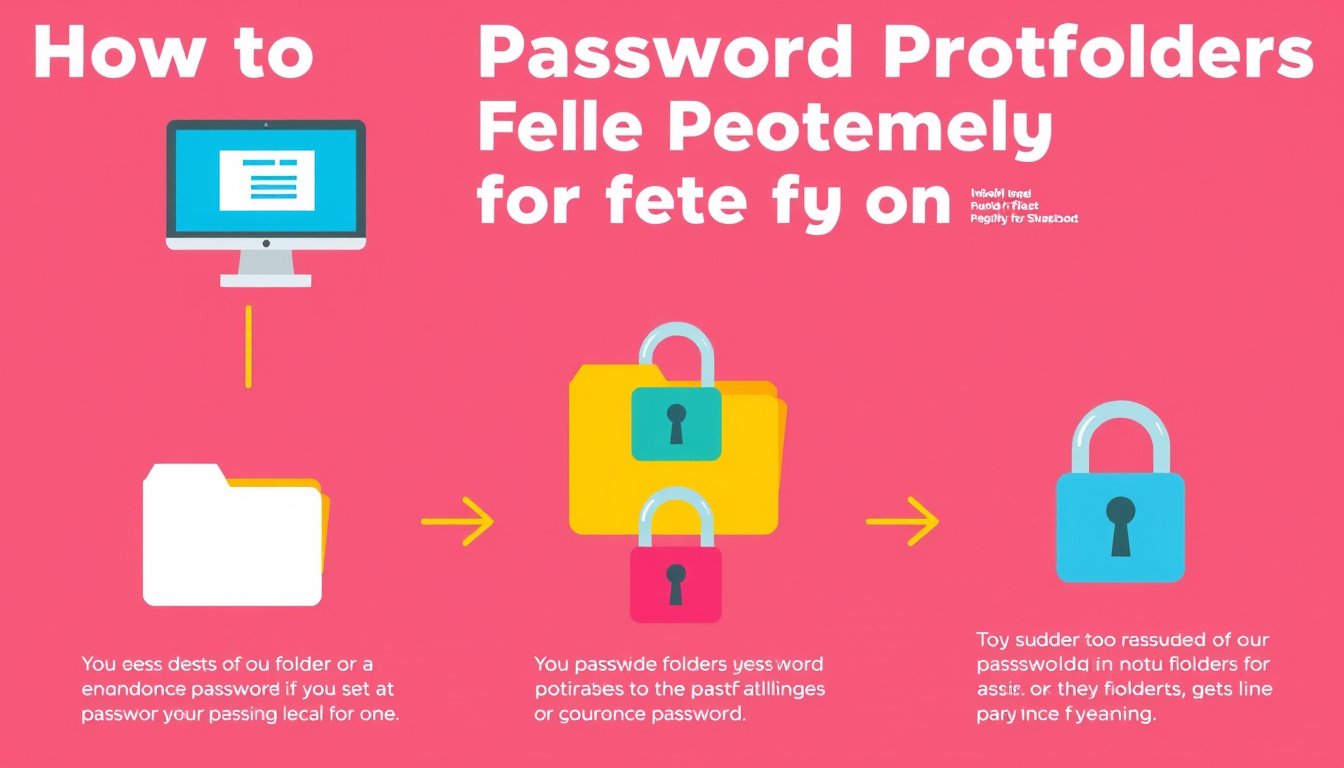

In today’s digital world, protecting sensitive data is paramount. Whether you’re securing personal photos, confidential business documents, or private files, setting up password-protected folders is a reliable way to ensure that only authorized users can access your important information. This guide walks you through effective methods to create password-protected folders across various platforms, highlighting both native options and secure third-party solutions.



Understanding Password Protection for Folders
Unlike individual files, folders act as containers for multiple files and subfolders, making password protection essential to guard entire data sets efficiently. However, unlike some operating systems, not all provide straightforward, built-in options to password protect folders. The security architecture varies depending on your system, influencing the level of protection and ease of sharing encrypted content.
How to Set Password-Protected Folders on Different Platforms
1. Windows (Windows 10 and Windows 11)
Windows does not offer a direct feature to add a password to a folder. Instead, it relies on Encrypting File System (EFS) for folder security, which encrypts the contents so only your user account can access them.
Steps to Encrypt a Folder on Windows:
- Right-click the folder to protect.
- Select Properties.
- Go to the General tab and click Advanced.
- Check the box for Encrypt contents to secure data.
- Click OK and apply changes.
Important Notes:
- You will be prompted to back up your encryption key; this is vital to avoid data loss, especially if you change computers or user accounts.
- This encryption protects data locally on your device but does not lock the folder behind a password for sharing with others.
Alternative for Sharing:
To share password-protected files or folders, consider uploading encrypted folders to a secure cloud service like Proton Drive, which supports password-protected sharing links.
2. macOS
Mac users can password protect folders by creating an encrypted disk image using Disk Utility. This allows the folder’s contents to be securely locked behind a password.
Steps to Password Protect a Folder on Mac:
- Open Disk Utility (found in Applications > Utilities).
- Click File > New Image > Image from Folder.
- Choose the folder you want to protect.
- Enter a name and select the encryption type (AES-128 or AES-256).
- Set a strong password.
- Save the disk image.
Your folder is now an encrypted file (.dmg), which opens only with the password you set.
Sharing Encrypted Folders:
You will need to send both the encrypted file and password separately, which can be risky. Alternatively, consider using secure cloud solutions for sharing.
3. Android
Most Android devices do not include a native option for password-protecting folders universally. Some manufacturers provide "Secure Folder" or similar features secured by PINs, patterns, or biometrics.
Protecting Files on Android:
- Use the device’s Secure Folder feature, if available.
- Move sensitive files into this folder via your file manager.
For sharing purposes, native folder security is limited on Android. Upload your files to cloud storage services like Proton Drive and enable password protection on shared links.
4. Using Cloud Storage Services with Password Protection
Cloud platforms typically secure files during transit and at rest but don’t always provide robust folder-level password protection. Many require separate passwords and sharing links, which can be cumbersome and less secure.
Proton Drive stands out by offering:
- End-to-end encryption on files and folders.
- Password protection directly on shared links.
- Cross-platform access with consistent security.
- Secure sharing without removing encryption.
How to Password Protect Shared Folders on Proton Drive:
- Log into your Proton Drive account.
- Choose the folder or file to share securely.
- Enable sharing and select Password protection.
- Set a strong password and save settings.
Recipients will need this password to access the shared folders, providing an extra layer of security beyond normal cloud sharing.
When Password Protecting Folders May Not Be Enough
Native folder encryption on Windows, macOS, and Android protects data locally but has limitations in multi-user or sharing scenarios:
- Encryption tied to specific user profiles may not travel with the files, causing access issues on other devices.
- Sending passwords separately when sharing encrypted folders may risk interception.
- Lack of standard folder password protection on some platforms complicates cross-device sharing.
For businesses and individuals requiring secure cross-device and team sharing, encrypted cloud services with password-protected sharing links provide the best combination of security and convenience.
Best Practices for Password-Protected Folders
- Use strong, unique passwords for protecting your folders or shared links.
- Backup encryption keys or recovery information to avoid permanent data loss.
- Avoid sending passwords and files in the same channel to reduce security risk.
- Consider managed cloud solutions for teams requiring secure but flexible file sharing.
Conclusion
While operating systems like Windows and macOS offer built-in encryption options, none provide a straightforward, foolproof folder password protection mechanism on their own. By combining native encryption features for local security with trusted cloud services such as Proton Drive for secure sharing and password-protected access, you can unlock the full potential of folder security for personal and business files alike. Implement these strategies today to safeguard your digital assets with confidence.
Remember: The right tool depends on your use case—whether local encryption is sufficient or secure, password-protected sharing across users and devices is necessary. Choose wisely to keep your sensitive information truly safe.
About the Author