
In the fast-paced digital world, efficiency is crucial. One tool that often goes unnoticed yet holds great potential to boost your productivity is the clipboard history feature available in Windows 10 and Windows 11. Understanding how to utilize clipboard history effectively can transform the way you handle text, images, and other data snippets across your projects and tasks. This article explores what clipboard history is, how to enable and use it, and tips to integrate it seamlessly into your workflow.


What is Clipboard History?
Clipboard history is a feature in Windows that stores a list of the most recent items you have copied to your clipboard. Traditionally, the clipboard stores only one item—the last copied content. However, with clipboard history enabled, Windows saves multiple copied entries, allowing you to access and paste any of the recent items without having to recopy them. This feature dramatically simplifies managing multiple pieces of information across documents, emails, code snippets, and more.
Enabling Clipboard History on Windows 10 and Windows 11
Before accessing your clipboard history, you must ensure it is enabled:
- Press Windows key + V to open the clipboard history panel.
- If clipboard history is off, you will see a prompt to “Turn on” the clipboard history feature—click it.
- Alternatively, you can enable it through Settings:
- Open Start and go to Settings > System > Clipboard.
- Toggle the switch for Clipboard history to On.
Once enabled, Windows will start saving copies of your copied content up to a limit of 25 items. Clipboard history stores various formats including text, HTML, and bitmap images.
Accessing and Using Clipboard History
To use clipboard history:
- Press Windows key + V anytime you want to paste something you copied earlier.
- A small panel will appear showing the list of recently copied items.
- Use your mouse or arrow keys to navigate through the clipboard content.
- Click or press Enter on an item to paste it into your application.
Additional handy functions include:
- Pinning clipboard items: You can pin frequently used items to keep them permanently in your clipboard history. Just click the pin icon next to an item. Pinned items remain even after restarting your PC.
- Clear individual items: If you want to remove a specific item from your history, open the clipboard panel, click the three dots next to the item, and choose Delete.
- Clear all history: To clear the entire clipboard history (except pinned items), open Settings > System > Clipboard and select Clear under Clear clipboard data, or press Windows + V and click Clear all from the menu.
Syncing Clipboard History Across Devices
One of the most powerful features is the ability to sync clipboard history between different Windows devices:
- Sign in to your devices using the same Microsoft or work account.
- Go to Settings > System > Clipboard.
- Toggle Sync across devices to On.
- Choose either automatic syncing of copied items or manual syncing, where you select specific clipboard items to sync.
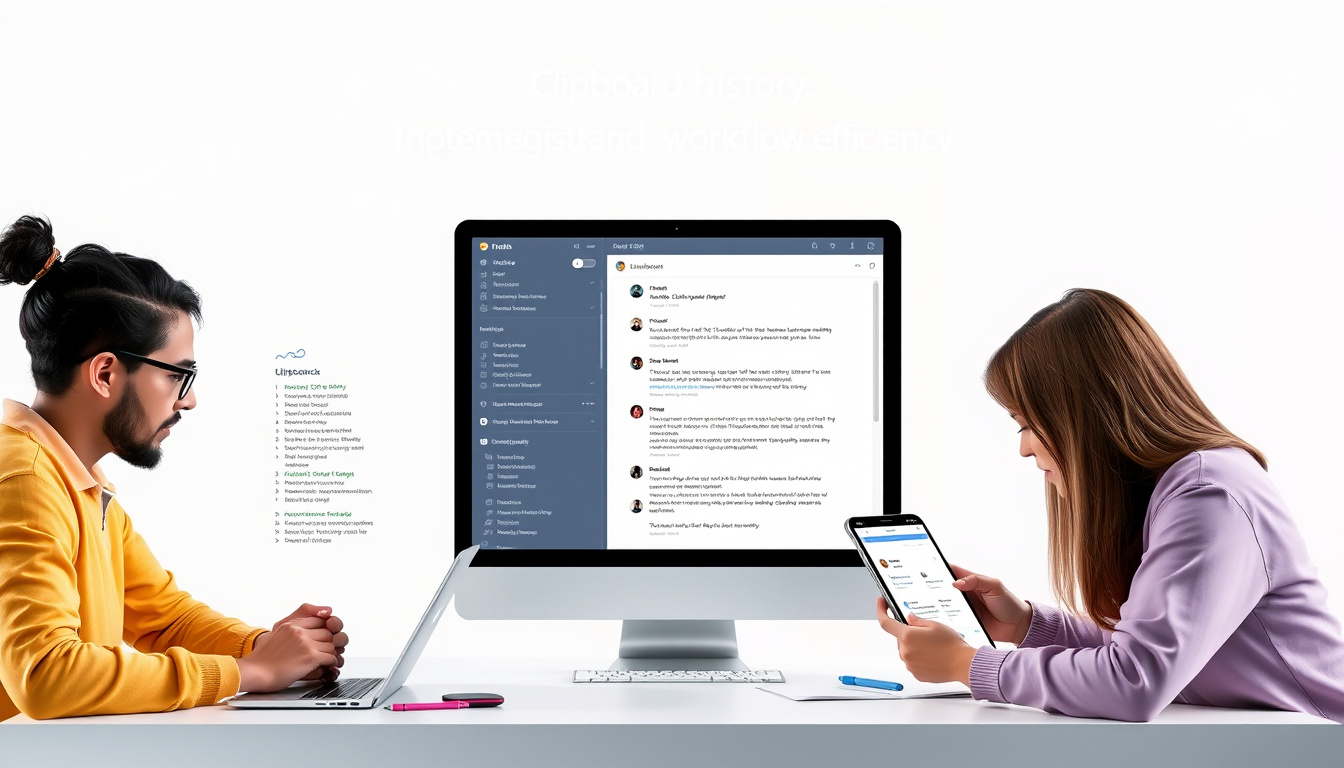
This feature is especially useful if you switch frequently between a desktop PC and a laptop or tablet, ensuring a seamless copy-paste experience across devices.
Tips for Maximizing Productivity with Clipboard History
- Leverage pinned items: Keep commonly used snippets, email templates, or code blocks pinned for quick access.
- Use paste-as-text option: To avoid formatting issues when pasting text, use the “Paste as Text” option available in the clipboard menu.
- Monitor clipboard size limits: Each clipboard item can be up to 4 MB in size, so be mindful when copying large files or high-resolution images.
- Beware of security: Clipboard syncing stores data in the cloud, so avoid copying sensitive information unless you are sure about the security of your accounts and devices.
- Integrate with third-party clipboard managers: For users requiring more advanced features, integrating Windows clipboard history with third-party tools can offer added functionalities like extended history, search, and categorization.
Common Troubleshooting
- Clipboard history is empty: Ensure clipboard history is turned on via the keyboard shortcut or settings.
- Clipboard data disappears after restart: Only pinned items persist through restarts; unpinned items clear.
- Sync not working: Confirm you are logged into the same Microsoft account on all devices and that syncing is enabled.
- Item size exceeds limit: Large files over 4 MB won’t be saved to clipboard history.
Conclusion
Clipboard history is an often-underutilized feature that can significantly enhance your productivity by streamlining the copy-paste process. By enabling and learning to manage clipboard history and syncing across devices, you reduce repetitive tasks and increase efficiency in handling multiple data snippets. Whether you are a student, professional, developer, or casual user, unlocking clipboard history capabilities can simplify your workflow and save precious time.
Start using clipboard history today by pressing Windows + V, and enjoy a smarter, faster way to work across your Windows devices.
About the Author