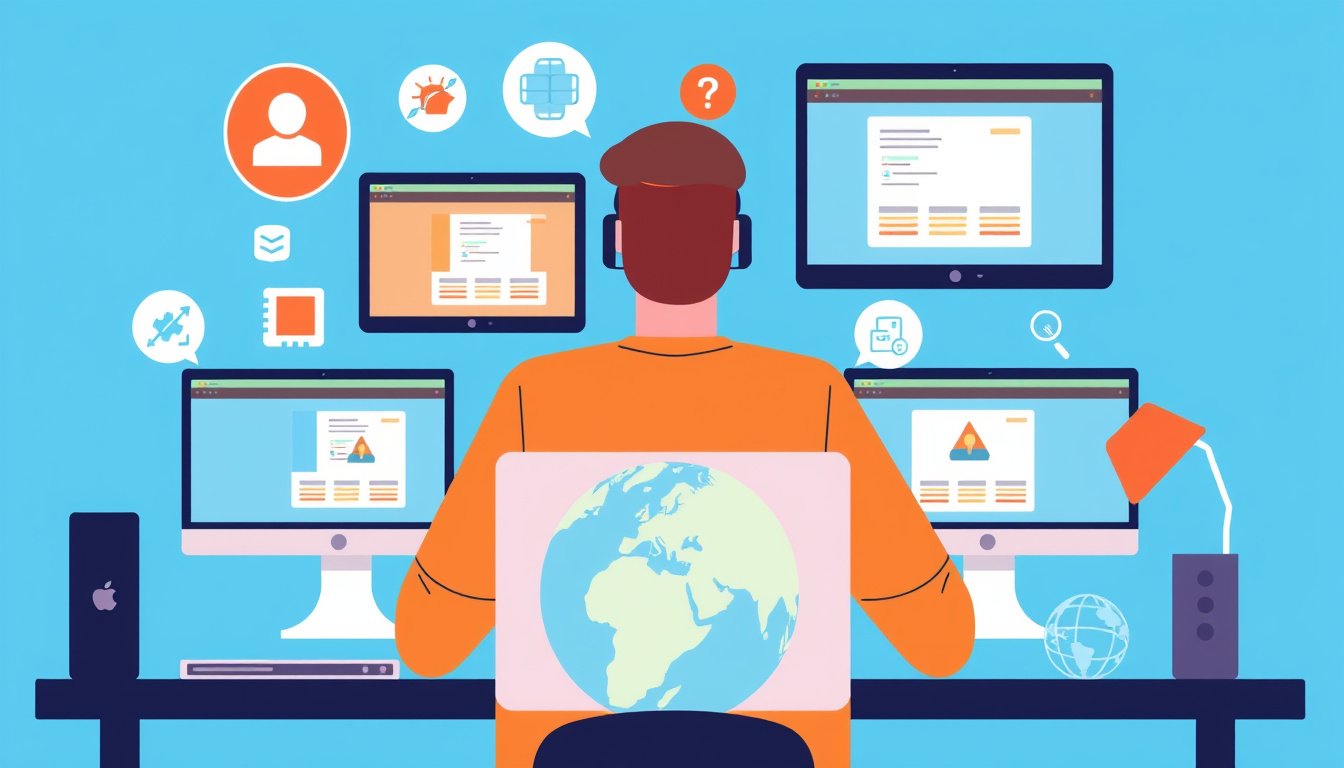

In today’s fast-paced and increasingly remote work environments, having reliable access to your computer and files from virtually anywhere is crucial. Remote desktop applications have emerged as powerful tools that allow users to control a computer remotely, ensuring continuous productivity beyond physical boundaries. Whether you’re a business professional, IT technician, or a casual user, understanding how to use remote desktop applications can unlock significant flexibility and efficiency. This guide covers the essentials of using remote desktop applications, benefits they provide, popular options available, and tips for secure and effective use.


What Are Remote Desktop Applications?
Remote desktop applications enable users to connect to and control a computer from another device over the internet or a local network. Once connected, users can access files, run applications, perform administrative tasks, and essentially operate the remote computer as if they were physically present.
Key features typically include:
- Full desktop access: View and manage the remote computer’s desktop in real-time.
- File transfer: Move files between local and remote devices.
- Multi-platform support: Connect across diverse operating systems, including Windows, macOS, Android, and iOS.
- Security protocols: Encryption and authentication to protect data and access.
These applications are invaluable for remote work, technical support, system administration, and even collaborative projects.
Setting Up and Using Remote Desktop Applications
Example: Using Microsoft Remote Desktop on Windows
Microsoft’s Remote Desktop (RD) is a widely used tool for connecting to Windows PCs remotely. Here’s a streamlined overview of how to set it up:
-
Check Your Windows Edition on the Remote PC
RD requires the remote PC to have Windows Pro edition (Windows 10 Pro or Windows 11 Pro). You can verify this by going to:Start > Settings > System > About > Windows specifications (Edition)If you’re using Windows Home, upgrading to Pro might be necessary.
-
Enable Remote Desktop on the Remote PC
Navigate to:Start > Settings > System > Remote DesktopToggle Enable Remote Desktop on and note the PC’s name under "PC name," as you’ll need it to connect.
-
Connect from the Client Device
- From another Windows PC: Search for Remote Desktop Connection in the taskbar, enter the PC name, and connect by signing in with your user credentials.
- From macOS or iOS: Download the Microsoft Remote Desktop app from the Apple App Store, add the PC name, and connect.
- From Android: Download the Remote Desktop app from Google Play, add the PC name, and initiate the connection.
These steps enable seamless, secure access to your remote machine’s applications, files, and desktop environment.

Using Alternative Remote Desktop Software: AnyDesk
While Microsoft Remote Desktop is powerful for Windows-centric setups, other remote desktop applications like AnyDesk offer broad platform compatibility and additional features:
- Cross-platform support: Works on Windows, macOS, Linux, iOS, and Android.
- Lightweight and fast performance: Optimized for low-latency connections.
- Collaboration tools: Includes chat functionality, session recording, and screen annotation.
- Strong security: Uses TLS 1.2 encryption, two-factor authentication, and customizable permissions.
- Flexible deployment: Available as both a cloud service and on-premises installation.
Getting started with AnyDesk generally involves:
- Installing the app on both local and remote devices.
- Using a unique address or ID generated by AnyDesk to establish a connection.
- Authorizing the session on the remote device to ensure secure access.
AnyDesk’s flexibility and advanced features make it suitable for IT support, remote work, and device management across various industries.
Benefits of Using Remote Desktop Applications
- Work from Anywhere: Access your work PC or server from home, while traveling, or at a client’s site.
- Improved Collaboration: Support and collaborate with colleagues or clients by sharing screens and troubleshooting remotely.
- Cost Savings: Reduce the need for on-site visits and travel expenses.
- Centralized Management: IT admins can manage multiple devices remotely, streamlining support and updates.
- Enhanced Productivity: Continuously access applications and files without physical constraints, maintaining workflow momentum.
Best Practices for Secure Remote Desktop Use
While remote desktop apps offer convenience, security considerations are critical:
- Use strong, unique passwords for all remote desktop accounts.
- Enable Network Level Authentication (NLA) where possible to require user verification before full connection.
- Implement multi-factor authentication (MFA) to add an additional security layer.
- Keep software updated to patch vulnerabilities.
- Limit user permissions to minimize risk in case of unauthorized access.
- Use VPNs or private networks to add secure tunnels for remote connections.
- Regularly monitor remote sessions and logs for suspicious activity.
Conclusion
Remote desktop applications are indispensable tools for unlocking flexibility and improving productivity in modern, distributed work settings. Whether using native Windows Remote Desktop tools or versatile third-party apps like AnyDesk, users can enjoy seamless access to their computers and resources from virtually anywhere. By following setup guides, choosing the right tool for your needs, and applying robust security practices, you can harness the full potential of remote desktop technology for work or personal use.
Embrace remote desktop applications today to stay connected, efficient, and productive no matter where your work takes you.
This article provides a comprehensive overview of remote desktop use, drawing on insights from Microsoft’s official support documentation and leading remote access software providers such as AnyDesk.
About the Author