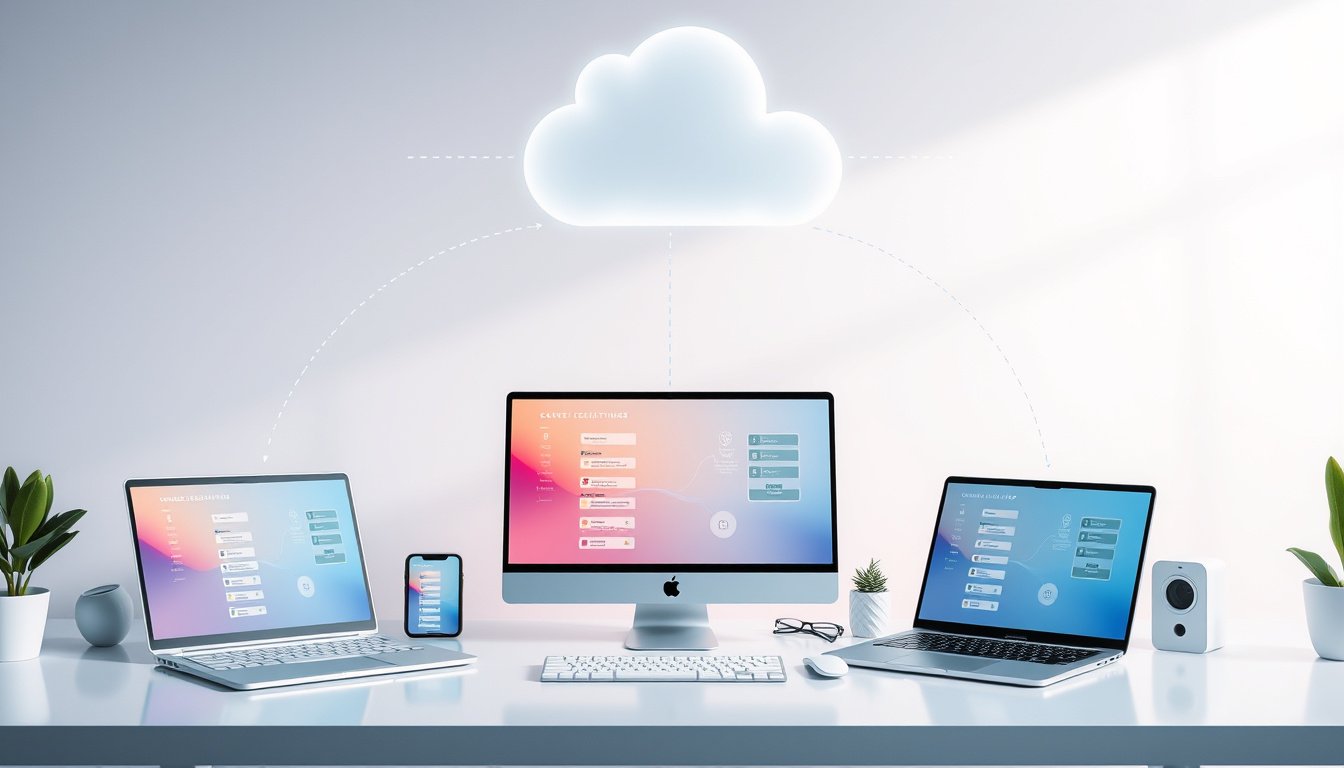

In today’s multi-device world, maintaining consistent settings, preferences, and data across your devices is increasingly important. Cloud syncing offers an effective solution, enabling users to synchronize their settings and data across different platforms without the hassle of manual transfers or losing customizations. This article will explore how to utilize cloud syncing for settings, why it matters, common challenges, and best practices to help you make the most of this technology.



What is Cloud Syncing?
Cloud syncing refers to the process of automatically synchronizing data—such as application settings, files, documents, and preferences—between devices via a cloud storage service. This ensures that any changes made on one device are reflected seamlessly on others connected to the same cloud account. Unlike traditional storage, where files live only on a local device, cloud syncing leverages internet connectivity to keep files and settings constantly updated.
For individual users, cloud syncing means customized settings—from app preferences to document annotations—can remain consistent whether on a phone, laptop, tablet, or desktop. In team environments, cloud syncing supports real-time collaboration by ensuring everyone accesses and edits the latest versions of shared files regardless of device or location.
How Does Cloud Sync for Settings Work?
When you enable cloud syncing in an app or system, your settings and data are uploaded to a cloud storage provider such as Google Drive, OneDrive, or proprietary cloud services. Upon logging into your account on another device, the service downloads those settings, effectively mirroring your setup.
For instance, apps like Flexcil allow users to sync annotations, documents, and preferences to their Google Drive. The synchronization process can either merge data from your device and the cloud or overwrite data based on user choice. Typically, synchronization happens automatically when changes occur, such as adding text, images, or completing voice recordings.
Key Benefits of Utilizing Cloud Syncing for Settings
- Consistent User Experience: Access your personalized app and system settings on any device, eliminating the need to manually reconfigure preferences.
- Real-Time Updates: Changes saved on one device instantly update across other devices, ensuring continuity and accuracy.
- Enhanced Collaboration: Teams can work seamlessly with shared settings and files, improving productivity and reducing version conflicts.
- Anywhere, Anytime Access: Whether you’re working remotely or switching devices, your data remains accessible without interruption.
- Built-in Backup: Syncing your settings can double as a backup, protecting against data loss from device failure or accidental deletion.
Potential Challenges and How to Overcome Them
While cloud syncing provides substantial advantages, users may encounter occasional issues such as:
- Synchronization Failures: Often due to poor network connectivity, outdated app versions, or insufficient storage on the device or cloud.
- Data Conflicts: When changes are made simultaneously on multiple devices without proper merging protocols, resulting in discrepancies.
- Security Risks: Sensitive data could be accessible if devices are lost or unauthorized parties gain access to synced files.
- Settings Overwrite: Choosing the wrong synchronization option can lead to overwriting data either on the device or in the cloud unintentionally.
Tips for Smooth Cloud Syncing
- Maintain Stable Internet Connection: Perform syncing primarily over Wi-Fi to avoid disruptions.
- Keep Software Updated: Ensure apps and operating systems are current to leverage bug fixes and security enhancements.
- Monitor Storage Space: Regularly check both local device and cloud storage availability to prevent sync interruption.
- Backup Before Syncing: Prior to initial synchronization, back up your data to avoid accidental loss.
- Choose Synchronization Settings Carefully: Understand options such as overwriting vs. merging data to select what best fits your workflow.
- Manage Access and Permissions: Implement user role restrictions and device access controls to safeguard your data.
- Disable Battery Saver During Sync: Some devices pause background activities which can interrupt syncing.
Cloud Sync vs. Cloud Backup vs. Cloud Storage
It’s important to differentiate cloud syncing from related concepts:
- Cloud Storage: Online space where your files and data are stored, accessible via the internet.
- Cloud Backup: Periodic copying of device data to the cloud as a safety measure against data loss.
- Cloud Syncing: Active synchronization of data between devices and cloud storage to maintain uniformity and real-time updates.
Understanding these distinctions helps in choosing the right tool or service tailored to your needs.
Conclusion
Utilizing cloud syncing for your settings is an indispensable practice for anyone juggling multiple devices or seeking seamless customization across platforms. It not only streamlines your digital environment but also enhances collaboration, data security, and accessibility. By understanding the workings, benefits, and challenges of cloud syncing, you can optimize your setup for maximum productivity and convenience.
Embrace the power of cloud technology today to keep your digital life synchronized, secure, and effortlessly customized — no matter where you are or what device you use.
About the Author