

A clean laptop screen not only enhances your viewing experience but also prolongs the lifespan of your device. Regular maintenance prevents dust accumulation and smudges that can obstruct your view or even damage the screen over time. This guide will walk you through safe, effective methods to clean your laptop screen regularly without risking damage.


Why Clean Your Laptop Screen Regularly?
Laptop screens attract fingerprints, dust, and oils from your hands, which can degrade the display quality. Over time, dirt buildup can cause scratches or interfere with touch sensitivity on touch-enabled devices. Regular cleaning:
- Maintains optimal screen clarity and color accuracy
- Prevents buildup that can lead to permanent damage
- Keeps your device hygienic
- Enhances your overall user experience
What You Need for Cleaning
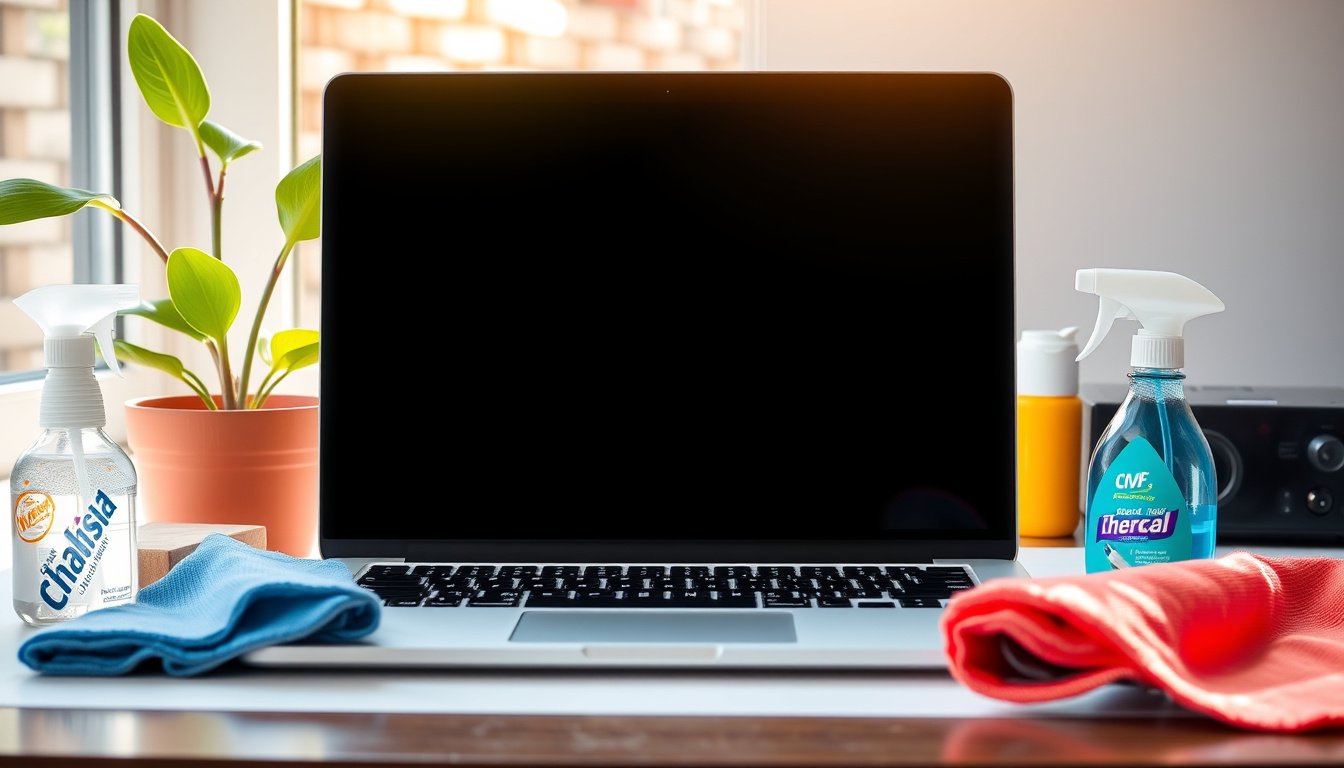
Before you start, gather these safe and effective materials:
- Microfiber cloth: Soft, lint-free, and non-abrasive — perfect for delicate screen surfaces.
- Distilled water: Free of minerals and impurities, preventing streaks and spots.
- White vinegar (optional): For tougher smudges, white vinegar mixed 50/50 with distilled water can help break down grime.
- Compressed air (optional): Useful for blowing away dust in corners and crevices.
Avoid paper towels, tissues, old t-shirts, or abrasive cloths, as they can scratch the screen or strip protective coatings. Also, steer clear of harsh chemical cleaners such as window cleaners, alcohol, bleach, and hand sanitizers.
Step-by-Step Guide to Cleaning Your Laptop Screen
-
Power off and unplug the laptop
Always turn off your device and disconnect from power to avoid electric shocks and prevent damage from moisture. -
Remove loose dust and debris
Use a dry microfiber cloth or compressed air to gently brush or blow away surface dust and particles. -
Prepare your cleaning solution (if needed)
For mild grime, lightly moisten your microfiber cloth with distilled water. For stubborn marks, use a 50/50 mix of distilled water and white vinegar. Never soak the cloth — it should be damp, not wet. -
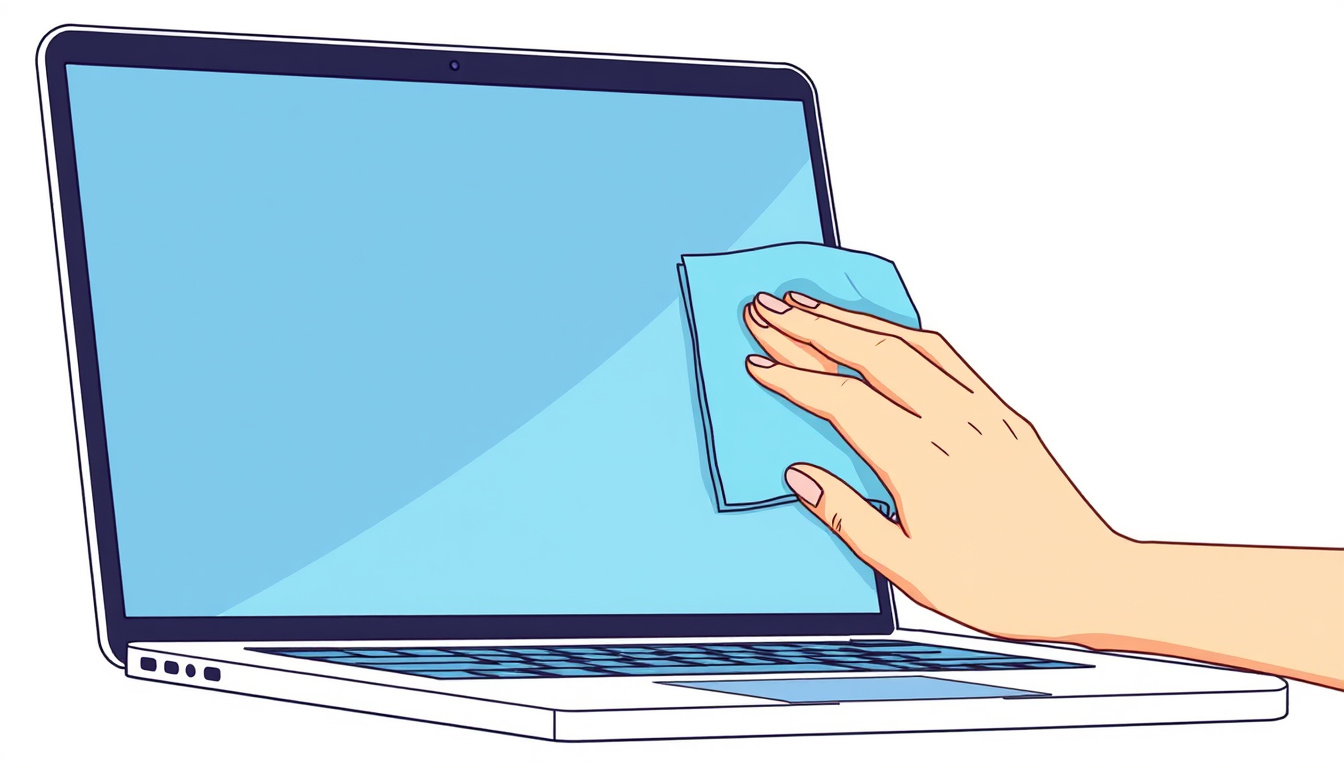
Wipe the screen gently
Using light pressure, wipe the screen in gentle, circular motions. Avoid pressing hard to prevent damage to delicate screen layers. -
Dry the screen
If moisture remains, use a dry part of the microfiber cloth to dab off excess liquid. Ensure your screen is completely dry before powering the laptop back on. -
Clean the bezel and edges
Don’t forget to wipe around the screen’s borders using a soft cloth or brush to remove trapped dust.
Additional Tips for Maintenance
-
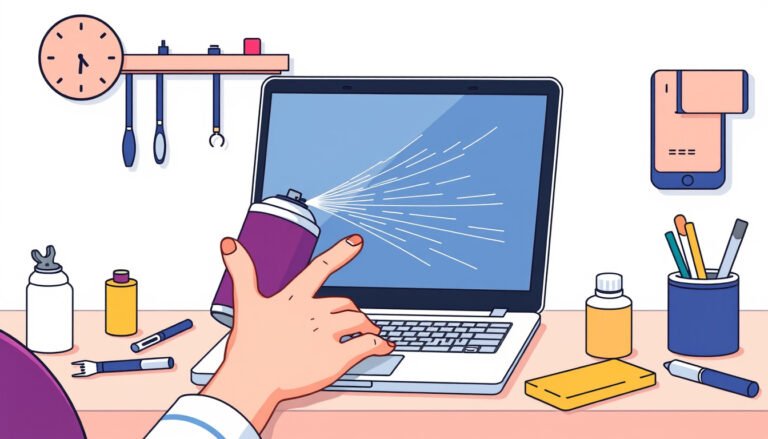
Never spray liquid directly onto the screen
Spraying liquids can cause drips to seep into internal components, potentially leading to malfunction. -
Avoid alcohol-based cleaners
Alcohol and similar substances can react with screen coatings, causing discoloration or permanent damage. -
Use compressed air carefully
For removing dust in corners or keyboard gaps, hold the can upright and spray from about 6 inches away. -
Keep your workspace dust-free
Regularly dust your desk and consider using a screen cover or case when your laptop is idle. -
For touch screen laptops
Clean more frequently due to finger contact. Be exceptionally gentle to preserve touch sensitivity.
How Often Should You Clean Your Laptop Screen?
For optimal appearance and performance, clean your laptop screen every one to two weeks. In environments where multiple people use the device or the workspace is dusty, consider cleaning it more often.
What to Avoid When Cleaning Your Laptop Screen
- Paper towels, tissues, rough cloths
- Household cleaners with ammonia, bleach, or alcohol
- Spraying fluids directly on the screen
- Excess moisture and soaking the cloth
- Pressing hard or scrubbing abrasively
Conclusion
Keeping your laptop screen sparkling clean is simple and vital for maintaining your device’s visual quality and longevity. Adhering to safe cleaning practices—using gentle materials like microfiber cloths, appropriate cleaning solutions, and regular maintenance—will protect your screen from damage and ensure a clear, bright display every time you use your laptop.
Remember, a gentle touch and patience are your best tools for screen care!
About the Author