
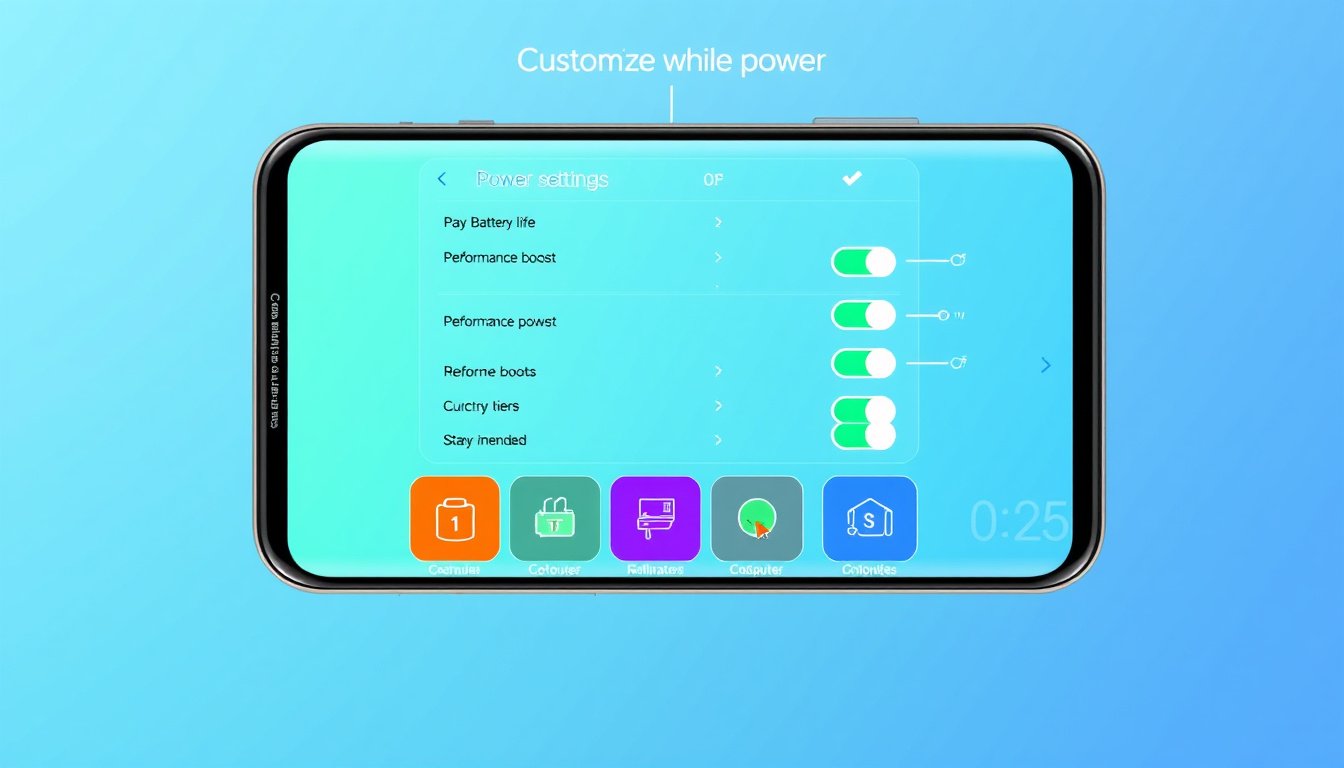

Optimizing your device’s power settings is a crucial step toward enhancing its performance, conserving battery life, and reducing energy consumption. Whether you are using Windows 11 or Windows 10, tailoring the power settings to your specific needs can significantly affect your device’s efficiency and longevity. This guide provides a detailed overview of how to customize power settings effectively, enhancing both usability and environmental sustainability.


Understanding Power Settings and Their Impact
Power settings manage how your device uses electricity, balancing performance with energy consumption. Properly configuring these settings can:
- Extend battery life by limiting unnecessary power use.
- Improve system performance when needed.
- Reduce wear on hardware components like the battery.
- Lower your environmental footprint by minimizing energy usage.
How to Access and Customize Power Settings in Windows 11
Windows 11 offers a user-friendly interface to manage power efficiently:
-
Access Power & Battery Settings:
Open Settings > System > Power & battery. -
Adjust Power Mode:
- Navigate to Power Mode under Power & Battery settings.
- Choose between different modes like:
- Best Power Efficiency to save battery by limiting background activity.
- Balancing options or higher performance modes for demanding tasks.
-
Configure Energy Saver:
- Enable Energy saver to activate when battery levels are low; this dims the screen and limits background processes to conserve power.
-
Set Screen and Sleep Timers:
- Adjust Screen, sleep, & hibernate timeouts to reduce power used during idle times by setting shorter intervals for turning off the screen and putting the device to sleep.
-
Enable Dark Mode:
- Go to Settings > Personalization > Colors and select Dark mode to reduce screen power consumption, particularly effective on OLED displays.
-
Manage Connectivity:
- Turn off Wi-Fi and Bluetooth from the Taskbar’s Quick Settings when not in use to save additional battery power.
-
Use Dynamic Refresh Rate:
- In Settings > System > Display > Advanced display, enable Dynamic refresh rate to decrease screen refresh rate during static tasks, conserving energy.
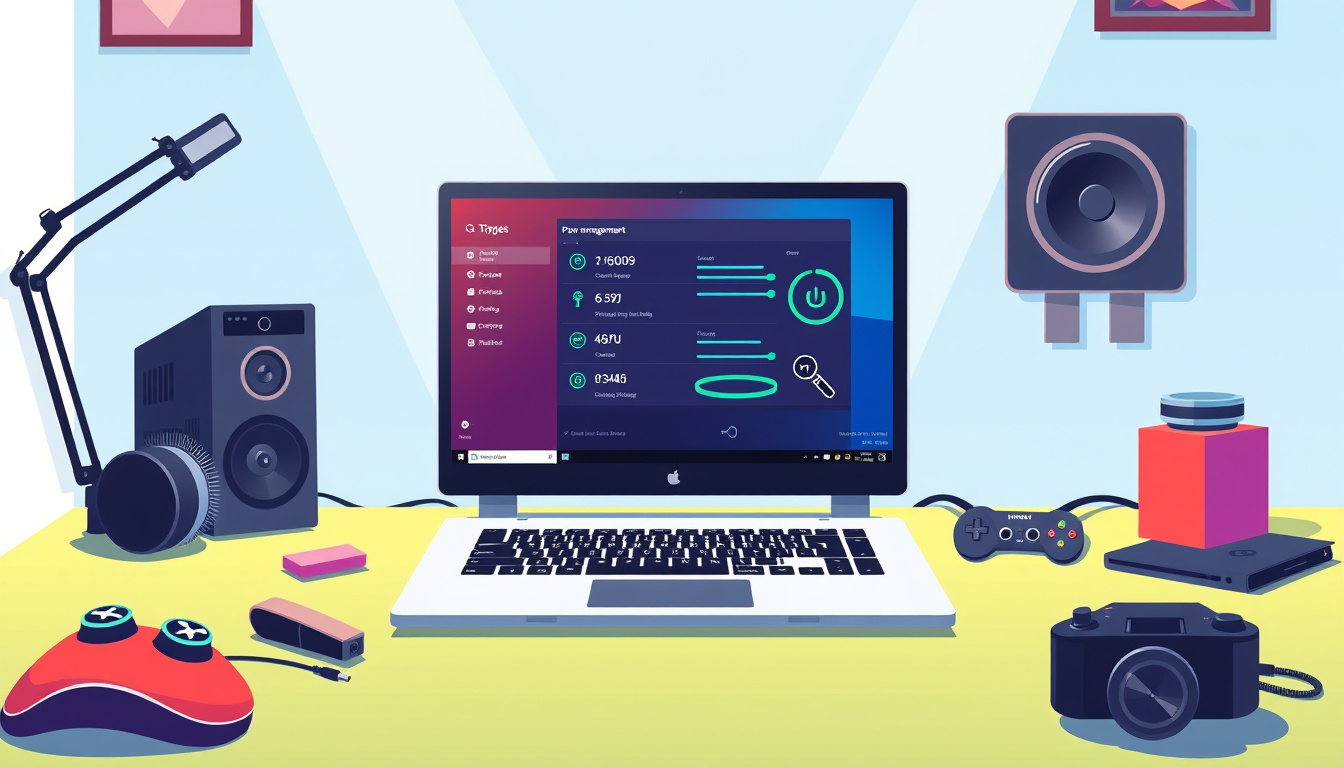
Customizing Power Plans in Windows 11 and Windows 10
Power plans are predefined collections of hardware and system settings that control how your computer manages power. You can switch between them or create personalized power plans:
-
Opening Power Plan Settings:
- In Windows 11 or 10, search for Choose a power plan in the Start menu and open the settings.
-
Selecting a Power Plan:
- Select from plans like:
- Balanced (default) — balances performance with power consumption.
- Power Saver — focuses on maximizing battery life.
- High Performance — maximizes performance but uses more power.
- Select from plans like:
-
Customizing a Power Plan:
- Click Change plan settings next to the chosen plan.
- Adjust sleep and display timers.
- Click Change advanced power settings to fine-tune components such as:
- Processor power management.
- Wireless adapter settings.
- USB selective suspend.
- Battery settings.
- Apply changes and confirm by clicking OK.
Best Practices for Optimizing Power Settings
- Limit Background Apps: Restrict apps that run in the background to reduce CPU and battery consumption.
- Update Display Settings: Lower brightness and reduce the screen timeout to save energy.
- Maintain Battery Health: Avoid letting the battery drain completely or stay plugged in at 100% constantly to extend battery lifespan.
- Use Sleep and Hibernate Efficiently: Utilize sleep mode for short breaks and hibernate for longer inactivity to save energy without shutting down completely.
Environmental Benefits of Power Optimization
Reducing energy consumption through effective power settings contributes to the reduction of carbon emissions, as much of the world’s electricity is generated from fossil fuels. Efficient power use in devices not only saves your battery but also plays a part in a larger movement toward sustainable technology practices.
Final Thoughts
Customizing your device’s power settings is a powerful way to unlock improved performance and longer battery life while contributing to energy conservation. Whether optimizing for work, gaming, or casual use, Windows provides versatile options to balance your device’s power needs. Regularly revisiting these settings ensures your device runs efficiently, prolongs hardware life, and supports environmental responsibility.
Note: The exact paths and feature availability might vary slightly depending on your Windows version or device manufacturer customizations. Always ensure your system is updated to access the latest power management functionalities.
About the Author