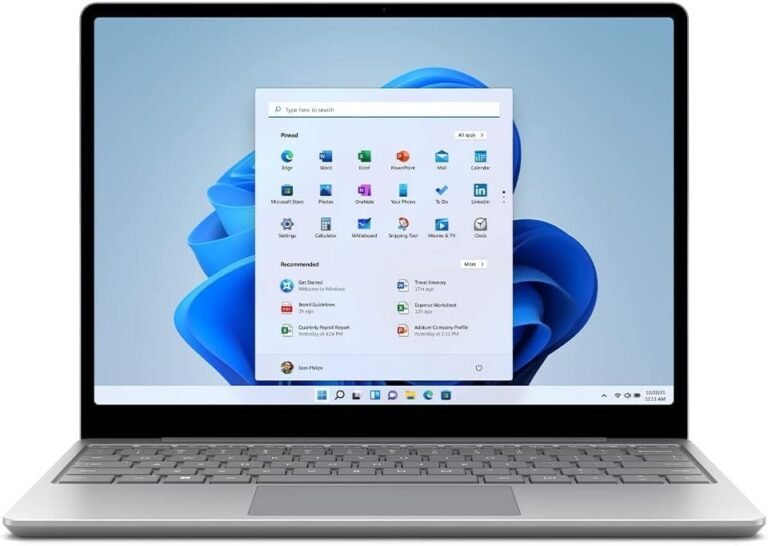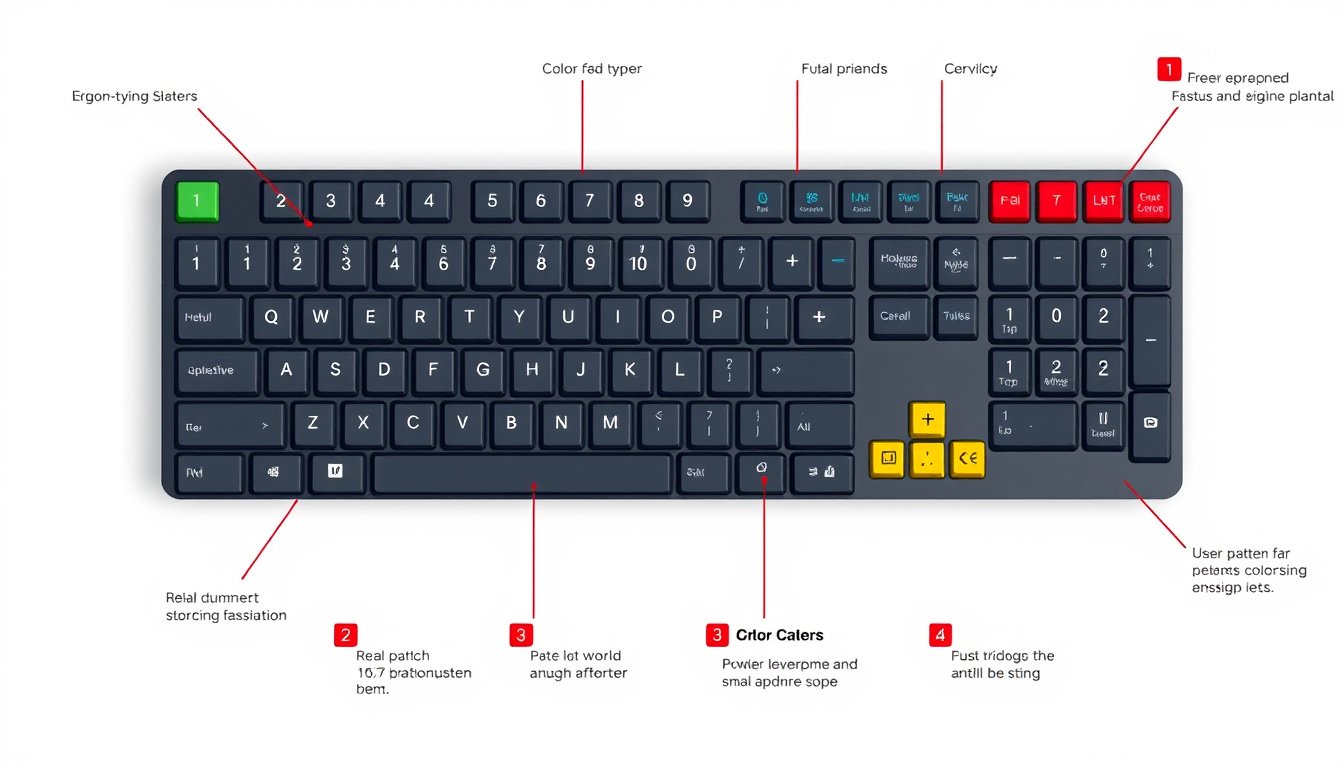

In an increasingly digital world, the keyboard remains an essential tool for communication and productivity. However, the default keyboard layouts available on most devices may not always align with individual preferences or specific needs. Customizing your keyboard layout offers a powerful way to enhance typing comfort, speed, and efficiency by tailoring key functions and placements to your unique workflow. This guide walks you through the concept, tools, and practical steps to create a personalized keyboard layout that boosts your productivity.


Why Customize Your Keyboard Layout?
Standard keyboard layouts like QWERTY, AZERTY, or DVORAK have served users for decades, but they may not be optimized for everyone. Customizing your keyboard layout can help:
- Increase typing speed by positioning frequently used keys within easy reach.
- Reduce finger strain by minimizing awkward finger stretches.
- Simplify access to special characters or symbols that are hard to find in default layouts.
- Adapt to language-specific needs, including support for less common characters.
- Create shortcut keys for software functions or macros to streamline repetitive tasks.
Popular Tools for Keyboard Layout Customization
Several applications and platforms enable users to design or modify keyboard layouts. Here are two widely used tools:
1. Keyboard Layout Editor (KLE)
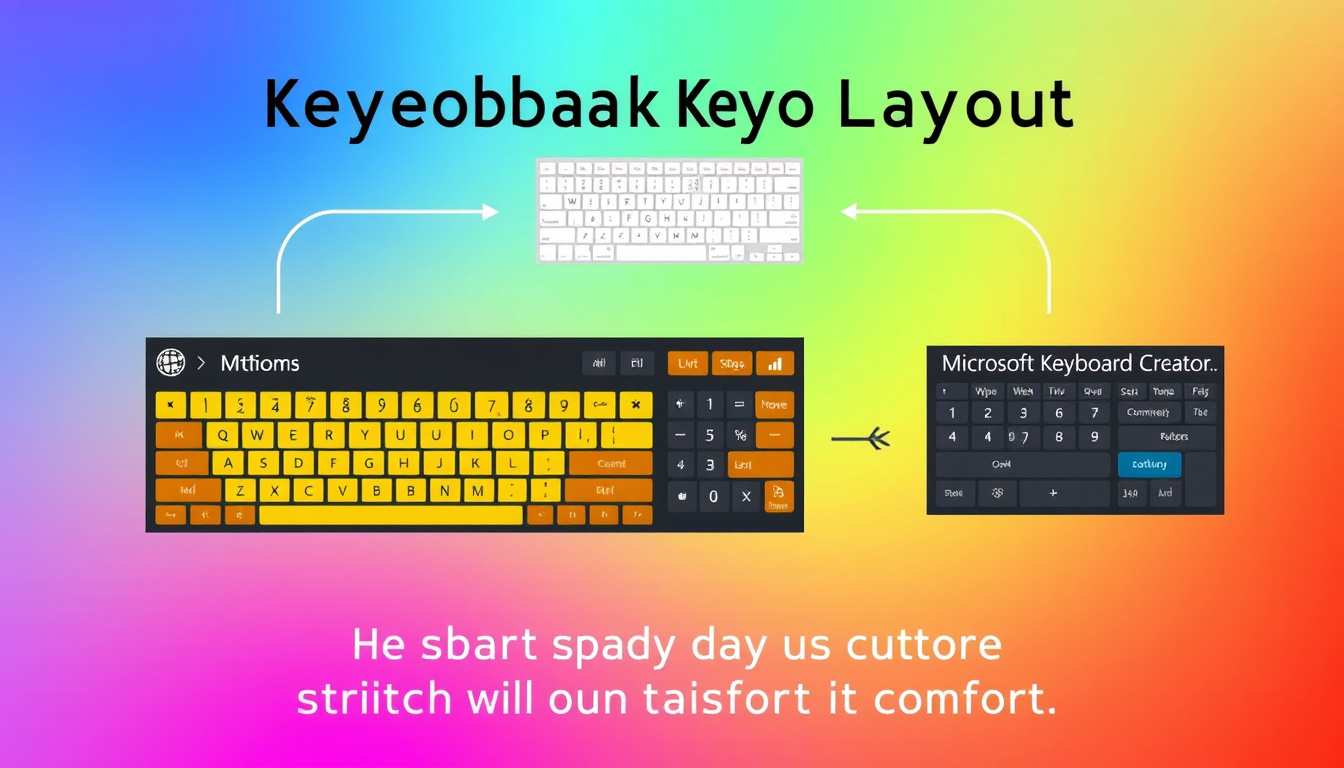
The Keyboard Layout Editor is a web-based tool that provides a versatile interface to design and visualize custom keyboard layouts.
-
Features:
- Drag-and-drop key placement with precise control over size and position.
- Color coding and legends customization for key functions.
- Export options including JSON files and graphical formats for use in firmware or sharing.
- Supports defining physical keyboard properties and switch types for enthusiasts building custom hardware.
-
Use Case: Ideal for users wanting a visual and flexible tool to conceptualize or share their keyboard designs before implementing them physically or through software.
-
Website: keyboard-layout-editor.com
2. Microsoft Keyboard Layout Creator (MSKLC)
MSKLC is a dedicated program for Windows users to create or modify keyboard layouts system-wide.
-
Features:
- Start new layouts from scratch or modify existing ones.
- Assign multiple characters or symbols per key, including shift states and AltGr.
- Package and deploy custom layouts easily on Windows systems.
- Supports legacy and modern Windows versions (Windows 10, XP, Server 2003).
-
Use Case: Perfect for Windows users who want to permanently install customized keyboard layouts without needing additional software to remap keys every session.
-
Download: Available officially from Microsoft’s Download Center.
Step-by-Step Guide to Customizing Your Keyboard Layout
Step 1: Identify Your Needs
- Analyze your typing habits and workflows.
- Determine which keys you use most frequently or which symbols you need quick access to.
- Consider any ergonomic adjustments to reduce finger movement.
- If you write in multiple languages, decide how to accommodate different character sets.
Step 2: Design Your Layout
- Use Keyboard Layout Editor for visual designing.
- Open the tool online.
- Start with a preset layout or build from scratch.
- Drag keys to new positions or resize them according to your preference.
- Assign functions or characters to each key and customize colors if desired.
- Save and export your design as a JSON file for future reference or implementation.
Step 3: Implement Your Layout
-
For Windows users, download Microsoft Keyboard Layout Creator:
- Install the program.
- Import your existing layout or create a new one using MSKLC’s interface.
- Map keys to desired characters, including modifiers like Shift, Alt, or Ctrl.
- Validate and build the layout package.
- Install the new keyboard layout to your system through the control panel.
- Select your custom layout from the language or keyboard input settings.
-
For macOS or Linux users, consider native input source customization tools or third-party software such as Karabiner-Elements (macOS) or Xmodmap (Linux).
Step 4: Test and Refine
- Use your new layout in daily tasks.
- Take note of inconveniences or inefficiencies.
- Return to your design tool to make adjustments.
- Reinstall updated layouts as necessary.
Tips for Effective Customization
- Backup your layouts regularly to prevent loss.
- Start small by modifying a few keys rather than a complete overhaul.
- Consider ergonomic layouts like Colemak or Workman if you want a proven alternative base.
- Learn keyboard shortcuts in your workflow software and map them to easy-to-reach keys.
- Avoid overly complex layouts that require significant retraining unless necessary.
Conclusion
Customizing your keyboard layout is an empowering way to tailor your digital workspace to your unique needs. Whether you require special characters, want to improve typing ergonomics, or streamline your workflow with personalized shortcuts, the right tools and a thoughtful approach can unlock significant productivity gains. Using tools like Keyboard Layout Editor and Microsoft Keyboard Layout Creator enables you to visualize and implement these changes smoothly. Take the first step today to design a keyboard that works for you—not the other way around.
By investing time to customize your keyboard layout, you create a more comfortable, efficient, and enjoyable typing experience that supports productivity in all your computer tasks.
About the Author