
In the intricate world of computing, your PC’s hardware and software must work harmoniously to deliver a smooth, efficient performance. At the center of this interaction lies an often overlooked yet critical component: device drivers. Understanding what drivers are, why updating them regularly is essential, and how to manage updates can profoundly enhance your PC’s stability, security, and performance.


What Are Drivers and Why Are They Important?
Drivers are specialized software programs that serve as the communication bridge between your computer’s operating system and its hardware devices. Whether it’s your graphics card, printer, keyboard, or network adapter, every piece of hardware relies on a unique driver to function.
Think of the operating system as the brain of your computer and the hardware components as the muscles. Drivers act as interpreters, translating OS commands into signals that hardware can understand, and vice versa. Without the correct drivers, your hardware would be unable to perform its tasks or communicate effectively with the system.
The Benefits of Updating Drivers Regularly
1. Enhanced Performance
Hardware manufacturers frequently release updated drivers to optimize their devices. These updates can fine-tune how hardware operates, unlocking better speeds, higher frame rates for gaming, and improved responsiveness. For example, graphics card driver updates often include enhancements that improve rendering quality and efficiency.
2. Improved Security
Just like software, drivers can have vulnerabilities that expose your system to cyber threats. Outdated drivers may open security loopholes, allowing hackers to exploit your PC. Regular driver updates include patches that close these vulnerabilities, helping to protect your system against malware and unauthorized access.
3. Better Compatibility
As operating systems and applications get updated, they may require newer driver versions to function properly. Updated drivers ensure your hardware remains compatible with the latest software, preventing crashes, glitches, or performance issues.
4. Increased Stability and Reliability
Manufacturers continuously fix bugs and address issues discovered after a driver release. By applying these updates, you can minimize unexpected crashes, device malfunctions, and system errors, resulting in a more reliable computing environment.
How to Update Drivers on Windows
Windows offers several avenues to update your drivers safely and efficiently:
Using Windows Update (Recommended)
Windows Update automatically downloads and installs recommended driver updates for most devices such as network adapters, video cards, printers, and scanners. This ensures your drivers stay current with minimal user intervention.
Through Device Manager
If you want to install or reinstall a specific driver manually:
- Right-click on the Start menu and select Device Manager.
- Find the hardware category (e.g., Display adapters for graphics cards) and expand it.
- Right-click your device and select Update driver.
- Choose Search automatically for updated driver software and let Windows find the best available version.
You can also uninstall and reinstall drivers via Device Manager if a hardware device isn’t working correctly or to roll back a problematic update.
From Manufacturer Websites
For critical devices like graphics cards or printers, manufacturers often release the latest drivers on their official sites. Downloading directly from these sources ensures you get the most up-to-date versions optimized for your device.
Tips for Effective Driver Management
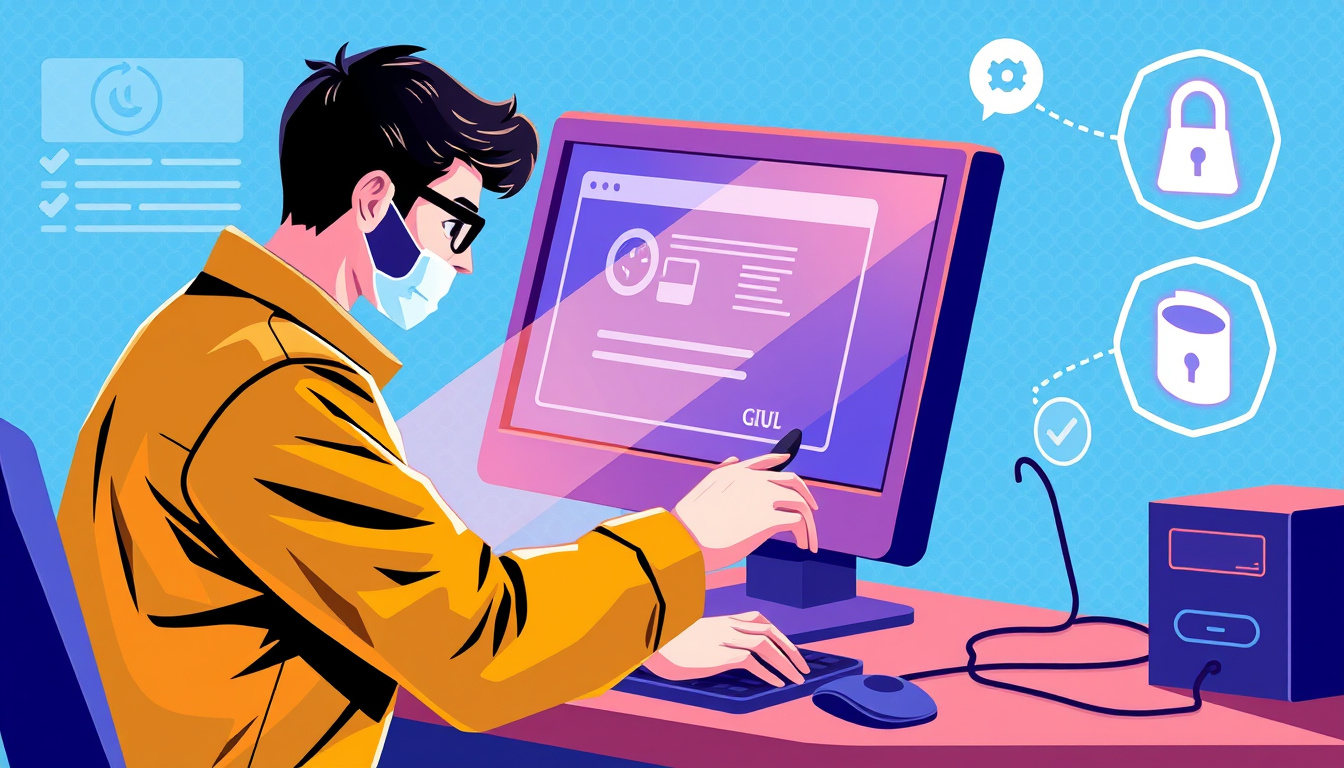
- Regularly Check for Updates: Make it a routine to check for driver updates every few weeks or enable automatic updates via Windows Update.
- Use Manufacturer Tools: Many manufacturers provide dedicated utilities to check and install driver updates, such as NVIDIA GeForce Experience or Intel Driver & Support Assistant.
- Backup Drivers: Before updating, consider backing up existing drivers, allowing you to revert in case new versions cause issues.
- Be Cautious with Third-Party Tools: Avoid unreliable third-party driver update tools, which may install incorrect or harmful drivers.
Conclusion
Updating your PC’s drivers regularly is a simple yet powerful way to boost performance, improve security, and ensure system stability. By understanding drivers’ role and adopting routine update practices using Windows’ built-in tools or manufacturer resources, you can keep your computer running at its best. Whether you’re a casual user or managing numerous devices in an enterprise setting, regular driver maintenance forms a cornerstone of effective and secure PC management.
Stay proactive with your driver updates and experience a smoother, safer, and more efficient computing journey.
About the Author