
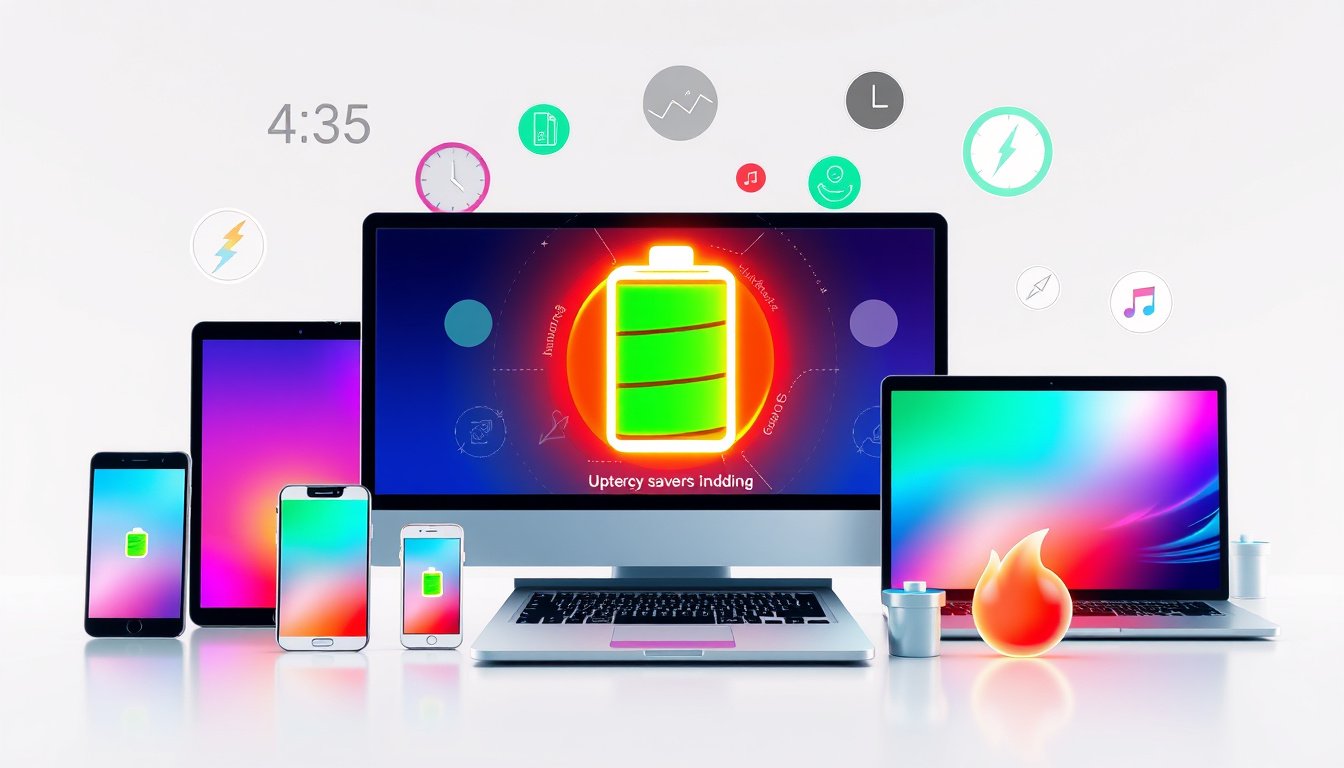

In today’s digital age, smartphones, tablets, and laptops have become indispensable tools. However, a common concern among users is battery life — how to make their devices last longer between charges without sacrificing functionality. Enter Battery Saver Mode, a feature designed to extend your device’s battery life by intelligently limiting power consumption. 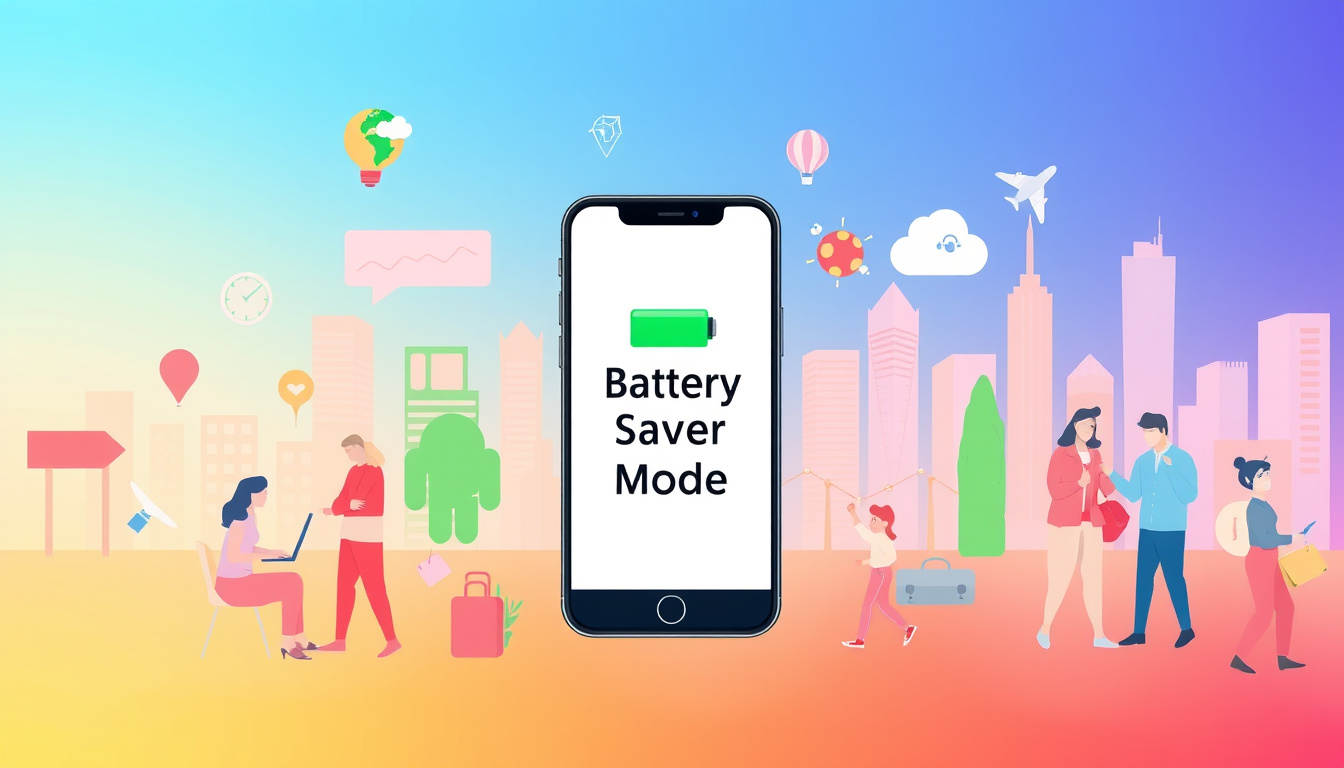


This article explores how to effectively use Battery Saver Mode, its benefits, and the underlying mechanisms that make it work.
What is Battery Saver Mode?
Battery Saver Mode (sometimes called Low Power Mode) is a built-in feature available on many modern devices, including iPhones, iPads, and Android smartphones. When activated, this mode reduces background activity, limits performance-intensive features, and optimizes power usage to extend the time your device can operate on a single charge.
Typically, Battery Saver Mode activates automatically when your battery reaches a certain low threshold (often around 20%) but can also be turned on manually to proactively preserve power.
How Does Battery Saver Mode Work?
Battery Saver Mode employs several strategies to reduce power consumption:
- Background App Refresh Disabled: Apps won’t update in the background, preventing unnecessary battery drain.
- Reduced Screen Brightness: The screen brightness decreases, significantly saving energy.
- Shorter Auto-Lock Time: The display turns off faster when idle, conserving battery life.
- Limited Visual Effects: Animations and other visual effects are reduced or disabled.
- Reduced Processor Performance: The CPU and GPU performance may be slightly throttled to lower power demands.
- Paused Automatic Downloads and Email Fetch: These network-intensive tasks are delayed until Battery Saver is off.
- Temporary Pausing of Sync Services: For example, iCloud Photos may pause syncing to reduce energy use.
- Disabling Certain Network Features: On some devices, features like 5G are turned off or limited during Battery Saver Mode.
On iPhones and iPads, when Battery Saver Mode is on, the battery icon in the status bar often turns yellow as a visual indicator.
How to Enable Battery Saver Mode
On iPhone and iPad
For newer iPhone models (iPhone 15 and later):
- Open Settings.
- Tap Battery.
- Select Power Mode.
- Toggle Low Power Mode on or off.
For earlier models:
- Open Settings.
- Tap Battery.
- Toggle Low Power Mode.
Additional quick methods:
- Control Center: Swipe down from the top-right corner and tap the battery icon.
- Voice Command: Say “Hey Siri, turn on Low Power Mode” or “turn off Low Power Mode.”
If you have Adaptive Power enabled, Low Power Mode automatically activates when the battery falls below 20%, and it turns off once the battery exceeds 80%.
On Android Devices
While the exact path may vary by manufacturer and OS version, generally:
- Open Settings.
- Select Battery or Power.
- Tap Battery Saver or Power Saving Mode.
- Activate the mode manually or set it to turn on automatically at a specified battery level.
Benefits of Using Battery Saver Mode
- Extended Battery Life: By minimizing non-essential processes, you can prolong device usage, which is especially useful during travel or long days without access to charging.
- Improved Battery Health: Reducing the frequency of full charge-discharge cycles and optimizing power consumption can help maintain battery health over time.
- Sustained Device Performance: Battery Saver Mode intelligently balances power savings without drastically affecting your ability to perform essential tasks like calling, texting, or browsing.
When to Use Battery Saver Mode
- Low Battery Situations: To stretch remaining charge until you can recharge.
- Extended Device Usage: When you anticipate long periods away from power sources.
- Preserving Battery Health: Regular use during moderate battery levels may help in slowing battery wear.
- Travel or Outdoor Activities: When charging options are unavailable or limited.
Tips for Optimizing Battery Life Beyond Battery Saver Mode
- Adjust Screen Brightness Manually: Even outside Battery Saver Mode, lower brightness preserves energy.
- Turn Off Unnecessary Connectivity: Disable Bluetooth, Wi-Fi, or GPS when not in use.
- Limit Push Notifications and Background Data: Configure apps to reduce constant syncing.
- Use Dark Mode: On OLED screens, dark mode can save battery by reducing pixel power usage.
- Manage App Usage: Identify and limit apps that consume significant battery.
Conclusion
Mastering Battery Saver Mode is an effective and convenient way to unlock the full potential of your device’s battery life without compromising everyday usability. By understanding how this feature works and when to use it, you can enjoy longer, more reliable performance from your smartphone or tablet. Whether you’re rushing through a busy day or preparing for a long journey, Battery Saver Mode stands as a reliable ally in managing your device’s power efficiently.
About the Author