

Organizing your digital and physical files effectively can save you countless hours, reduce stress, and boost productivity. Whether you’re managing files on your computer or paper documents at home or work, implementing a structured system to organize files into folders is essential. This guide walks you through practical and actionable strategies for mastering file organization, providing clarity and control over your data.


Why Organize Files into Folders?
Files, whether digital or physical, can easily become overwhelming without a proper system. Maintaining an organized folder structure helps you:
- Quickly locate important files
- Keep related documents together
- Reduce clutter and duplicates
- Create backup and archival plans more easily
- Improve overall workflow and efficiency
Digital File Organization: Strategies for Computer Users
Organizing files on your computer is foundational to good digital hygiene. Whether you use macOS, Windows, or Linux, the principles remain similar.
1. Create Clear, Descriptive Folder Names
Folder names should reflect the content they hold clearly and consistently. Consider using broad categories with nested subfolders for more specific organization. For instance:
- Projects
- Project_A
- Project_B
- Finances
- Taxes
- Receipts
- Personal
- Photos
- Letters
Avoid vague names like “Stuff” or “Misc.” as they make retrieval more difficult.
2. Use Folder Creation and Management Features
If you’re a Mac user, the Finder makes creating and managing folders straightforward:
- Open Finder by clicking the Dock icon.
- Choose the location (desktop, documents folder, etc.).
- Use File > New Folder or press Shift-Command-N to create a new folder.
- Drag files into the folder for better grouping.
- To group multiple items quickly, select them, control-click, and choose New Folder with Selection. This creates a folder containing all the selected files.
Windows and other OS offer similar folder creation methods, often through right-click context menus or keyboard shortcuts like Ctrl+Shift+N.
3. Organize by File Type or Project
Decide if organizing by file type (images, documents, spreadsheets) or by project works better for your workflow. Sometimes a combination is best—project folders that further subdivide by file type.
4. Use Aliases or Shortcuts for Multiple Access
If one file belongs in multiple categories, instead of duplicating it, create an alias (macOS) or shortcut (Windows):
- On Mac, press Option + Command and drag the file to create an alias.
- On Windows, right-click the file, choose "Create shortcut," and place it in the desired folder.
This reduces duplicates and saves storage space.
5. Merge Duplicate Folders Sensibly
If you have two folders with the same name in different locations, macOS offers a merge option when you drag one folder onto the other while holding the Option key. This merges contents without losing any files, useful for consolidating similar folders.
6. Backup and Use Cloud Storage Smartly
Utilize cloud services like iCloud Drive, Google Drive, or Dropbox to store and sync folders automatically. This ensures access across devices and adds a layer of backup security.
Physical Paper Organization: File Your Documents with Confidence
Even in today’s digital era, managing paper documents remains a necessity. Here’s how to efficiently organize files into folders and cabinets for physical paperwork.
1. Start With Sorting
Gather all your documents and divide them into three categories:
- Keep permanently (birth certificates, legal documents)
- Keep temporarily (bills, receipts)
- Shred/recycle (expired warranties, junk mail)
Consider scanning important papers to create digital backups and reduce physical clutter.
2. Choose the Right Folders and Storage
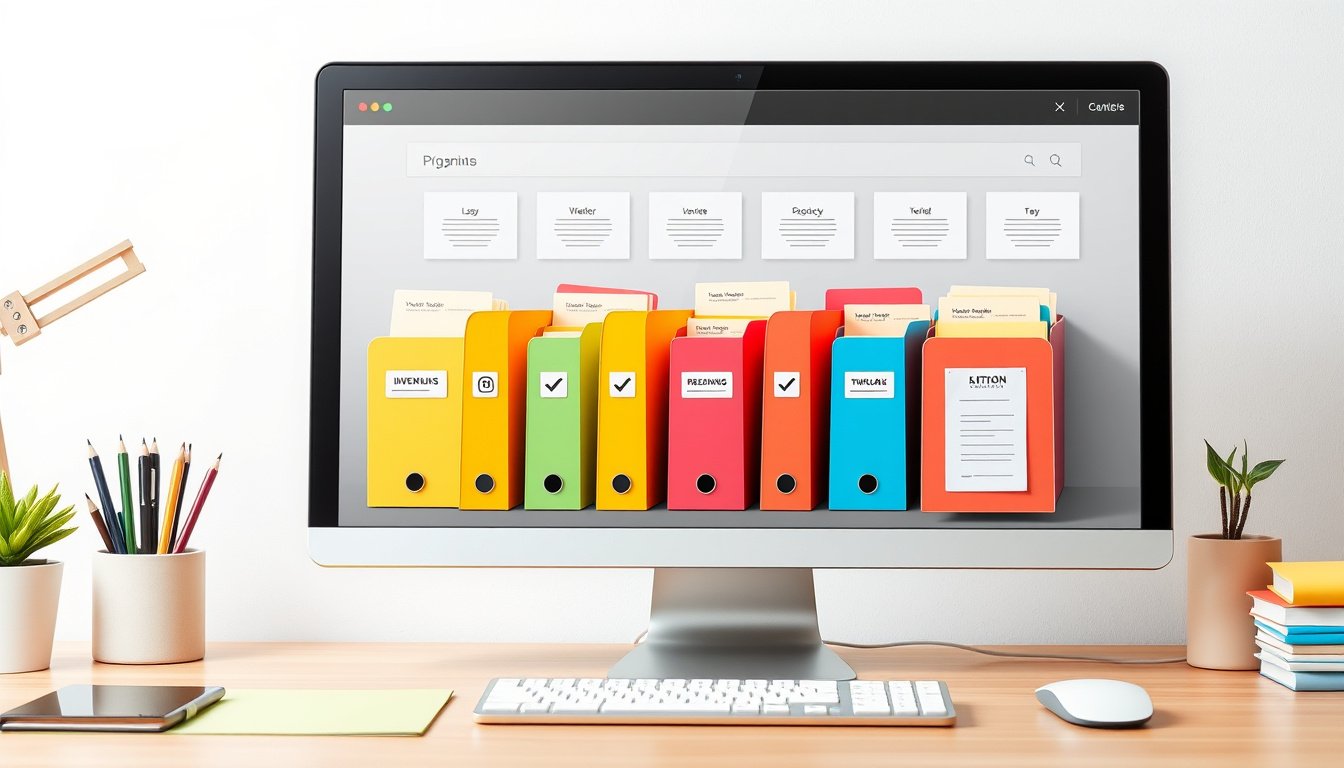
Invest in hanging files, interior folders, and sturdy file boxes or cabinets. Hanging files allow easy labeling and sorting, while folder boxes help keep categories contained and portable.
3. Establish Category Labels
Label hanging files with main categories such as Banking, Taxes, Home, Health, Insurance, and Work. Use subfolders inside for further division, e.g., Insurance → Car, Health, Life.
Color-coding labels by category can enhance visual sorting speed.
4. Align Filing Tabs for Easy Access
Arrange hanging files so that tabs are staggered or in a straight line; this maximizes visibility when flipping through files.
5. Use File Cabinets for Larger Volumes
For extensive paperwork, a filing cabinet with hanging folders and individual folders inside is ideal. Keep current, active files handy and archive older files separately.
6. Secure Important Documents
Store permanent, sensitive files like wills or property deeds in secure locations such as safety deposit boxes or locked, weather-resistant containers.
7. Maintain Your System Regularly
Schedule periodic reviews to shred unnecessary documents, update files, and ensure everything remains orderly.
Tips for Staying Consistent with Your Organization System
- Regular maintenance: Dedicate time weekly or monthly to file new documents and clean up the storage areas.
- Use tags and keywords: Digital tagging can enhance searchability within folders.
- Create templates: Develop folder structures you can replicate, especially for recurring projects.
- Avoid duplication: Use aliases for commonly needed files across categories instead of copying.
- Make it intuitive: Tailor organization methods to your natural workflow for easier adoption.
Conclusion
Mastering file organization by efficiently arranging your files into folders reduces clutter, improves accessibility, and gives you peace of mind in both your digital and physical spaces. By adopting systematic folder naming, consistent sorting, and regular maintenance practices, you can create an organizational framework that supports your productivity and helps you locate what you need exactly when you need it. Whether managing files on your Mac, PC, or paper documents at home or office, following these strategies ensures your files are always within reach and under control.
About the Author