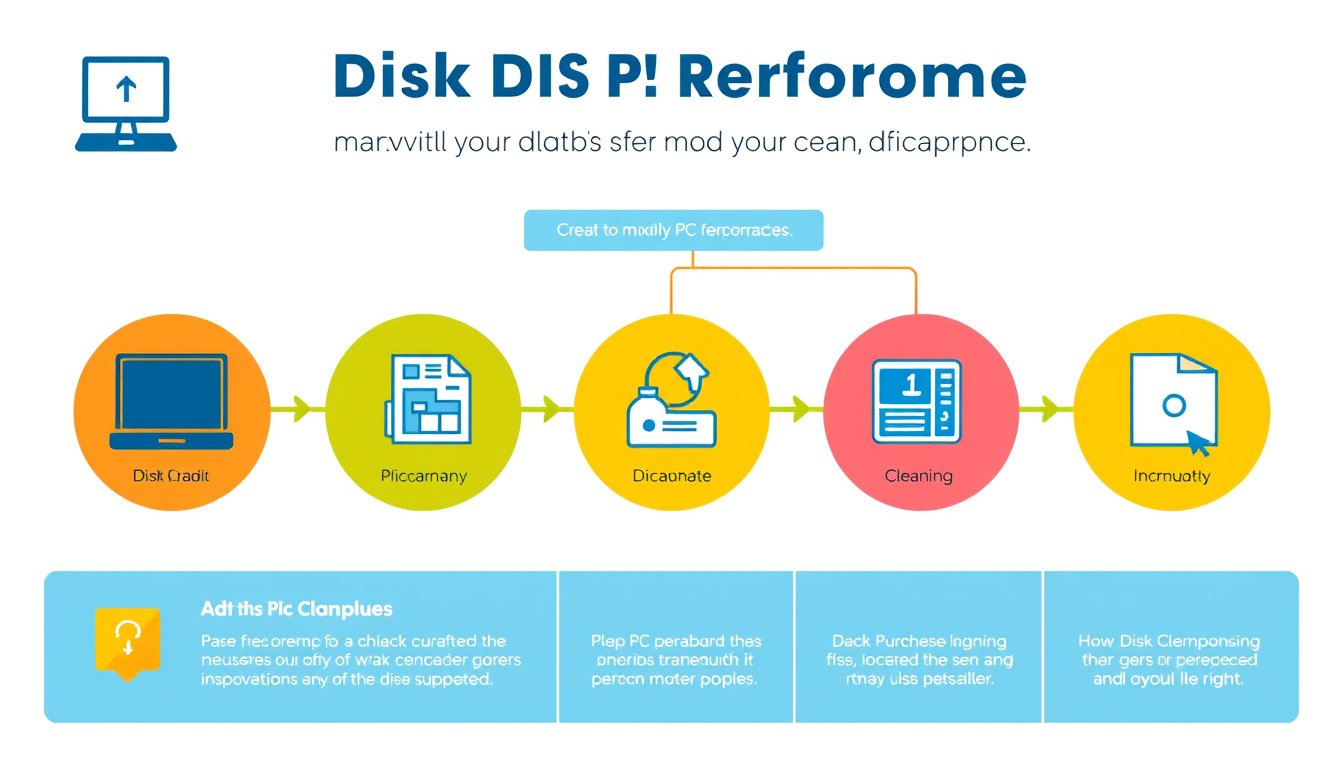

In today’s digital world, maintaining your PC’s performance is essential for a smooth and efficient computing experience. One of the most effective and straightforward tools available in Windows computers is the Disk Cleanup utility. This built-in tool helps you free up valuable disk space by safely removing unnecessary files, ultimately improving your system’s speed and responsiveness. This comprehensive guide will walk you through what Disk Cleanup is, how it works, and how to best use it to maximize your PC’s performance.


What is the Disk Cleanup Tool?
Disk Cleanup is a maintenance utility included in Windows operating systems, designed to help you free up space on your computer’s hard drive. It scans your drive for various types of files that are no longer needed or safe to remove, including:
- Temporary internet files
- System error memory dump files
- Recycle Bin contents
- Old Windows updates and installation files
- Downloaded program files
- Delivery optimization files
- Thumbnails and temporary files
The utility identifies these files and provides you with options to securely delete them without risking your personal data or installed applications.
Why Should You Use Disk Cleanup?
Regularly running Disk Cleanup delivers multiple benefits:
- Frees Up Disk Space: Removes junk files and wasted disk space, allowing room for important files and new software.
- Enhances System Performance: A less cluttered drive translates into improved system speed and responsiveness.
- Prevents System Errors: Avoids “low disk space” warnings and potential slowdowns caused by a full or fragmented hard drive.
- Maintains System Efficiency: Keeps your Windows operating system running smoothly by eliminating unnecessary files and reducing clutter.
How to Access Disk Cleanup in Windows
There are several easy methods to open Disk Cleanup:
-
Using the Search Bar:
- Click the Start button or press the Windows key.
- Type Disk Cleanup.
- Click on the Disk Cleanup app in the search results.
-
Using the Run Command:
- Press Windows key + R.
- Type cleanmgr.
- Press Enter.
-
Through File Explorer:
- Open File Explorer.
- Right-click the main drive (usually C:) and select Properties.
- Click the Disk Cleanup button on the General tab.
Step-by-Step Guide to Running Disk Cleanup
Step 1: Choose the Drive to Clean
After launching Disk Cleanup, select the drive you want to clean (typically your system drive labeled C:) and click OK. The tool will calculate how much space you can free.
Step 2: Select Files to Delete
You will see a list of file categories with descriptions and the amount of space each occupies. Common safe-to-delete files include:
- Temporary Internet Files
- Downloaded Program Files
- DirectX Shader Cache
- Delivery Optimization Files
- Thumbnails
- System error memory dump files
- Recycle Bin contents
Select the checkboxes for the files you want to remove. Be cautious: review each category to ensure no important data is deleted.
Step 3: Clean Up System Files (Optional)
For additional space savings, click Clean up system files. Disk Cleanup will re-run and include system-related files, such as:
- Previous Windows installations (Windows.old folder)
- Windows Update cleanup
- Windows Defender Antivirus files
Note: Deleting previous Windows installations is irreversible and removes the option to revert to an earlier OS version.
Step 4: Confirm and Run Cleanup
Once your selections are complete, click OK, then confirm to begin deleting the selected files. The cleanup time varies depending on the number and size of files, typically taking from a few minutes up to 30 minutes for extensive cleanups.
Important Tips for Using Disk Cleanup
- Run Regularly: Perform Disk Cleanup monthly for basic cleanup and quarterly for system files to maintain optimal performance.
- Back Up Important Data: Although Disk Cleanup deletes only unnecessary files, it’s prudent to back up any critical files.
- Combine With Other Tools: Use Disk Cleanup alongside Windows’ Storage Sense feature, which can automate space freeing by deleting unnecessary files.
- Be Mindful of System Files: Only delete system files if you are confident they are not needed to restore your system.
- Empty the Recycle Bin: Deleted files still occupy space until the Recycle Bin is emptied.
Automating Disk Cleanup
You can automate Disk Cleanup via Task Scheduler to run at specified intervals, such as weekly or monthly, ensuring your PC stays clutter-free without manual intervention. Advanced users can use command-line operations like:
cleanmgr /sageset:1to create a cleanup setting.cleanmgr /sagerun:1to run the set cleanup task.
Alternatives and Additional Maintenance
While Disk Cleanup is efficient, certain scenarios might require other tools or methods:
- When Disk Cleanup is Not Enough: Use Storage Sense or third-party cleaners like CCleaner for granular control.
- Large File Management: Manually remove large or unused files from folders like Downloads, Pictures, Videos, or Documents.
- Malware Checks: Run antivirus scans to ensure junk files are not caused by malware.
Common FAQs
Q: Will Disk Cleanup delete my personal files?
A: No. Disk Cleanup targets temporary and system files, leaving your personal documents and applications untouched.
Q: Can I recover files deleted by Disk Cleanup?
A: Files deleted by Disk Cleanup are permanently removed and do not go to the Recycle Bin. Use backups or dedicated recovery software cautiously if needed.
Q: How often should I run Disk Cleanup?
A: For most users, once a month is sufficient; more frequent cleanup may be necessary if disk space fills quickly.
Q: Is Disk Cleanup safe?
A: Yes, provided you review selected files before confirming deletion.
Conclusion
The Disk Cleanup tool is a powerful and user-friendly utility that can significantly improve your Windows PC’s performance by freeing up valuable disk space. By regularly running Disk Cleanup and combining it with other system maintenance tasks, you can keep your computer running efficiently and avoid storage-related issues. Mastering this tool ensures your system stays lean, responsive, and ready for your daily computing needs.
Maximize your PC’s performance today by harnessing the built-in power of the Disk Cleanup tool!
About the Author