
In today’s demanding computing landscape, whether for gaming, 3D rendering, video editing, or machine learning, a powerful graphics processing unit (GPU) is essential. Yet, upgrading the internal GPU of a desktop or laptop can sometimes be impractical or impossible, especially with ultraportable laptops or compact systems. Enter the external GPU (eGPU): an innovative solution that offers a significant performance boost by connecting a dedicated graphics card externally to your computer. This article explores what eGPUs are, how they enhance performance, compatibility considerations, and practical guidance for users seeking to harness their power.


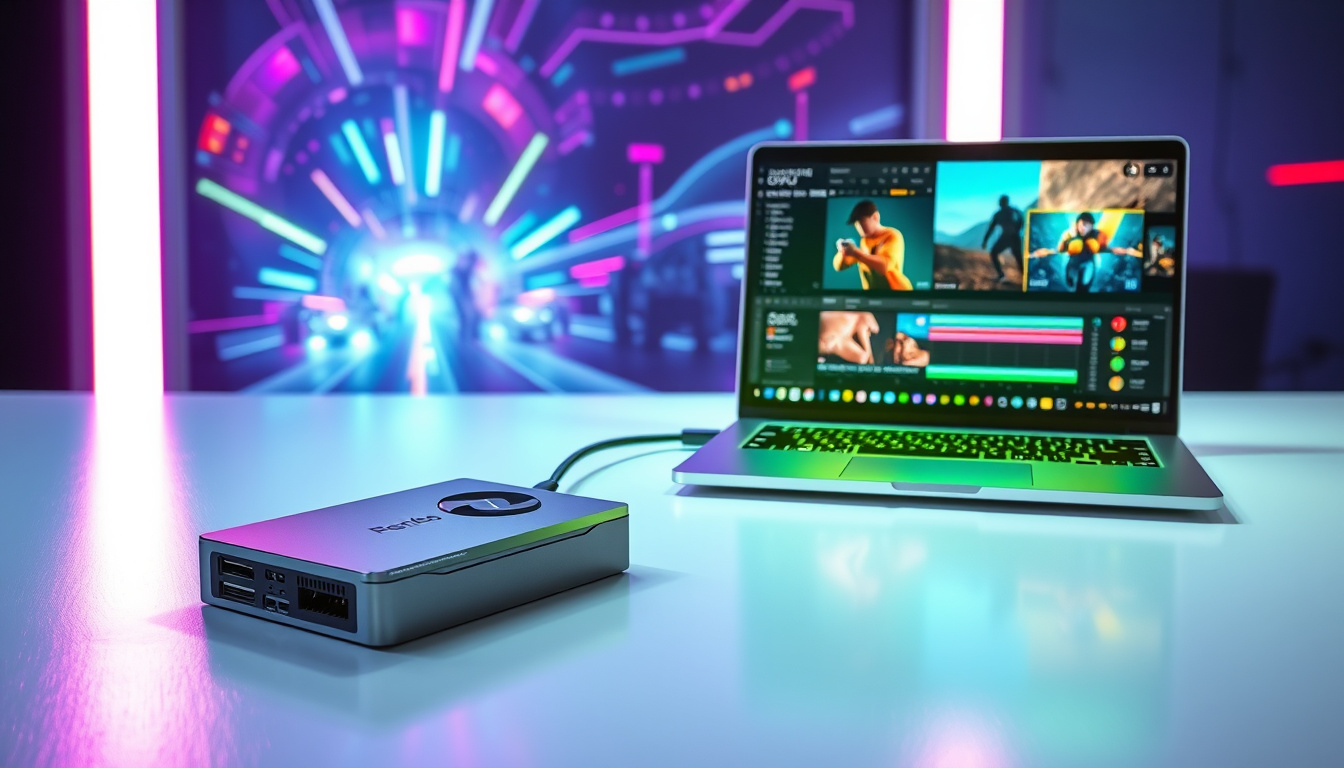
What is an External GPU (eGPU)?
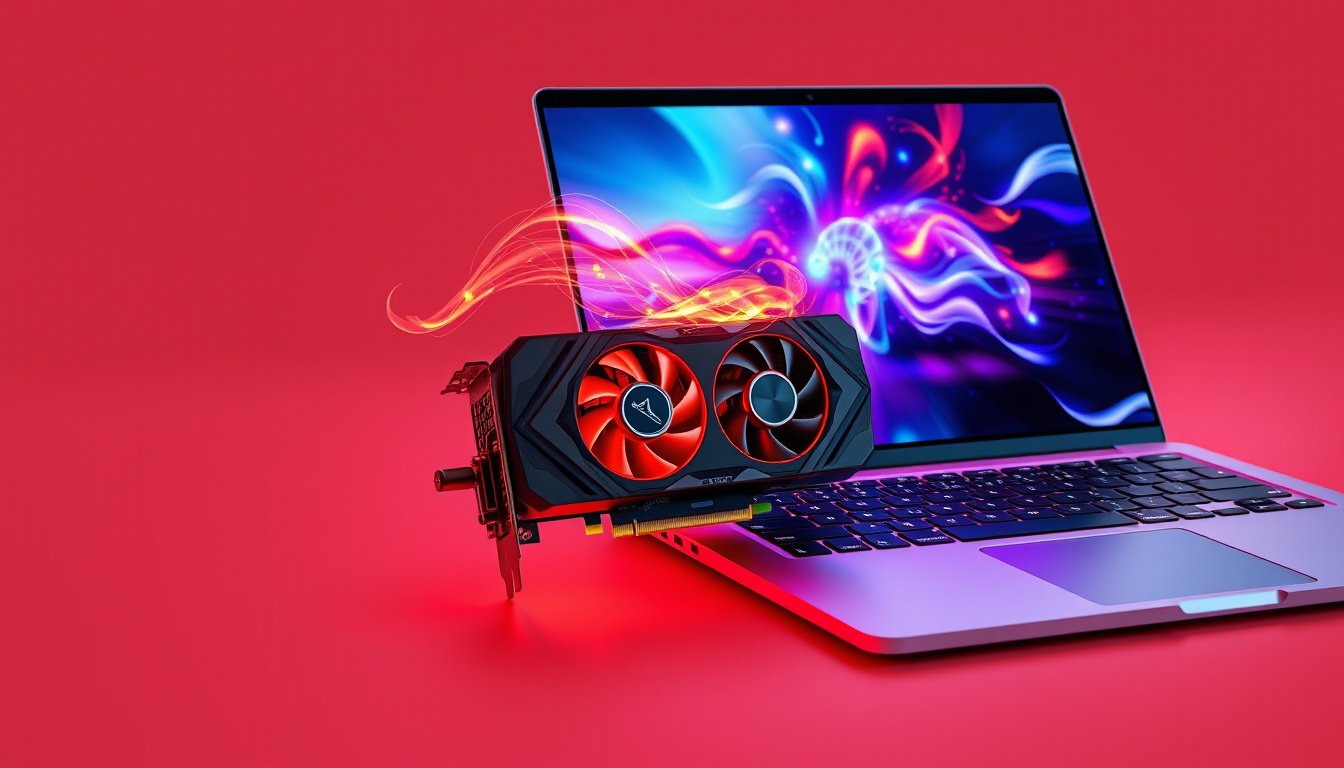
An external GPU is a standalone graphics card housed within an enclosure that connects to your computer through a high-bandwidth interface, most commonly Thunderbolt™ 3 or USB-C ports. Its primary purpose is to bypass the native limitations of your computer’s internal GPU by providing additional graphics horsepower externally. This allows intensive graphics operations—such as high-resolution gaming, 3D modeling, or video editing—to be offloaded to the eGPU, accelerating rendering speeds and improving overall graphical performance.
How Does an External GPU Work?
The eGPU enclosure contains a standard PCI Express (PCIe) slot for the graphics card, a dedicated power supply, and a high-bandwidth connection cable (e.g., Thunderbolt 3). Once connected:
- The computer recognizes the eGPU as an external graphics device.
- The eGPU independently processes complex graphical tasks.
- Data is transferred rapidly between the computer and the eGPU through Thunderbolt 3’s high-speed interface (up to 40 Gbps), minimizing bottlenecks.
- The internal GPU is either bypassed or assisted, freeing computing resources.
This process results in enhanced frame rates, faster rendering times, and the ability to run graphics-heavy applications smoothly, even on relatively modest computers.
Benefits of Using an External GPU
1. Significant Graphics Performance Boost
By adding a powerful dedicated GPU externally, you can dramatically enhance your system’s ability to handle graphically intensive workloads.
2. Versatility and Upgradeability
eGPU enclosures typically use standard PCIe slots, allowing easy swapping of GPUs. Instead of buying a whole new laptop or computer, upgrading involves simply replacing the graphics card in the enclosure.
3. Portability
While eGPU setups aren’t as compact as internal GPUs, many eGPU enclosures are designed to be portable and can be used with multiple compatible computers.
4. Future Proofing
As GPU technology evolves, you can upgrade your external GPU to keep your performance up to date without purchasing new computers.
5. Multi-Monitor and VR Compatibility
External GPUs often offer multiple video outputs to support multi-monitor setups and provide the power needed for virtual reality applications, thereby extending your system’s capabilities.
Performance Considerations and Limitations
While eGPUs provide a clear performance advantage, certain factors influence the extent of this boost:
-
GPU Specifications: The number of CUDA cores (in NVIDIA GPUs), shader units, VRAM capacity, and clock speed affect performance in applications such as photogrammetry, 3D rendering, and gaming.
-
Data Transfer Bandwidth: Thunderbolt 3 provides up to 40 Gbps, which is fast but still a bottleneck compared to the direct PCIe connection inside desktops. This can translate to around 10-15% performance loss relative to an internal GPU, depending on workload and implementation.
-
CPU Influence: While GPU-accelerated tasks benefit mostly from GPU power, some stages still rely on CPU computation. In these cases, having a balanced CPU-GPU setup is crucial.
-
Compatibility: Not all computers and laptops support eGPUs. Your device must have a Thunderbolt 3 or compatible USB-C port that supports external graphics acceleration, and your operating system should have the correct drivers.
Compatibility and Setup
Can I Use an eGPU with My Computer?
- Ensure your computer has a Thunderbolt 3 or USB-C port supporting external GPUs.
- Verify that your operating system supports eGPU drivers (Windows 10/11 and macOS have varying support levels).
- Confirm that your BIOS or firmware settings do not restrict external GPU usage.
Steps to Set Up an External GPU
- Purchase a compatible eGPU enclosure.
- Select a compatible GPU that suits your performance and budget requirements.
- Connect the GPU to the eGPU enclosure and attach the enclosure to your computer via Thunderbolt 3 or USB-C.
- Install the necessary GPU drivers and any eGPU software utilities.
- Configure your system preferences or graphics settings to use the external GPU for specific applications.
Practical Use Cases for External GPUs
- Gaming: Experience higher frame rates, enhanced graphics settings, and VR readiness without investing in a completely new system.
- Video Editing and 3D Rendering: Reduce rendering times and accelerate resource-intensive effects.
- Machine Learning and AI: Utilize GPU parallelism for faster training and inference.
- Cryptocurrency Mining: External GPUs can augment mining rigs, although electricity costs and hardware wear must be considered.
Recommendations Based on Community Insights
- For users with laptops or systems featuring weak internal GPUs, external GPUs can notably improve performance.
- High-end GPUs such as NVIDIA’s GTX 1080 Ti or AMD’s Radeon RX Vega series in eGPU enclosures have delivered excellent results.
- When investing in an eGPU, prioritize GPUs with higher CUDA core counts and larger VRAM for tasks like 3D model generation and video processing.
- Be mindful of the data transfer bottleneck limitations of Thunderbolt 3 when comparing eGPU performance to internal GPU performance.
- For workflows requiring GPU-intensive computation, a fast CPU is necessary but beyond a certain point, GPU power becomes the critical factor.
Conclusion
An external GPU represents a powerful and flexible means to elevate your computer’s graphics performance without a full system overhaul. By understanding your system’s compatibility and selecting appropriate GPU hardware, you can leverage eGPUs to meet demanding graphical workloads, from high-end gaming to professional video editing and scientific computation. While not a perfect substitute for internal GPUs due to inherent interface limitations, the performance boost and upgradeability make eGPUs a compelling option for many users looking to unleash the full potential of their computers.
By thoughtfully integrating an external GPU into your computing setup, you open the door to unmatched graphical performance and extended system longevity.
About the Author