
In the quest for faster, smoother computing experiences, hardware acceleration has become a cornerstone technology that allows devices to maximize their potential. But what exactly is hardware acceleration, when should you use it, and how can you enable it to ensure the best performance? This article demystifies the concept, highlights its key applications, benefits, and challenges, and provides practical guidance on using hardware acceleration effectively.


What is Hardware Acceleration?
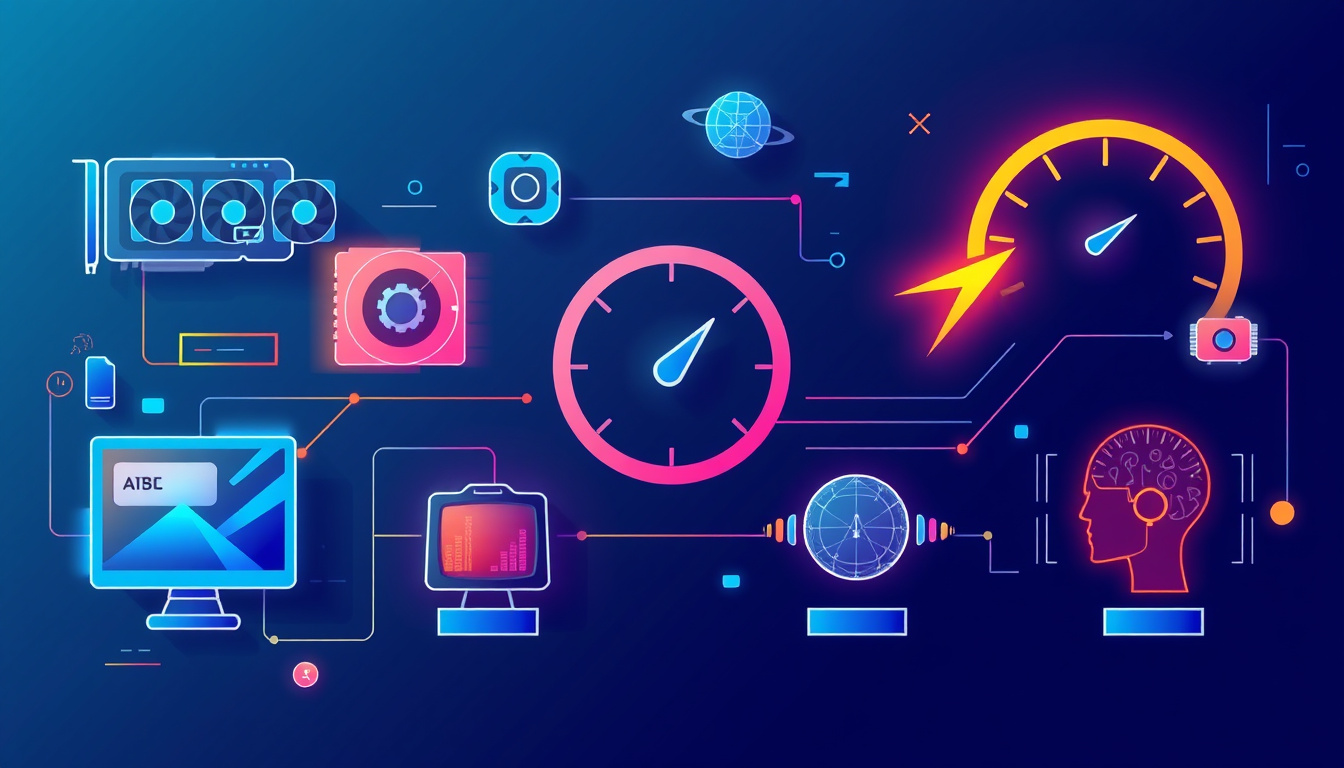
Hardware acceleration is the process of transferring specific computing tasks from the software-driven central processing unit (CPU) to dedicated hardware components designed to execute those tasks more efficiently. These specialized components include graphics processing units (GPUs), audio cards, cryptographic accelerators, or other hardware like AI accelerators.
The CPU is a versatile core that handles a wide variety of operations, but this versatility comes at the cost of efficiency for certain types of intensive or repetitive workloads. Dedicated hardware, built to perform specific tasks, can execute them faster and more efficiently, freeing the CPU to handle other system activities, reducing power consumption, and often improving the user experience.
When to Use Hardware Acceleration
Hardware acceleration is not a one-size-fits-all feature; its effectiveness varies depending on the task and the hardware environment. Here are some common scenarios when enabling hardware acceleration makes sense:
1. Graphics and Video Processing
Video playback, rendering, and editing—especially at high resolutions such as 4K—can significantly load the CPU. Utilizing GPU acceleration offloads these graphics-intensive computations, resulting in smoother video playback, reduced system strain, and lower power use.
- Browsers like Google Chrome, Microsoft Edge, and Firefox use hardware acceleration to enable smooth rendering of web pages, video streams, and interactive content.
- Media players like VLC or Windows Media Player support hardware acceleration to improve playback performance and conserve system resources.
2. Audio Processing
Certain audio tasks, such as mixing multiple audio streams or performing 3D audio effects, benefit from acceleration on dedicated sound hardware. This offloads processing from the CPU for a better multitasking experience, especially when running audio-intensive apps alongside others.
3. AI and Machine Learning Workloads
AI accelerators embedded in modern hardware can dramatically speed up complex algorithms by executing them with higher efficiency and lower latency than general-purpose CPUs or GPUs. This is particularly useful in applications involving pattern recognition, speech processing, or real-time data analysis.
4. Cryptography and Security
Cryptographic operations—such as encryption and decryption—are compute-heavy when done purely in software. Hardware acceleration in this domain improves performance and reduces latency, which is critical for secure communications and blockchain technologies.
5. Network Packet Processing
In routers and networking hardware, hardware acceleration reduces CPU workload by handling packet filtering, routing decisions, and network address translations at the hardware level, improving throughput and reducing latency.
6. Resource-Intensive Applications
Applications such as Spotify have started leveraging hardware acceleration to manage UI rendering and background processes efficiently, enhancing responsiveness without affecting audio playback quality.
How to Enable Hardware Acceleration
Enabling hardware acceleration varies by application and device but often requires simple configurations:
In Web Browsers
Most modern browsers enable hardware acceleration by default, but it can be toggled manually:
-
Google Chrome:
- Click the three-dot menu > Settings
- Scroll to Advanced > System
- Toggle Use hardware acceleration when available on or off
- Restart the browser
-
Microsoft Edge:
- Click the three-dot menu > Settings
- Go to System and Performance
- Toggle Use hardware acceleration when available on or off
- Restart Edge
-
Mozilla Firefox:
- Click the menu > Options/Preferences
- Scroll to Performance
- Uncheck “Use recommended performance settings” to access the hardware acceleration option
- Toggle Use hardware acceleration when available on or off
- Restart Firefox
In Other Applications
Many media players, design software, and other specialized apps provide hardware acceleration options in their settings or preferences menu. Some may enable hardware acceleration automatically if compatible hardware is detected.
Benefits of Hardware Acceleration
- Improved Performance: Specialized hardware executes tasks faster than general CPUs, leading to smoother experiences in gaming, video playback, AI computations, and more.
- Energy Efficiency: Offloading tasks reduces CPU workload, often resulting in lower power consumption and less heat generation, which is beneficial for laptops and mobile devices.
- Better Multitasking: Frees CPU resources to handle simultaneous processes, reducing lag and enhancing overall responsiveness.
- Enhanced Capabilities: Enables applications to handle more complex workloads or higher-quality media without bottlenecks.
Potential Challenges and When to Disable Hardware Acceleration
While hardware acceleration generally improves performance, it is not without pitfalls:
- Compatibility Issues: Driver incompatibilities or outdated hardware can cause glitches, crashes, or screen flickering. In such cases, disabling hardware acceleration can help troubleshoot issues.
- Increased Power Usage in Some Scenarios: On desktop systems without power management optimization, hardware acceleration might increase energy usage.
- Not Universally Supported: Some applications may not support hardware acceleration fully, or it might not benefit lightweight tasks, making it unnecessary.
Best Practices for Using Hardware Acceleration
- Keep your system drivers updated to ensure compatibility and stability, especially GPU drivers.
- Enable hardware acceleration for graphics-intensive tasks such as video editing, gaming, and streaming.
- Disable hardware acceleration temporarily if you encounter graphical glitches, app crashes, or unexpected behavior.
- Use hardware acceleration in browsers to improve web video playback and user interface responsiveness.
- For AI and cryptographic applications, leverage hardware acceleration to maximize efficiency, but ensure software and hardware compatibility.
- Regularly monitor system performance and battery use to determine if hardware acceleration provides net benefits for your workload.
Conclusion
Hardware acceleration is a powerful tool that leverages your system’s specialized resources to enhance speed, efficiency, and responsiveness. Understanding when and how to use hardware acceleration can significantly improve your computing experience—especially for video, audio, AI workloads, and browser performance. By enabling hardware acceleration thoughtfully and keeping your drivers updated, you unlock the full potential of your hardware and enjoy optimized performance tailored to your needs.
About the Author