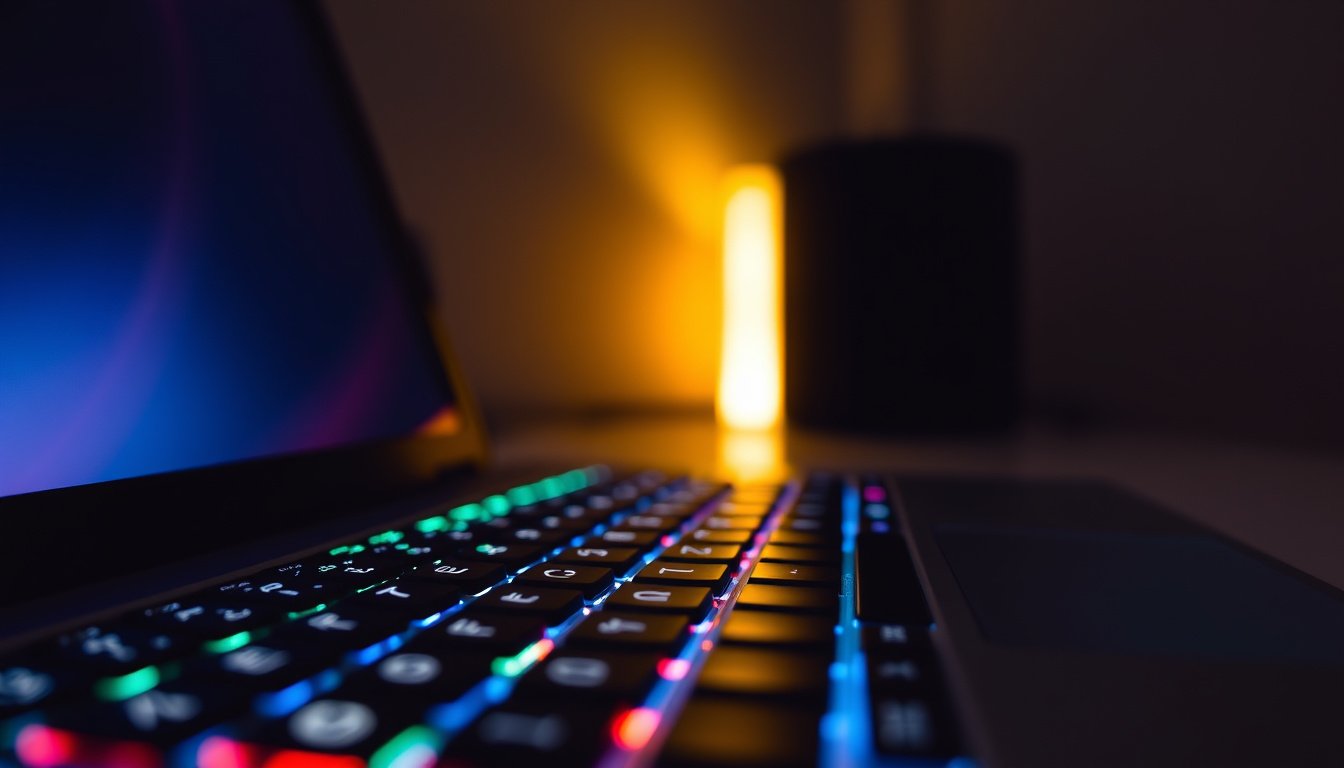

Working in low light environments often presents a challenge: seeing the keyboard clearly enough to maintain speed and accuracy. Keyboard backlighting is a valuable feature designed to alleviate this issue, improving visibility, enhancing comfort, and boosting productivity. Whether you use a Mac, Lenovo laptop, Chromebook, or an external keyboard, understanding how to use and manage keyboard backlighting can make a significant difference during your work or gaming sessions in dim lighting.


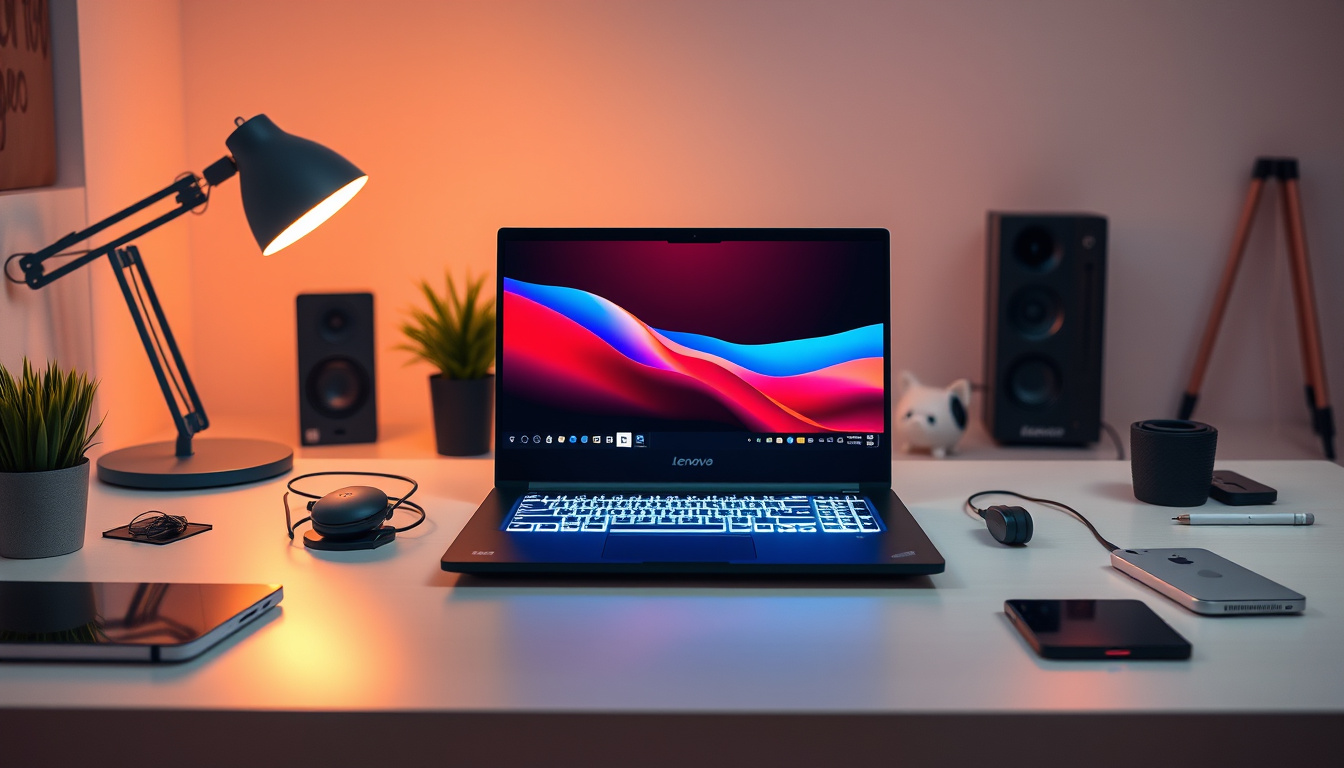
What Is Keyboard Backlighting?
A keyboard backlight consists of integrated LED lights positioned beneath each key or across the keyboard to illuminate the keys. This illumination enables easier identification of characters and symbols, making typing in dark or poorly lit settings more comfortable and efficient. Modern keyboards often feature adjustable brightness levels and color options, with some gaming keyboards offering customizable lighting effects.
Why Use Keyboard Backlighting in Low Light?
- Enhanced Visibility: The most obvious benefit is the increased visibility of lettering, allowing you to type accurately without straining your eyes or relying on external light sources.
- Reduced Eye Strain: Backlit keyboards help reduce the contrast between your screen brightness and keyboard area, decreasing the need for your eyes to constantly adjust between bright and dark areas.
- Increased Productivity: Being able to see all keys clearly at any hour helps maintain typing speed and focus.
- Customization for Comfort: Adjustable brightness helps tailor the light intensity based on ambient conditions or personal preference.
How to Use Keyboard Backlighting on Different Devices
MacBooks and Apple Keyboards
Apple laptops with backlit keyboards allow both manual and automatic control of the keyboard backlight:
-
Manual Brightness Adjustment:
- Click the Apple menu and open System Settings.
- Navigate to Keyboard in the sidebar.
- Adjust the "Keyboard brightness" slider to increase or decrease the backlight brightness, or drag it all the way left to turn it off.
- Alternatively, use dedicated brightness keys on the keyboard (usually marked with a sun icon) to adjust lighting incrementally.
-
Automatic Adjustments:
- Enable "Adjust keyboard brightness in low light" in the Keyboard settings to let your Mac use its built-in light sensor (located near the camera) to control brightness automatically.
- Set the duration for automatic backlight turn-off after inactivity to conserve battery life and avoid unnecessary light.
Lenovo Laptops
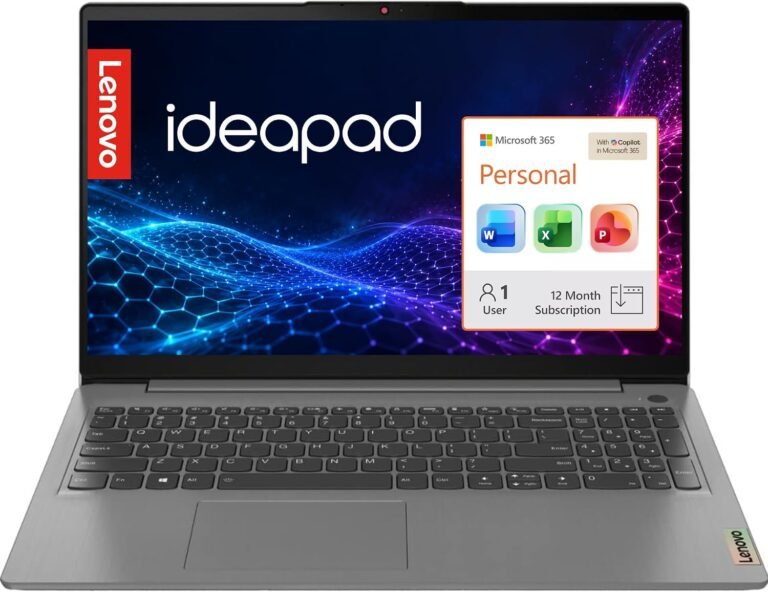
Many Lenovo laptops come with a built-in backlit keyboard and simple key combinations to manage lighting:
- Turning On/Off: Press Fn + Spacebar simultaneously to toggle the backlight.
- Adjusting Brightness: On some models, use Fn + Up/Down arrow keys to increase or decrease brightness.
- Automatic Brightness: Certain Lenovo laptops support adaptive keyboard brightness, which adjusts lighting according to ambient light levels to save battery.
If your Lenovo laptop lacks built-in backlight, consider purchasing an easy-to-install backlit keyboard cover or use external LED light strips designed for keyboard illumination.
Chromebooks
Most Chromebooks include backlit keyboards with adjustable lighting:
- Adjust backlighting via the system settings under the Device or Keyboard section.
- Many models provide adaptive brightness, ensuring illumination is sufficient without wasting battery.
- Chromebooks without built-in backlight may benefit from external solutions like LED keyboard overlays.
External Keyboards and Other Models
If your laptop or desktop keyboard does not have built-in backlighting:
- External Backlit Keyboards are widely available and plug into your computer via USB or Bluetooth.
- Backlit Keyboard Covers are flexible silicone covers with integrated LEDs that slip over your existing keyboard for instant illumination.
- DIY Lighting Hacks such as attaching USB-powered LED strips beneath the keyboard area can provide sufficient lighting without hardware replacement.
Tips for Effective Use of Keyboard Backlighting in Low Light
- Avoid Covering the Light Sensor: On devices like Macs, keeping the area near the webcam uncovered ensures the automatic brightness features work properly.
- Set Appropriate Brightness Levels: Too bright can be distracting and drain battery quickly; too dim may defeat the purpose.
- Use Auto-Off Features: Save power by enabling settings that turn off the keyboard backlight after a period of inactivity.
- Customize Color and Effects: If available, tailor colors and dynamic lighting modes for comfort, inspiration, or enhancing gaming performance.
- Keep Your Keyboard Clean: Backlighting can highlight dust and debris, so regular cleaning ensures optimal illumination and keyboard longevity.
Does Backlit Keyboard Drain Battery?
While keyboard backlighting consumes some power, the impact on battery life is typically minimal, especially on laptops with efficient LED systems. Gaming laptops with high-intensity and colorful lighting may experience more noticeable battery drainage. Utilizing automatic dimming and timeout settings can mitigate power consumption.
Conclusion
Mastering your keyboard’s backlighting capabilities enhances your ability to work or play effectively in low-light environments. Whether you have a MacBook, Lenovo, Chromebook, or a desktop setup, leveraging built-in features or affordable accessories can illuminate your keyboard and your productivity. Adjust the lighting to suit your environment and preferences, save your battery smartly, and enjoy a more comfortable, efficient computing experience — day or night.
By integrating these insights and practical tips, you can confidently use your keyboard backlight to improve your workflow and comfort when lighting conditions are less than ideal.
About the Author