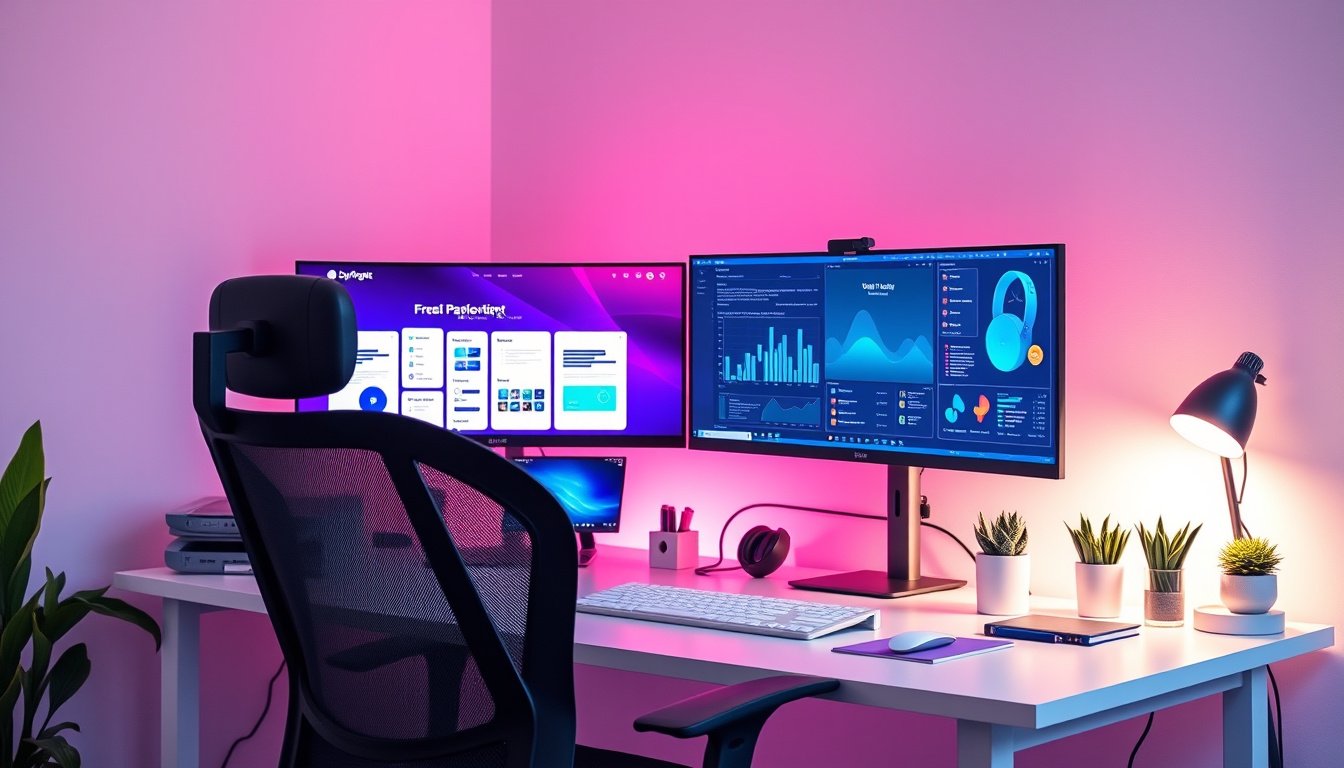

Using multiple monitors in your workspace can dramatically improve your productivity, organization, and multitasking capabilities. Whether you are a professional programmer, designer, gamer, or simply managing a busy workflow, a well-optimized multi-monitor setup can transform the way you work and interact with your computer. This guide covers everything you need to know to set up and make the most of multiple monitors with a focus on Windows-based systems.


What Is a Multi-Monitor Setup?
A multi-monitor setup involves connecting two or more screens to a single computer, creating an extended desktop area that enables you to display and manage multiple applications simultaneously. The most common configurations range from dual monitors to triple or more, depending on your workspace and tasks.
Benefits of Using Multiple Monitors
- Increased Productivity: More screen real estate means less time switching between tabs and windows. You can view documents, emails, browsers, and specialized software side by side.
- Improved Multitasking: Run reference material on one screen while working actively on another.
- Better Organization: Dedicate different monitors for specific tasks or communication windows.
- Enhanced Creative Workflows: Designers and video editors can use full-screen timelines on one monitor and editing tools on another.
- Programming Efficiency: Code editors on one display and real-time execution or documentation on another streamline the development process.
- Gaming and Streaming: Use one monitor for gameplay and the other to monitor chats or system performance.
Setting Up Multiple Monitors on Windows
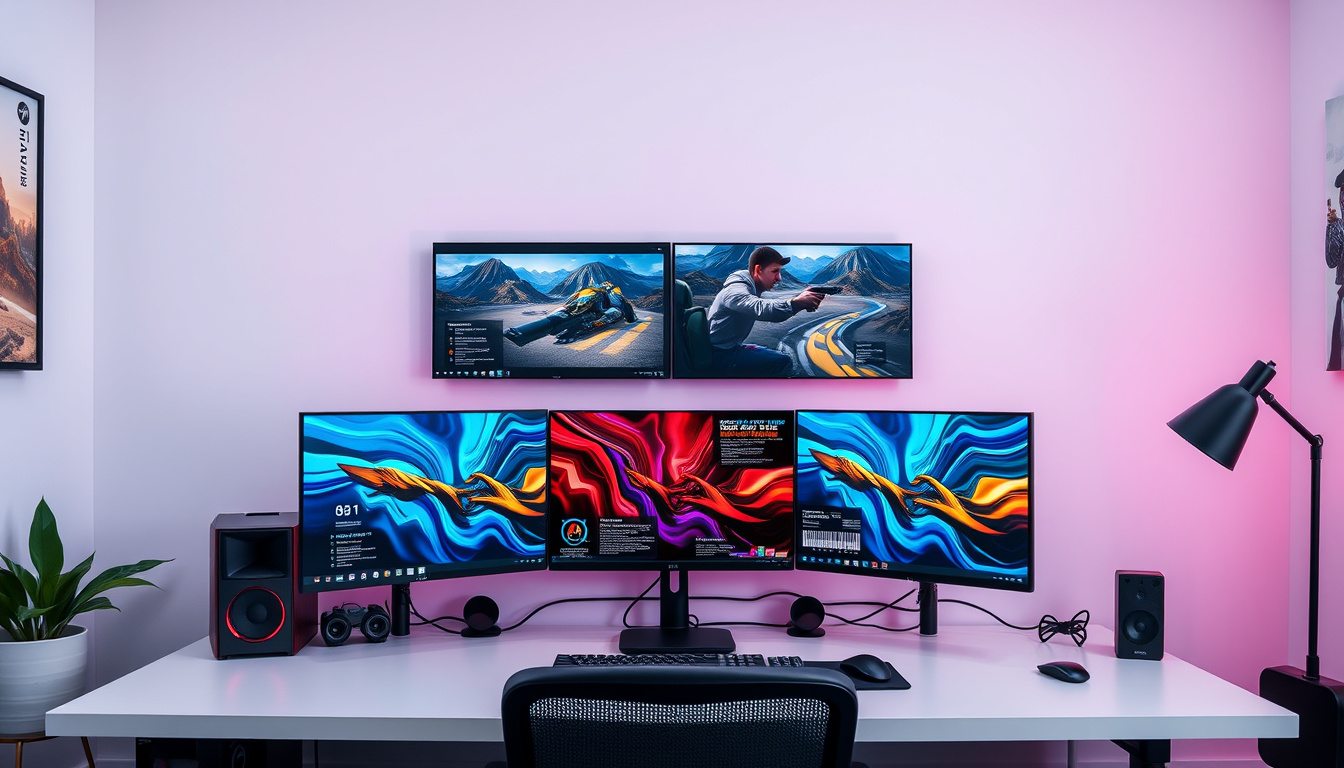
Hardware Requirements
- Compatible Monitors: Two or more monitors with compatible input ports (HDMI, DisplayPort, DVI, VGA).
- Video Outputs: Your computer’s graphics card must support multiple displays. Most modern integrated and dedicated GPUs support at least two monitors.
- Cables and Adapters: Use the correct cables and adapters, such as USB-C to HDMI or USB-to-HDMI, for laptops or devices with limited ports.
Step-by-Step Setup
-
Connect Your Monitors:
- Plug your monitors into the relevant ports on your PC or docking station.
- For wireless displays, connect an adapter to an HDMI port on your TV or monitor, then use Windows’ Cast feature (
Windows key + K) to connect wirelessly.
-
Detect and Identify Displays:
- Open Settings > System > Display.
- Click Detect if a connected monitor is not recognized.
- Use Identify to display numbers on your monitors to know their arrangement.
-
Arrange Your Displays:
- Drag and drop the displays in the Settings interface to match their physical layout on your desk.
- This ensures your mouse moves smoothly from one screen to another.
- Click Apply to save the configuration.
-
Choose Display Mode:
- Press
Windows key + Pto select how displays are used:- PC screen only: Use a single monitor.
- Duplicate: Show the same screen on all monitors (useful for presentations).
- Extend: Spread your desktop across all connected monitors.
- Second screen only: Use only the external monitor.
- Press
-
Adjust Display Settings:
- Modify resolution, scaling, and orientation per screen under Settings > System > Display.
- For portrait mode, physically rotate your monitor and set orientation to "Portrait."
-
Manage Behavior on Docking or Disconnecting:
- In Display settings, enable or disable options to remember window locations or minimize windows when monitors disconnect.
Tips for Optimizing Your Multi-Monitor Workspace
- Consistent Resolution and Scaling: Using monitors with similar resolutions helps maintain uniformity, but Windows allows adjusting scaling to harmonize text and images between displays of different sizes.
- Primary Monitor Selection: Set your primary display where most active tasks will occur—usually the central or largest monitor.
- Monitor Placement: Align monitors horizontally for ergonomic comfort; consider vertical stacking if desk space is limited.
- Use Taskbars and Shortcuts Smartly: Windows lets you show taskbars on all screens or only the primary one, enhancing navigation.
- Cable Management: Keep cables tidy using clips or sleeves to reduce clutter and accidental disconnections.
- Lighting and Ergonomics: Ensure your monitors avoid glare and are positioned at comfortable viewing angles to minimize eye strain.
- Utilize Docking Stations: For laptops, docking stations simplify connecting multiple monitors plus peripherals.
- Leverage Software Tools: Tools like Microsoft PowerToys can offer added functionality like customizable window snapping across monitors.
Practical Use Cases of Multi-Monitor Setups
- Programming: Code on the primary screen while debugging tools, virtual machines, or documentation remain open on secondary monitors.
- Graphic Design and Video Editing: Keep timelines and media libraries on one monitor and the canvas or preview window on another.
- Finance and Trading: Monitor charts and news feeds simultaneously.
- Gaming: Use one screen for full-screen gameplay and the other for chat, system monitoring, or streaming controls.
- Education and Presentations: Mirror your screen or extend content between instructor and student screens using display duplication.
Can I Use Different-Sized or Different-Resolution Monitors?
Yes. You can mix monitor sizes and resolutions, though it’s best to make your primary display the larger one for comfort and focus. Windows’ scaling options help to adjust how text and UI elements appear across varied displays.
Using Multi-Monitor Setups with Laptops and Virtual Desktops
Modern laptops often support multiple external monitors through built-in ports or adapters. Docking stations can provide additional connectivity and charging capabilities. If you use virtual desktops or remote desktop environments (e.g., VMware Horizon, Citrix), multi-monitor setups may be supported with correct configuration for a seamless workflow.
Summary
A multi-monitor setup enhances your digital workspace, offering extended screen real estate to boost productivity, better multitasking, and an organized workflow. Setting up multiple monitors on Windows is straightforward with the right hardware and proper configuration in the display settings. Customize your setup to fit your specific needs, considering workspace ergonomics, monitor arrangement, and scaling preferences. Whether for professional use or gaming, investing time in optimizing a multi-monitor environment can yield significant returns in efficiency and comfort.
Additional Resources
- Microsoft Support: How to use multiple monitors in Windows
- Lenovo: Dual Monitor Setup Guide
Maximize your productivity by transforming your desk with a tailored multi-monitor setup — your work and creativity deserve the expanded view!
About the Author