

In today’s digital age, protecting your online accounts from unauthorized access has never been more critical. Passwords alone are often insufficient to safeguard sensitive information. This is where two-factor authentication (2FA), also known as two-step verification or multi-factor authentication, becomes an essential security layer. This guide will walk you through what two-factor authentication is, why you need it, and exactly how to enable it for your accounts, including popular platforms like Apple and Microsoft.


What is Two-Factor Authentication?
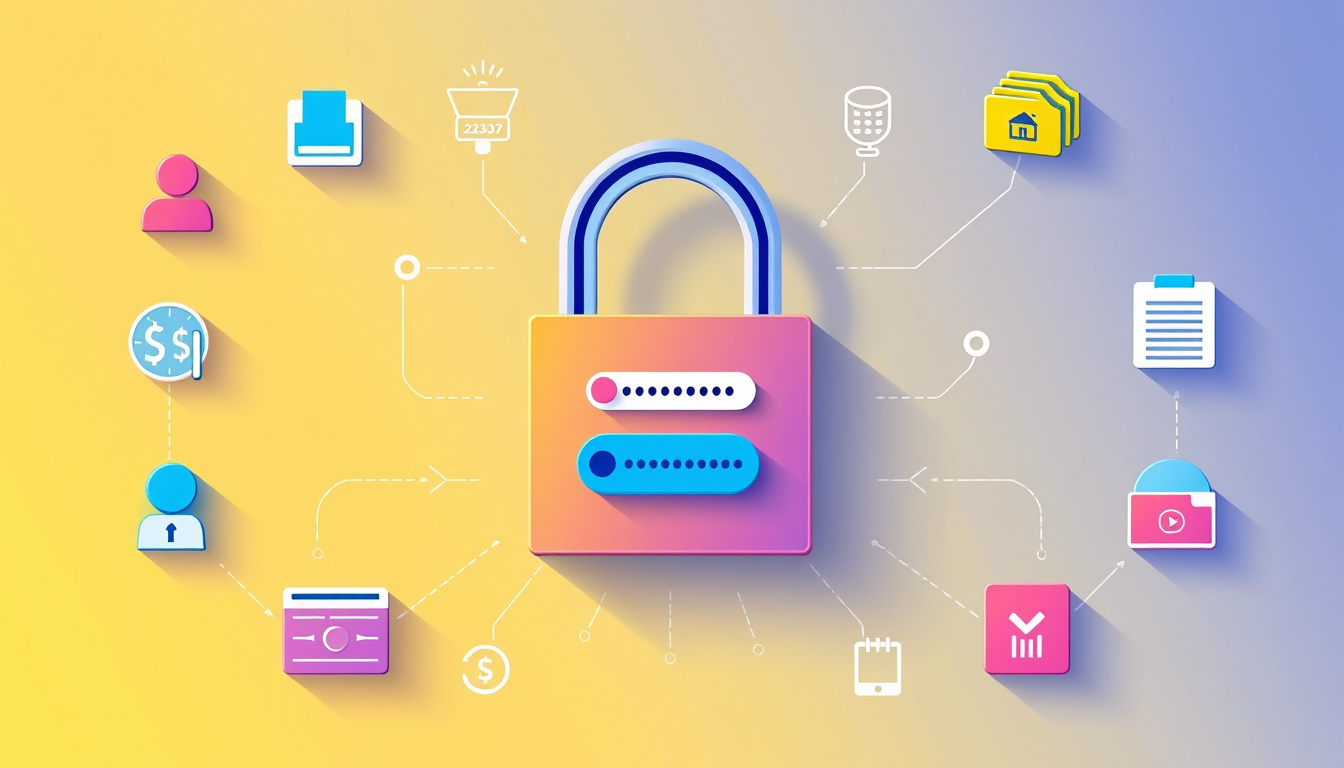
Two-factor authentication adds an extra layer of security by requiring not just your password but also a second form of verification when you sign in. This second factor is usually something you have (like a trusted device or a phone number), or something you are (like biometric data).
For example, after entering your password, you might be asked to enter a six-digit code sent to your phone or generated by an authenticator app. This dramatically reduces the risk of hackers accessing your account even if they have your password, as they would also need this second verification method.
Why Enable Two-Factor Authentication?
- Improved Security: It prevents unauthorized access when passwords are compromised.
- Protection for Sensitive Data: Accounts linked to personal or financial information are safer.
- Compliance and Features: Some services require 2FA for additional features like Apple Pay or cloud data encryption.
- Peace of Mind: Ensures only you can access your accounts, even on new devices.
How Two-Factor Authentication Works
When you sign into your account on a new device or browser, you’ll:
- Enter your username and password.
- Receive a verification code on a trusted device, phone number, or authenticator app.
- Enter the code to complete the sign-in process.
Once verified, the device can be marked as trusted, so you won’t have to enter a code on every sign-in unless you sign out, erase the device, or change your password.
How to Enable Two-Factor Authentication on Popular Platforms
Apple Accounts
Apple’s two-factor authentication requires your Apple ID password and a verification code sent to your trusted devices or phone number.
Steps to enable:
-
On iPhone or iPad:
- Open Settings.
- Tap your name at the top.
- Go to Password & Security.
- Tap Turn On Two-Factor Authentication.
- Follow the on-screen instructions.
-
On Mac:
- Open System Preferences.
- Click Apple ID.
- Select Password & Security.
- Click Turn On Two-Factor Authentication and follow the prompts.
-
On the web:
- Visit appleid.apple.com.
- Sign in to your Apple ID.
- Navigate to Security.
- Select Turn On Two-Factor Authentication.
Apple recommends securing your devices with a passcode and enabling biometric options like Face ID or Touch ID for added protection.
Microsoft Accounts
Microsoft refers to two-factor authentication as two-step verification. It offers various ways to receive the second verification factor, including email, phone number, or authenticator apps.
Steps to enable:
- Sign in to your Microsoft account at account.microsoft.com/security.
- Select Advanced security options or Manage how you sign in to Microsoft.
- Under Two-step verification, click Turn on.
- Follow the prompts to set up your verification methods, such as the Microsoft Authenticator app, phone number, or alternate email.
Microsoft also offers app passwords for apps or devices that don’t support two-step verification. These are special passwords that bypass the need for a verification code. Additionally, Microsoft is moving toward supporting passwordless sign-ins using biometric or device authentication for enhanced security.
Tips for a Smooth Two-Factor Authentication Experience
- Set Up Multiple Contact Methods: Use more than one phone number or email address to avoid being locked out.
- Use Authenticator Apps: Apps like Microsoft Authenticator or Google Authenticator generate codes even without internet access.
- Mark Trusted Devices: Marking your personal devices as trusted reduces frequent prompts for codes.
- Backup Codes: Many services provide backup codes when setting up 2FA; keep these somewhere safe.
- Regularly Update Security Info: Verify and update your phone numbers, emails, and app authenticator settings periodically.
- Be Aware of Recovery Procedures: Losing access to your second factor might require account recovery processes that can take time.
Conclusion
Enabling two-factor authentication is a simple yet powerful step to safeguard your online accounts from hacking and unauthorized access. Whether you use Apple’s ecosystem or Microsoft services, activating 2FA adds a robust security layer by requiring both your password and a second form of verification. Make your online presence safer today by turning on two-factor authentication for all your critical accounts.
By following this step-by-step guide, you ensure that your sensitive personal, financial, and professional data stay protected with minimal inconvenience. Embrace two-factor authentication as your frontline defense in the digital world.
About the Author