
In today’s digital world, laptops are often the go-to option for work and leisure due to their portability. However, many users find that the built-in laptop keyboard doesn’t always offer the comfort or functionality they need—especially for extended typing sessions. Fortunately, using an external keyboard can be a game-changer, enhancing both your productivity and typing comfort. This guide explores how to use an external keyboard effectively, covering setup methods, ergonomic tips, and troubleshooting advice.


Why Use an External Keyboard?
Many users struggle with small or cramped laptop keyboards that can lead to discomfort, typing errors, and even repetitive strain injuries. External keyboards offer a solution by providing:
- Ergonomic comfort: Larger ergonomic keyboards allow more natural hand positioning.
- Better key travel and feedback: Mechanical or full-size keyboards can improve typing accuracy.
- Customizability: Adjustable layouts, key remapping, and specialized keys.
- Improved productivity: Typing faster and more comfortably can boost workflow.
If you’ve ever wished to use your old favorite keyboard with your laptop for a more familiar and comfortable experience, rest assured—it’s entirely possible.
Types of External Keyboards and How to Connect Them
External keyboards come in several varieties, each with straightforward setup processes:
1. USB Wired Keyboards
Setup:
- Simply plug the USB cable into an available USB port on your laptop or desktop.
- Most modern operating systems, including Windows and macOS, will automatically detect the keyboard and install any necessary drivers.
- Start typing immediately; no additional setup is usually required.
Benefits:
- Reliable connection with minimal latency.
- No batteries needed.
- Plug-and-play convenience.
2. Wireless Keyboards with USB Receiver
Setup:
- Locate the small USB dongle (receiver) that comes with your keyboard, often stored inside its battery compartment.
- Plug the receiver into an available USB port.
- Power on the keyboard (ensure batteries are inserted).
- The operating system usually recognizes the device quickly and pairs automatically.
Benefits:
- Freedom of movement without the hassle of cables.
- Typically requires batteries but can offer extended battery life.
- Simple pairing via USB dongle.
3. Bluetooth Keyboards
Setup:
- Turn on the keyboard and ensure it is in pairing mode (check keyboard-specific instructions, typically involves holding a Bluetooth button until a light flashes).
- Open your computer’s Bluetooth settings (e.g., Windows: Start > Settings > Bluetooth & devices).
- Select “Add device,” choose your keyboard, and follow on-screen instructions.
- Once paired, the keyboard should connect automatically when powered on and in range.
Benefits:
- No USB ports taken up, ideal for devices with limited ports like ultrabooks.
- Multi-device support on some models.
- Wireless convenience without extra dongles.
Enhancing Your Workspace Ergonomics With an External Keyboard
Using an external keyboard is only part of the solution; setting your workspace ergonomically enhances comfort and prevents strain:
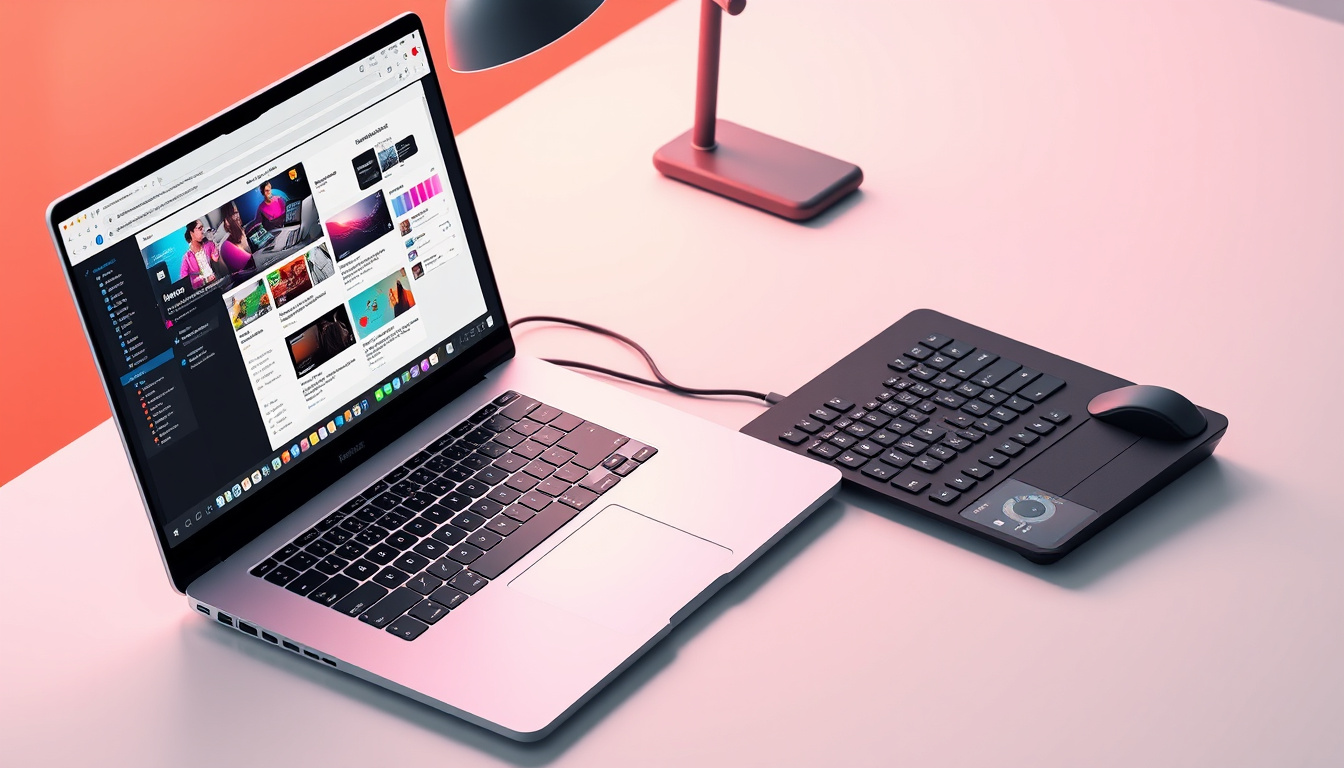
- Laptop Stand: Raise your laptop to eye level with a stand. This improves your posture by preventing neck strain.
- Separate Keyboard and Mouse: Position the external keyboard and mouse for a natural arm and wrist posture—shoulders relaxed, elbows at about 90 degrees.
- Disable Built-in Keyboard and Touchpad (Optional): To avoid accidental key presses or cursor jumps, disable your laptop’s built-in keyboard and touchpad through settings or using function keys.
- Cover or Block the Built-in Keyboard: For extra assurance against accidental keypresses, consider covering the laptop’s keyboard with a protective mat or keyboard cover.
Troubleshooting Tips
If you face issues when connecting or using an external keyboard, try these solutions:
- Keyboard Not Responding: Try different USB ports or restart your device.
- Bluetooth Keyboard Not Connecting: Ensure the keyboard is in pairing mode, batteries are charged, and you are within range. Update Bluetooth drivers if necessary.
- Keyboard Malfunctions: Test using another computer to isolate hardware versus software issues.
- Driver Problems: Although most keyboards are plug-and-play, checking for driver updates (especially for Bluetooth adapters) can resolve many connection problems.
Additional Tips to Boost Productivity
- Multi-Keyboard Use: Some operating systems support multiple keyboards simultaneously; this can be handy for specialized functions or shortcuts.
- Customization Software: For keyboards with advanced features, manufacturers provide software tools (such as Dell Display and Peripheral Manager or Alienware Command Center) for assigning macros, customizing lighting, or updating firmware.
- Language and Layout Settings: Adjust your operating system’s settings to match your keyboard layout or add language support to streamline typing.
Summary
Using an external keyboard with your laptop is a simple yet effective way to dramatically improve your typing experience. Whether you choose a USB wired keyboard for reliability, a wireless model for mobility, or a Bluetooth keyboard to save ports, setup is typically quick and hassle-free. Pairing an external keyboard with an ergonomic workspace setup not only boosts productivity but also protects your health. Keep your drivers and firmware up-to-date, and don’t hesitate to make use of customization tools and built-in OS settings to get the most out of your hardware.
Investing just a little time in connecting and configuring an external keyboard will unlock a more comfortable, efficient way to work—making those long typing sessions a breeze.
By embracing an external keyboard, you transform your laptop into a powerhouse of productivity and comfort.
About the Author