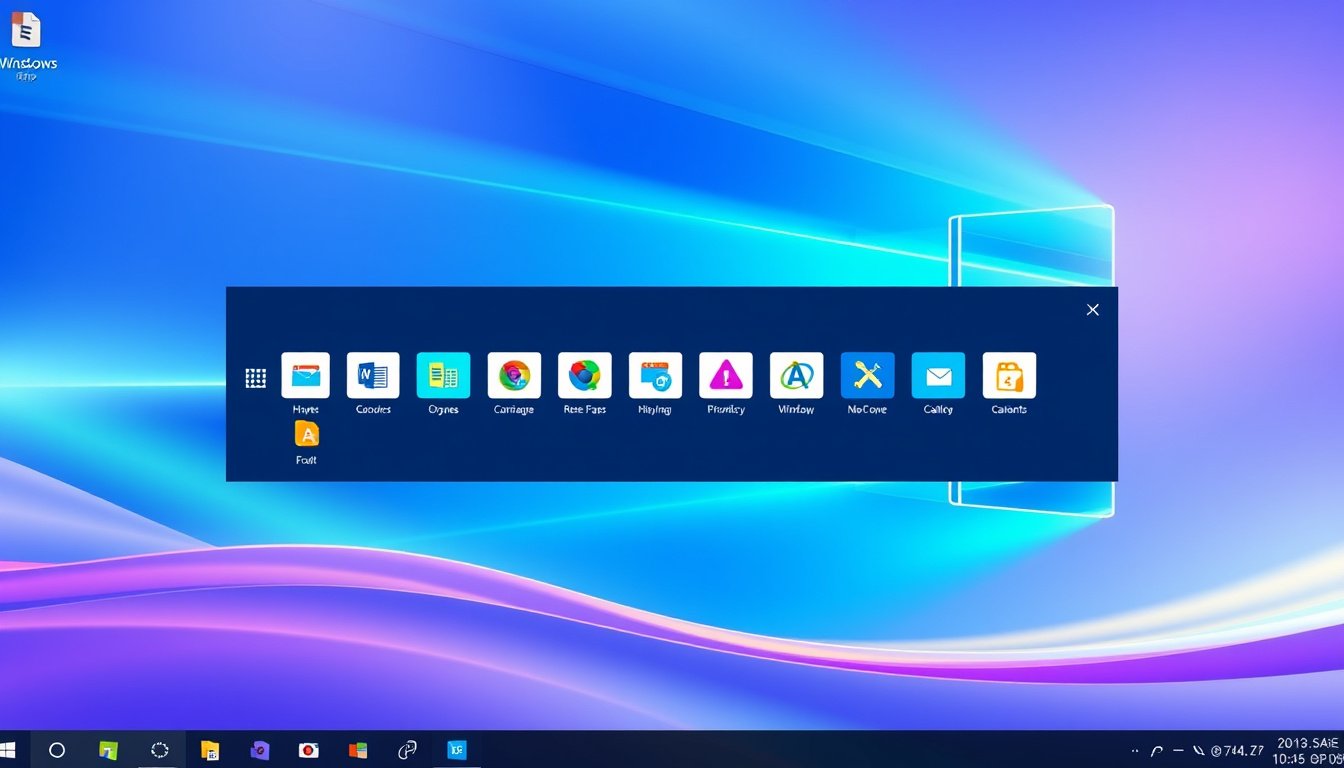

The Windows taskbar is more than just a visual element—it’s a powerful hub that helps you launch apps, track open windows, and access essential system tools. Whether you are a casual user wanting a clean desktop or a power user seeking to optimize workflow, customizing your Windows taskbar can transform your daily experience.


This guide dives deep into the customization options in Windows 10 and Windows 11, revealing how to modify the taskbar layout, manage pinned apps, adjust system tray icons, and more. By tailoring the taskbar to suit your workflow, you can navigate your system faster and work more efficiently.
Understanding the Taskbar Components
Before customizing, it’s useful to know the main elements of the taskbar:
- Start Button: The gateway to apps, settings, and files.
- Search: Enables quick search of files, applications, settings, and web results.
- Task View: Allows management of multiple desktops and open windows.
- Pinned Applications: Your favorite or frequently used apps that you can launch quickly.
- Widgets (Windows 11): Displays customizable dynamic content like news, weather, or calendar.
- System Tray: Includes background app icons, system notifications, and quick access tools like volume and network.
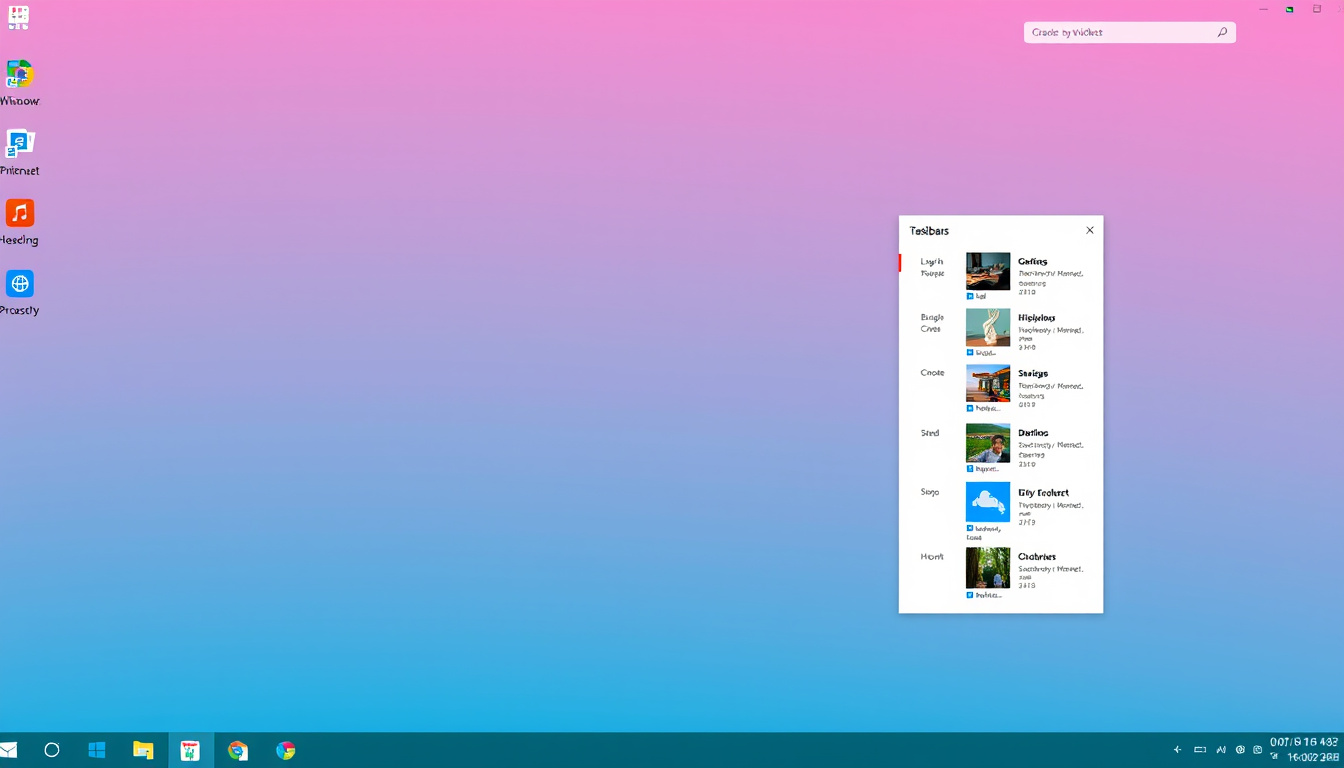
Some components like the Start menu and system tray are essential and cannot be removed, but most can be personalized extensively.
How to Customize Your Taskbar
1. Changing Taskbar Alignment
- Windows 11 Default: The taskbar icons are centered.
- Left-align Icons: To bring a classic look and make access feel familiar, you can align the taskbar icons to the left.
Steps:
- Right-click on the taskbar and choose Taskbar settings.
- Under Taskbar behaviors, find the Taskbar alignment dropdown.
- Choose Left or Center based on your preference.
2. Managing Pinned Apps
Pinning apps gives you one-click access to programs you use often.
To pin an app:
- Search for the app in the Start menu or search box.
- Right-click it and select Pin to taskbar.
- Alternatively, right-click an open app’s icon on the taskbar and select Pin to taskbar.
To unpin:
- Right-click the pinned icon on the taskbar.
- Select Unpin from taskbar.
You can also drag and rearrange pinned apps by clicking and moving the icons in your preferred order.
3. Customizing the System Tray Icons
The system tray holds many background apps and utilities. Managing what’s visible reduces clutter and helps you focus.
To customize:
- Right-click the taskbar and select Taskbar settings.
- Scroll to the Notification area and click on Select which icons appear on the taskbar.
- Toggle on/off the icons you want to see or hide.
4. Showing or Hiding Key Taskbar Buttons
Windows allows you to toggle visibility for helpful elements:
- Widgets (Windows 11): For quick info at a glance.
- Search box: Choose between full search box, only icon, icon with label, or hide.
- Task View button: Shows thumbnails of open windows and desktops.
- People (Windows 10): Quick access to contacts.
Adjust these by:
- Right-clicking the taskbar.
- Choosing Taskbar settings.
- Under Taskbar items, toggling On or Off for each component.
5. Using Jump Lists for Apps
Right-clicking on a pinned or running app reveals a jump list—a menu with recent files or quick actions. You can enable or disable recent items in jump lists through:
- Settings > Personalization > Start
- Toggle Show recently opened items in Jump Lists on Start or the taskbar.
Tips to Maximize Efficiency with Taskbar Customization
- Keep only the essentials pinned to avoid distraction.
- Use multiple desktops with Task View to separate workspaces for different projects.
- Bring up search quickly with shortcut Windows + S.
- Utilize keyboard shortcuts like Windows + Number keys to open pinned apps in that position.
- Hide less-used system tray icons to keep focus on critical notifications.
- Experiment with widgets for dynamic updates but disable if they distract you.
Conclusion
Customizing your Windows taskbar isn’t just about aesthetics—it’s about crafting a workspace that fits your unique habits and maximizes productivity. By learning how to adjust alignment, pin and organize apps, manage system tray icons, and tailor key taskbar features, you can work smarter and faster.
Take control of your taskbar today and unlock a smoother, more efficient Windows experience.
About the Author