
Visual effects in modern operating systems add aesthetic appeal and enhance user experience with animations, transparency, and smooth transitions. While these can be visually pleasing, they often consume processing power and system resources, potentially slowing down your computer, especially if it is older or has limited hardware capabilities. Disabling or minimizing these effects can lead to a noticeable improvement in system responsiveness and overall speed. This guide will walk you through how to disable visual effects on Windows to boost your PC’s performance.


Why Disable Visual Effects?
Visual effects such as window animations, fading menus, shadows under menus, and transparency effects require the processor and graphics hardware to expend resources on rendering these features. For powerful, modern machines, this might be negligible, but for medium or low-end computers, or if you simply want a snappier user interface, turning these effects off can:
- Make windows open, close, and minimize faster.
- Improve system responsiveness and reduce input lag.
- Potentially increase battery life on laptops by reducing GPU and CPU workload.
- Free up resources that can be better used by your applications and processes.
How to Disable Visual Effects in Windows for Better Performance
Method 1: Through Windows 10/11 System Properties
-
Open System Properties:
- Right-click on This PC (or My Computer on older versions) on your desktop or in File Explorer, then select Properties.
- Alternatively, press
Windows Key + Pause/Break.
-
Access Advanced System Settings:
- In the System window, click Advanced system settings on the left sidebar.
- This will open the System Properties window.
-
Open Performance Options:
- Under the Advanced tab, locate the Performance section.
- Click the Settings button.
-
Adjust for Best Performance:
- In the Visual Effects tab, select Adjust for best performance.
- This option will disable all animations and visual effects.
- You can also choose Custom if you want more granular control over which effects to keep or disable.
-
Apply and Confirm:
- Click Apply, then OK to save your changes.
- Close any remaining windows.
Changing these settings instantly impacts how Windows behaves. For example, windows will appear and close immediately, and menus will pop open without visual transitions.
Method 2: Disabling Animations and Transparency in Windows 11 Settings
Windows 11 has additional settings under Accessibility that help disable animations and transparency effects without fully turning off all visual features.
-
Open Settings:
- Click Start and select Settings (gear icon), or press
Windows + I.
- Click Start and select Settings (gear icon), or press
-
Navigate to Accessibility:
- On the sidebar, select Accessibility.
-
Select Visual Effects:
- Click on Visual effects.
-
Disable Animation Effects and Transparency:
- Toggle off Animation effects.
- Toggle off Transparency effects.
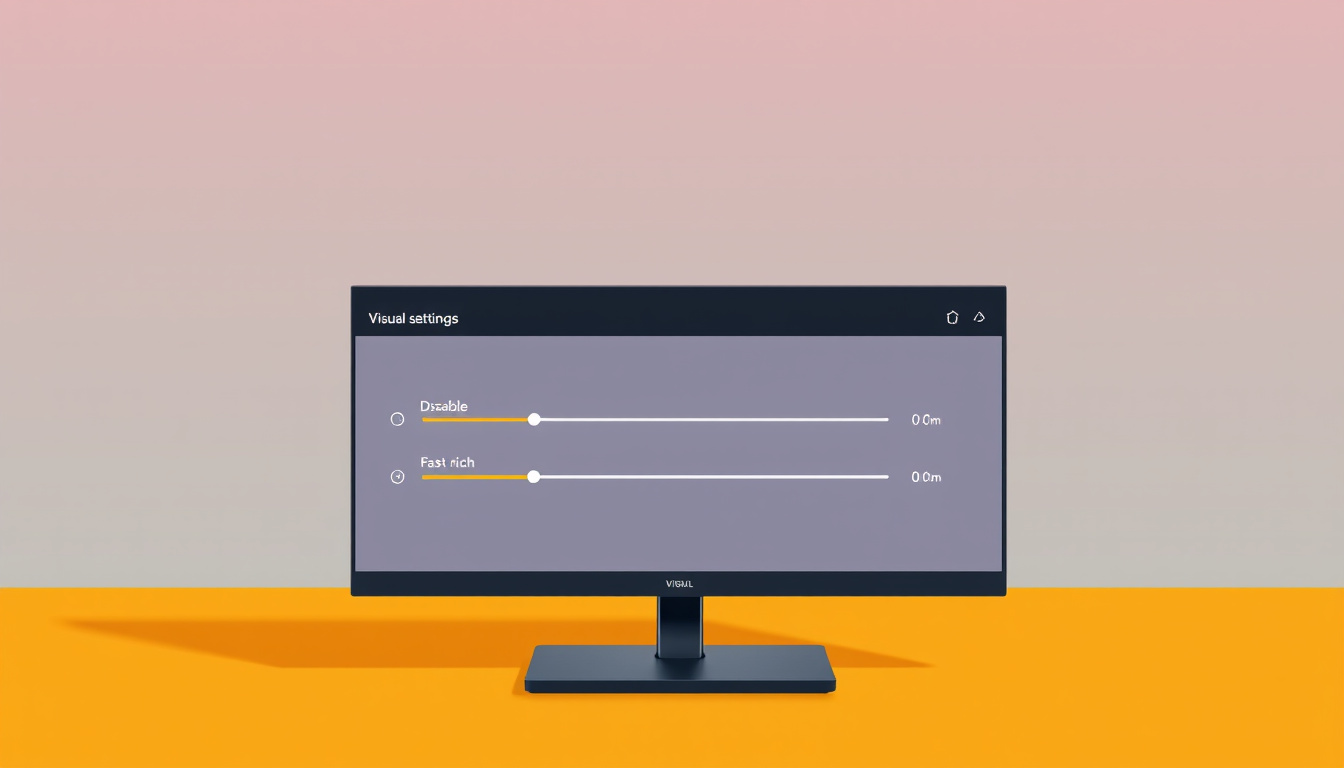
These adjustments help improve responsiveness while keeping some modern UI elements intact.
What to Expect After Disabling Visual Effects
- Faster UI Reactions: Windows will reduce or eliminate fade-in/out effects, animated transitions, and shadows, making operations feel instantaneous.
- Smoother Program Launch: Applications open quicker as the system allocates more resources to running software instead of rendering animations.
- Better Battery Life: On laptops, especially, less GPU and CPU overhead can save battery power.
- Less Aesthetic Appeal: The tradeoff is a more basic, less polished look. For example, selected items in File Explorer might lose their translucent highlighting, resembling older Windows versions.
Conclusion
Disabling visual effects is a proven and simple optimization that can breathe new life into aging or sluggish Windows PCs. By focusing on raw performance instead of aesthetics, you can achieve a more responsive and efficient computing experience. Whether you have Windows 10 or Windows 11, the steps outlined above allow you to tailor your system’s visual settings to strike a balance between speed and appearance that best suits your needs. Experiment with these options and decide what feels right — the improvements are immediate and reversible anytime you wish.
Disabling visual effects is a straightforward, no-cost tweak to help your computer run faster and smoother. For users seeking maximal responsiveness and efficiency, it’s one of the first optimizations to try.
About the Author