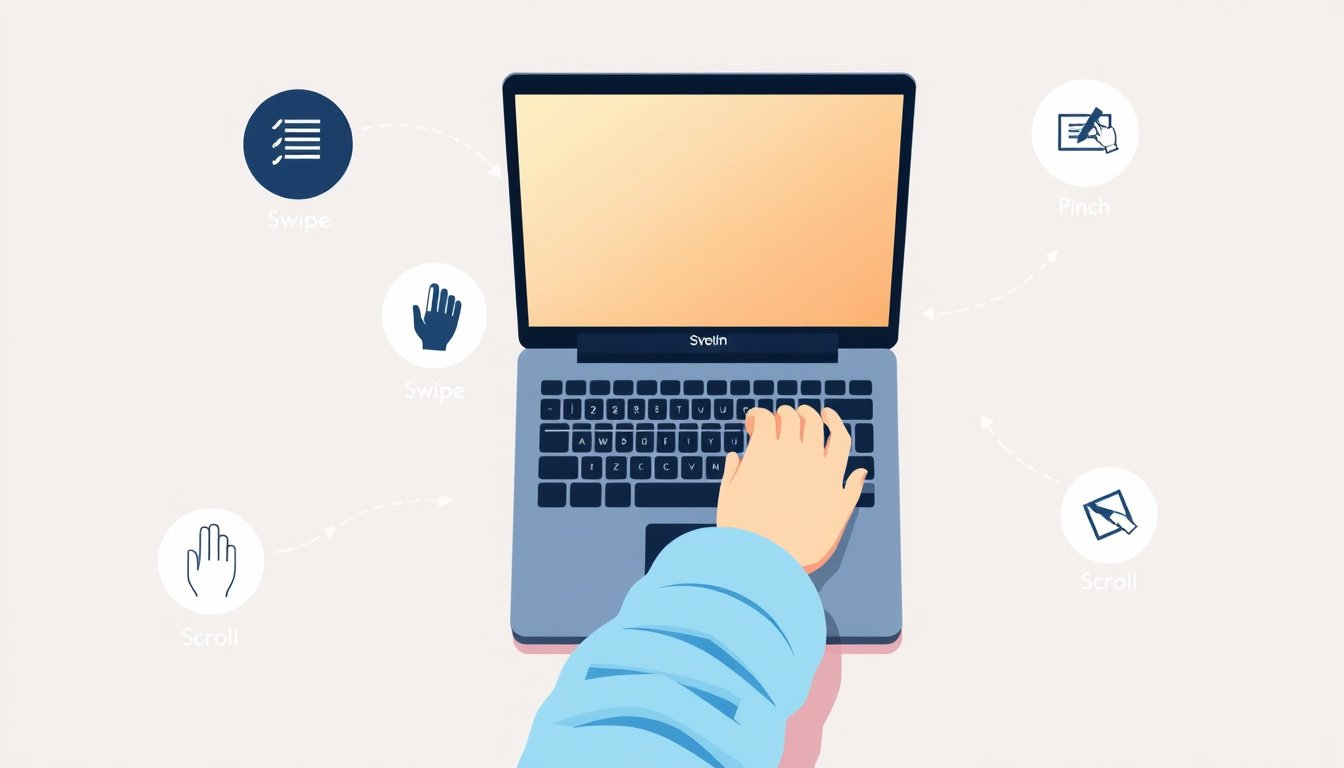

In today’s fast-paced digital world, mastering touchpad gestures can revolutionize how you interact with your computer, making navigation smoother and boosting your productivity. Whether you use a Windows laptop, a MacBook, or a modern clickpad device, understanding and utilizing multi-finger gestures can save time and streamline your workflow. This comprehensive guide breaks down essential touchpad gestures across platforms and offers tips to maximize their benefits.


Understanding Touchpad Gestures
Touchpad gestures are intuitive finger movements on your touch-sensitive input device — often a laptop’s touchpad or an external trackpad — that allow you to execute commands without clicking physical buttons. Gestures can involve tapping, swiping, pinching, or dragging with one or more fingers, and their effects range from simple clicks to complex desktop navigation.
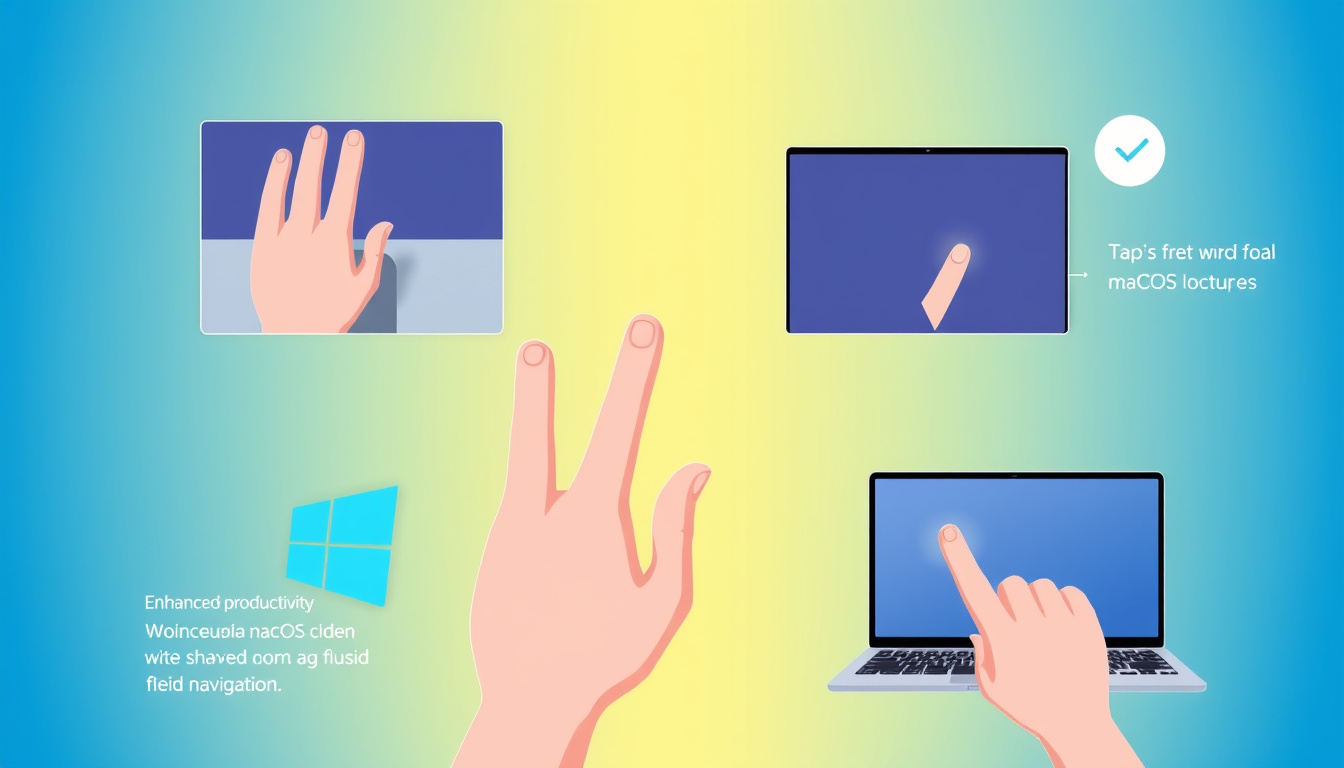
Touchpad Gestures on Windows Devices
Windows laptops primarily rely on precision touchpads which support a variety of multi-finger gestures enabled by the operating system. Here is a summary of commonly used gestures on Windows (tested on Windows 10 and 11):
| Action | Gesture |
|---|---|
| Select an item | Tap the touchpad once |
| Right-click / Show commands | Tap with two fingers or press lower-right corner |
| Scroll horizontally/vertically | Slide two fingers |
| Zoom in or out | Pinch or stretch with two fingers |
| Show all open windows | Swipe three fingers up |
| Show desktop | Swipe three fingers down |
| Switch between open apps/windows | Swipe three fingers left or right |
| Switch virtual desktops | Swipe four fingers left or right |
| Open Cortana (optional) | Tap three fingers |
| Open notification center | Tap four fingers |
Customizing Gestures:
Windows allows customization of three- and four-finger gestures through Settings > Bluetooth & devices > Touchpad. You can assign these gestures to actions such as switching between apps, opening action center, or controlling media.
Tips:
- Ensure three and four-finger gestures are enabled in your settings.
- Some gestures only work on precision touchpads, so check your device compatibility.
- Disable complex four-finger gestures initially if accidental triggers occur.
Touchpad and Trackpad Gestures on Mac
Apple’s MacBooks and Magic Trackpads are known for smooth, responsive multi-touch gesture support, often including Force Touch features. Here’s a rundown of standard gestures on macOS:
| Action | Gesture |
|---|---|
| Click (select) | Tap with one finger |
| Right-click | Click or tap with two fingers |
| Smart zoom | Double-tap with two fingers on a webpage or PDF |
| Scroll | Slide two fingers vertically or horizontally |
| Zoom in or out | Pinch or spread two fingers |
| Rotate object | Move two fingers clockwise or counterclockwise |
| Swipe between pages | Swipe left or right with two fingers |
| Show Notification Center | Swipe left from the right edge with two fingers |
| Three-finger drag | Drag items on screen (enable in Accessibility settings) |
| Look up word or data detectors | Tap with three fingers |
| Show desktop | Spread thumb and three fingers apart |
| Show apps | Pinch thumb and three fingers together |
| Mission Control | Swipe up with four fingers |
| App Exposé | Swipe down with four fingers |
| Switch full-screen apps | Swipe left or right with four fingers |
Options and Customization:
macOS allows fine-tuning of these gestures in System Preferences > Trackpad or Mouse. You can enable/disable gestures, change their behavior, and learn about advanced features like Force Click.
The Evolution and Productivity Benefits of Touchpad Gestures
Clickpads and the Microsoft Precision Touchpad Standard
Modern Windows laptops increasingly use clickpads—touchpads without distinct physical buttons but with a tilt-sensitive “click” mechanism. The adoption of Microsoft’s Precision Touchpad standard since 2015 unified the gesture experience and made proprietary drivers unnecessary, ensuring gestures work smoothly across all devices.
Productivity Gains
Touchpad gestures reduce reliance on keyboard shortcuts and mouse clicks, making tasks more fluid:
-
Web Browsing:
- Use three-finger tap to open links in new tabs or close tabs quickly.
- Two-finger swipe for smooth scrolling and pinch to zoom improves readability.
-
Word Processing:
- Single tap places the cursor.
- Double tap selects words, triple tap selects paragraphs.
- Tap-tap-drag enables easy text selection without holding buttons.
-
Spreadsheets:
- Two-finger scroll to navigate large data sheets.
- Pinch to adjust the zoom level and better view detailed info.
-
Messaging Apps:
- Double-tap selects text for editing.
- Two-finger scroll to browse message history gracefully.
Leveraging these gestures can transform everyday computer use by cutting down hand movements, speeding up navigation, and enhancing interface control with minimal effort.
Tips for Learning Touchpad Gestures
- Start Simple: Focus on mastering basic gestures like single taps, two-finger scrolls, and pinch zoom before progressing to multi-finger swipes.
- Customize to Your Workflow: Adjust gestures such as three- and four-finger taps to actions you use frequently.
- Practice Regularly: Incorporate gestures into daily tasks to build muscle memory and increase efficiency.
- Use Accessibility Settings: Features like three-finger drag on Mac or gesture sensitivity adjustments on Windows can make gestures easier to use.
- Stay Updated: Keep your operating system and drivers current to ensure optimal gesture performance.
Conclusion
Touchpad gestures are powerful tools that enhance computer use across Windows and macOS platforms. By mastering these intuitive finger movements—from basic tapping and scrolling to advanced multi-finger swipes—you can navigate seamlessly, speed up routine tasks, and boost productivity. Whether you’re a casual user or a power professional, learning your device’s gesture repertoire is a worthwhile investment to harness the full potential of your touchpad.
Explore your device’s touchpad settings today and unlock a new level of fluid, efficient computing!
About the Author