In an age where juggling numerous tasks simultaneously has become the norm, managing your digital workspace efficiently can dramatically improve your productivity and reduce clutter. One powerful tool that Windows users often overlook is the feature of multiple desktops, also known as virtual desktops. By mastering this feature, you can declutter your screen, organize tasks, and streamline your workflow, all without the need for additional hardware.


What Are Multiple Desktops?
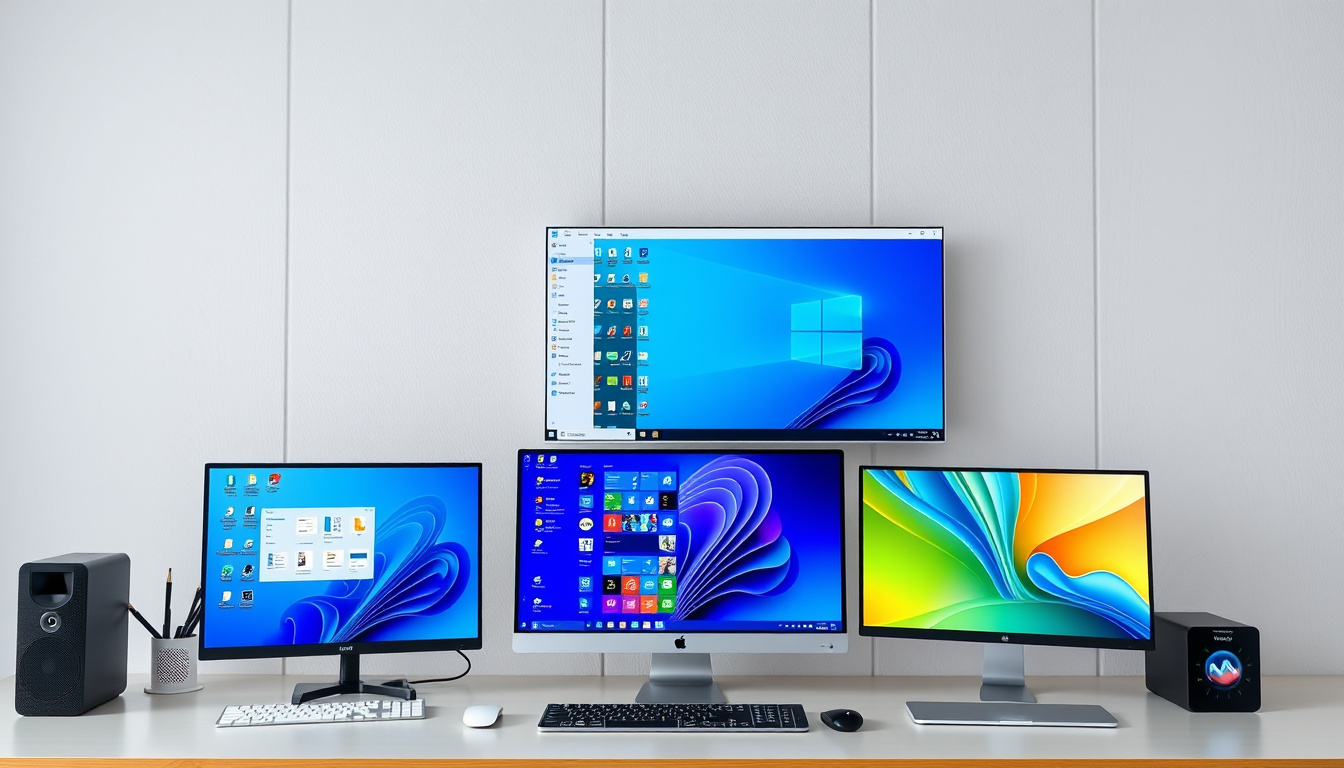
Multiple desktops allow you to create and use several separate desktop environments on a single computer. Think of it as having several monitors but virtual, within the same physical screen. Each desktop can contain different applications and windows dedicated to specific functions or projects. This setup helps to keep your work organized and minimizes distraction by compartmentalizing tasks.
Why Use Multiple Desktops?
If you’re someone who often finds their screen overflowing with windows or struggles to switch between unrelated tasks, multiple desktops can be a game-changer. Here are some key benefits:
- Improved Focus: Keep your work, personal apps, and entertainment separate. For example, you might have one desktop for work emails and documents, another for browsers and research, and a third for messaging or entertainment.
- Better Organization: Group related apps together to reduce the clutter and make navigation intuitive.
- Efficiency on Single Screens: Even if you have just one monitor, virtual desktops simulate the extension of workspace similar to multiple physical screens.
- Reduced Cognitive Load: Switching between desktops keeps your primary screen less busy and helps your brain focus on one type of task at a time.
- Flexibility: Easily switch desktops depending on your task, context, or mood.
How to Use Multiple Desktops in Windows 10 and 11
Both Windows 10 and Windows 11 come with an integrated multiple desktop feature called Task View. Here’s how you can harness this built-in function.
Step 1: Creating a New Desktop
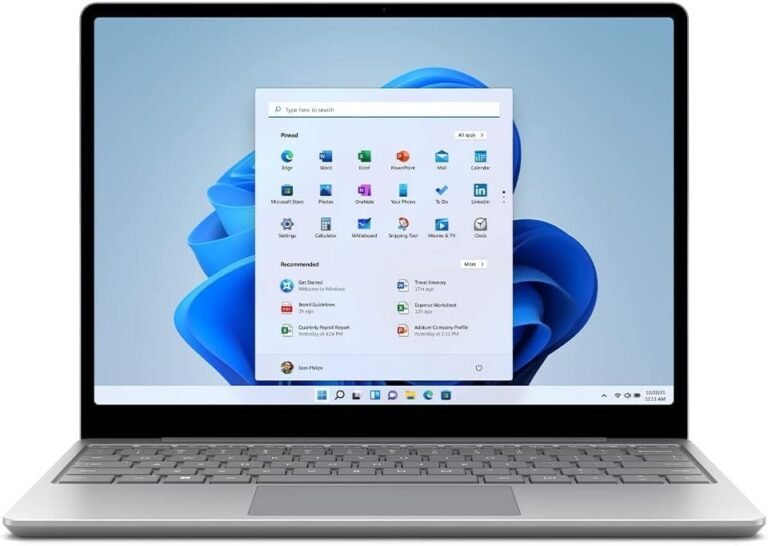
- Click the Task View button on the taskbar (icon looks like overlapping rectangles). If you don’t see it, right-click the taskbar, choose Taskbar Settings, and toggle Task View on.
- Alternatively, press Windows Key + Tab to open Task View.
- Click the New Desktop button (a tile with a plus sign) to add a virtual desktop.
- You can also create a new desktop directly using the keyboard shortcut Windows Key + Ctrl + D.
Step 2: Switching Between Desktops
- Use Task View (Windows Key + Tab) and click the desktop you want to switch to.
- For quick switching without opening Task View, press Windows Key + Ctrl + Left Arrow or Windows Key + Ctrl + Right Arrow to cycle through your desktops.
Step 3: Moving Windows Between Desktops
- Open Task View.
- Hover over the desktop that has the window you want to move.
- Right-click on the window’s thumbnail, select Move to, and pick the target desktop.
- In newer Windows versions, you can drag and drop windows directly between desktops within the Task View pane.
Step 4: Closing a Desktop
- Open Task View.
- Find the desktop you want to close and click the small X in its upper-right corner.
- Alternatively, press Windows Key + Ctrl + F4 to close the currently active desktop.
Tips for Getting the Most Out of Multiple Desktops
- Customize backgrounds per desktop: This Windows 11 feature helps you visually distinguish between desktops quickly.
- Group apps by task or project: For example, dedicate one desktop for work-related apps — email, documents, spreadsheets — and another for personal browsing.
- Learn keyboard shortcuts: They significantly speed up switching and managing desktops without interrupting your workflow.
- Combine with multiple monitors: Even if you have multiple physical monitors, virtual desktops can help further organize your workspace.
- Explore third-party tools: Tools like Microsoft PowerToys offer enhanced workspace management features beyond the default options.
Practical Use Cases
- Remote or hybrid work: Switching between desktops can help separate work from personal life, especially when working from different locations.
- Focused work sessions: Use a desktop dedicated solely to your core tasks, minimizing distractions from notifications or chats that reside on another desktop.
- Creative projects: Have different desktops for design tools, reference materials, and communication apps.
- Studying or research: Organize your windows by topic or subject to keep materials accessible but neatly grouped.
Limitations to Keep in Mind
While multiple desktops are incredibly useful, there are some current limitations in Windows:
- You cannot quickly jump directly to a specific desktop without cycling through others using shortcuts.
- Some earlier versions of Windows 10 restrict dragging windows between desktops.
- In Windows 10, wallpaper customization per desktop is not supported (this feature is in Windows 11).
- Task View shows a limited number of desktops at once, which can be cumbersome for very heavy users with many desktops.
However, Microsoft continues to improve this feature with each update, and the benefits outweigh these minor drawbacks.
Conclusion
Mastering multiple desktops is a straightforward yet powerful way to maximize your productivity and streamline your digital workspace. Whether you are a professional drowning in countless open applications or a casual user wanting to keep your tasks organized, virtual desktops can save you time and mental energy. With simple shortcuts and customization options at your fingertips, it’s easy to get started and make your computing experience cleaner, more efficient, and honestly, more enjoyable.
Start experimenting with multiple desktops today and transform how you manage your tasks!
About the Author