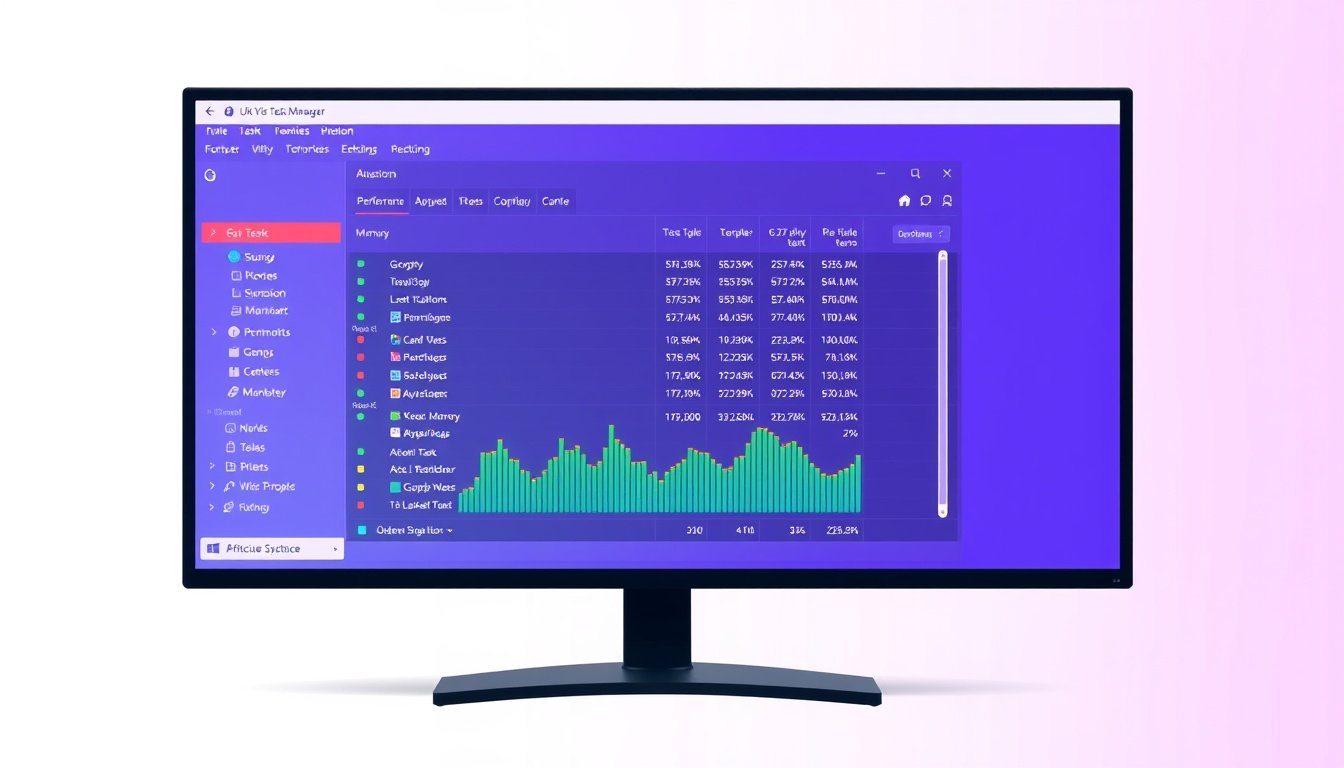

Windows Task Manager is a powerful built-in tool designed to help users monitor and manage the performance of their computer. Whether you are troubleshooting slowdowns, unresponsive applications, or just curious about how your system is utilizing resources, Task Manager provides essential insights and control over running processes, system resources, and startup programs. This guide will walk you through how to open, navigate, and use Task Manager effectively to optimize and maintain your PC’s performance.


What is Task Manager?
Task Manager is a utility included with Windows operating systems that allows you to view active processes, system performance metrics, running services, and program startup details. It provides critical information about CPU, memory, disk, and network usage in real-time, helping you detect and address performance bottlenecks or problematic software behavior.
How to Open Task Manager
There are several quick methods to launch Task Manager:
-
Keyboard Shortcut: Ctrl + Shift + Esc
Opens Task Manager immediately—perfect when the system is lagging or the mouse is unresponsive. -
Right-click Taskbar
Right-click the Windows taskbar and select "Task Manager" from the context menu. -
Ctrl + Alt + Delete
Pressing this combination brings up a security options screen with Task Manager as one of the options. -
Windows Key + X
Opens the Quick Access menu where Task Manager can be selected alongside other system tools.
Navigating Task Manager Tabs and Their Functions
1. Processes Tab
This tab lists all running applications and background processes, along with CPU, memory, disk, and network utilization stats. You can sort processes by any column to identify resource hogs quickly. It’s your first stop when diagnosing what’s causing your PC to slow down.
Tips:
- Look for processes with consistently high CPU or memory usage.
- Web browsers, games, or large applications often appear here as intensive users.
2. Performance Tab
Displays real-time graphs for CPU, memory, disk, and network usage. It helps you visualize system resource consumption and spot bottlenecks. Hover over graphs for detailed info such as CPU cores in use or disk read/write speeds.
Useful for:
- Detecting sustained high CPU or disk usage.
- Assessing if a hardware upgrade is needed.
3. App History Tab
Tracks cumulative resource usage of Windows Store apps over time (typically 30 days). This tab is less relevant for traditional desktop apps but useful if you use many Windows Store apps.
4. Startup Tab
Enables you to manage which programs launch automatically at system startup. Disabling unnecessary startup programs can drastically improve boot times and free up resources.
Pro Tip:
- Pay attention to the “Startup Impact” column to identify high-impact apps that slow down startup.
5. Users Tab
Shows active user sessions and the resources each user consumes. Handy for multi-user PCs to monitor or disconnect resource-heavy sessions.
6. Details Tab
Provides granular details about each process, including PID (Process Identifier), CPU and memory usage. Advanced users can adjust process priorities here to allocate more CPU time to critical tasks.
7. Services Tab
Lists background services with options to start, stop, or restart them. Useful for troubleshooting if system services like Windows Update or Print Spooler malfunction.
How to Use Task Manager to Monitor Your System
Monitor Resource Usage
Open the Processes or Performance tab to see which apps or processes are consuming your CPU, memory, disk, or network resources. If your computer runs slowly or fans are loud, check here for suspect processes—unexpectedly high usage often points to the culprit.
End Unresponsive Tasks
If an application freezes or is labeled “Not Responding,” locate it under Processes or Details, right-click, and choose End Task. This can restore system responsiveness without a full reboot.
Manage Startup Programs
Many apps auto-launch with Windows, potentially slowing startup times. Use the Startup tab to disable unnecessary programs, improving boot speed and resource availability.
Troubleshoot Performance Issues
Use the Performance tab’s real-time graphs to detect sustained spikes or maxed-out resources. High CPU or disk activity could hint at malware, driver issues, or hardware limitations. Task Manager helps narrow down software-related causes before more detailed troubleshooting or hardware upgrades.
Important Tips and Warnings
- Be cautious when ending processes. Some system processes are critical for Windows stability. Avoid terminating processes named System, winlogon.exe, or svchost.exe unless you are sure of their role.
- Use Task Manager together with antivirus software to spot suspicious processes that may indicate malware. Unfamiliar apps using excessive resources warrant further investigation.
- Adjust process priority carefully. Increasing priority can help important tasks but may starve other processes. Only adjust this setting if you understand the implications.
Additional Monitoring Features
- Network Monitoring: Enable the network column in Processes to see which apps are sending or receiving data. The Performance tab also shows network usage graphs.
- Disk Usage: Monitor which processes are reading/writing to disk to identify heavy disk activity that may slow down your PC.
- System Uptime: Check the Performance tab for how long your system has been running since the last boot.
Conclusion
Windows Task Manager is an essential, versatile tool for anyone looking to master their PC’s performance. From quickly terminating unresponsive apps to managing startup routines and monitoring system health metrics in real time, Task Manager empowers you to diagnose and resolve many common system performance problems with ease. Familiarizing yourself with its tabs and features can lead to smoother, faster computing and greater control over your system resources.
Use this guide to explore Task Manager’s capabilities, and turn it into your first line of defense against sluggishness and unexpected system freezes. By regularly monitoring system activity and managing resource-heavy tasks, you’ll maintain your PC’s health and enjoy a more responsive Windows experience.
About the Author